Web interface
The web interface is njMule's window in a browser: the same interface as the desktop app, with the same places, menus, dialogs and 36 languages, behind a password. Use it to drive njMule on a server, a NAS or a Windows service that has no window, or to look at your desktop njMule from another room. It runs inside njMule itself, headless or beside the desktop app, so there is nothing else to install.
Turn it on
The web interface starts together with njMule once it is turned on and has a password of at least 8 characters. Choose one of the ways below: the desktop app's takes effect at once, the others from the next start of njMule.
In the desktop app
On the computer that runs njMule:
- Open Options → Web Interface.
- Type a password twice in New password, twice (empty keeps the current one).
- Switch on Turn the web interface on.
- Change the Port if 4711 is taken, and switch on Let other computers connect (otherwise only this one) if you want to reach it from another device.
The web interface starts at once, and starts again whenever you change these settings. Only the desktop app on njMule's computer changes them: a browser, even signed in with your password, shows this page greyed out.
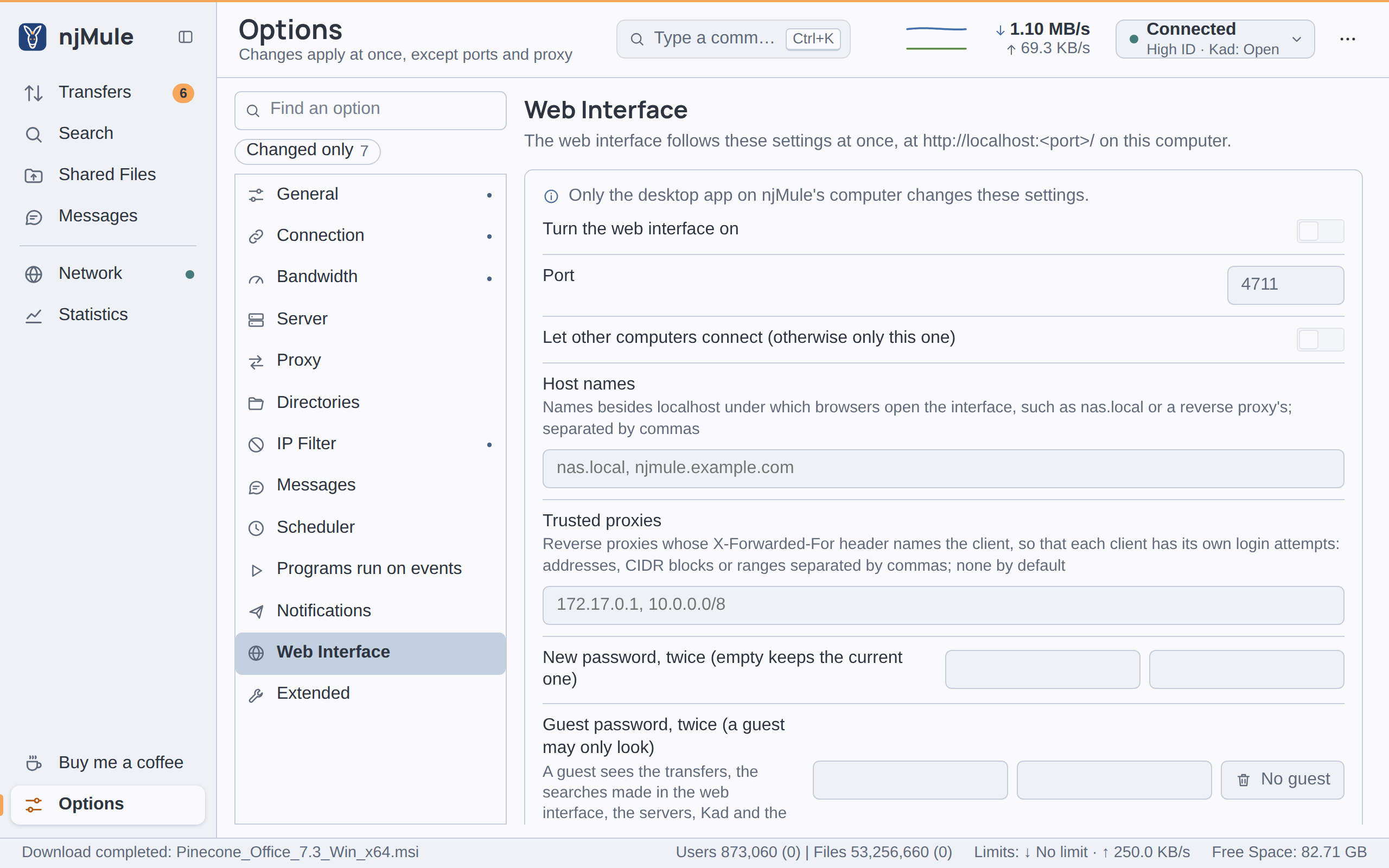
The other rows of this page (host names, trusted proxies, the guest password and the API) are explained in Web interface options.
From the command line
njmule --webui-password
njmule --webui-password --webui-port 8080 --webui-lan
njMule asks for the password twice, without showing it, turns the interface on, tells the address and exits. The interface then starts with the next njMule on this configuration.
Each --webui-password sets the web interface up anew from the options you give with it: LAN
access, the host names and the trusted proxies you leave out are turned off. The port, the
remote-control API and the guest password stay as they were.
From a password file
Scripts, containers and services cannot type a password. Put it on the first line of a file
instead, such as a Docker or systemd secret, and name the file with --webui-password-file:
printf '%s\n' 'a password of 8 characters or more' > ~/njmule-webui-password
chmod 600 ~/njmule-webui-password

# Set it once, without asking, and exit:
njmule --webui-password --webui-password-file ~/njmule-webui-password --webui-lan

# Or set it at every start and run njMule, so that the file stays the reference:
njmule --webui-password-file ~/njmule-webui-password --webui-lan
njMule reads only the first line of the file (UTF-8 text of 4096 bytes at most) and never prints
or logs it. With --webui-password it is a set-up of its own: LAN access, host names and trusted
proxies are those of the command line, and the ones left out are dropped.
Used without --webui-password, the file sets the password and the options given with it at
every start, and what they leave out stays as saved: LAN access stays on once turned on, and host
names or trusted proxies given replace those listed before. This is how the
Docker image starts.
The options
| Option | Default | What it does |
|---|---|---|
--webui-password | Asks for a new password, turns the interface on and exits | |
--webui-password-file <file> | Takes the password from the first line of a file | |
--webui-port <port> | 4711 | The port the interface listens on |
--webui-lan | off | Listens on every address of the computer, not only on this computer |
--webui-host <name> | none | A host name the interface answers to, such as nas.local (repeatable) |
--webui-proxy <address> | none | A reverse proxy trusted to name its client |
--webui-api | off | Also answers the remote-control API |
The last five only come with --webui-password or --webui-password-file. Host names and proxies
can be repeated or separated by commas. Without --webui-lan the interface listens on
127.0.0.1 only, so only a browser on the same computer reaches it. Read
Security before you open it to other computers, and
Reverse proxy to serve it over HTTPS.
The interface speaks plain HTTP. Turn on LAN access only on a network you trust, or reach it through a reverse proxy that serves HTTPS.
Sign in
- Open
http://localhost:4711/on the computer that runs njMule, or the address of that computer from another one, such ashttp://192.0.2.10:4711/(with LAN access on). - Type the password and choose Log in.
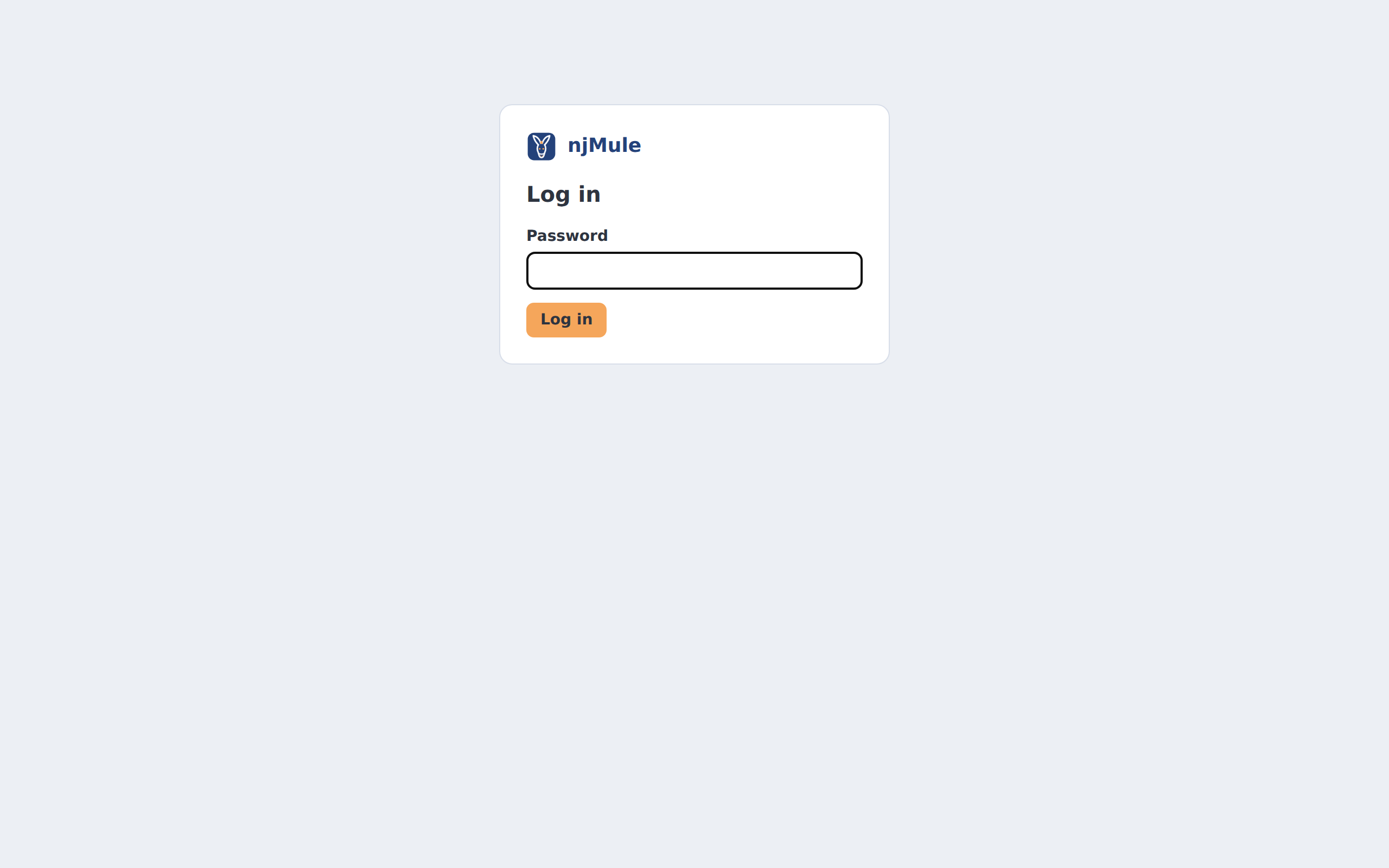
A session ends after 30 minutes without a request, or with ⋯ → Logout in the top bar, which
brings back the sign-in page; a page left open keeps it alive. The desktop app's window has no
session, and no Logout. A host name that is not localhost or an IP address must be listed
first, or the interface answers Unknown host name (see Host names).
Signing in with the guest password opens the read-only view described in
Guest access.
Find your way around
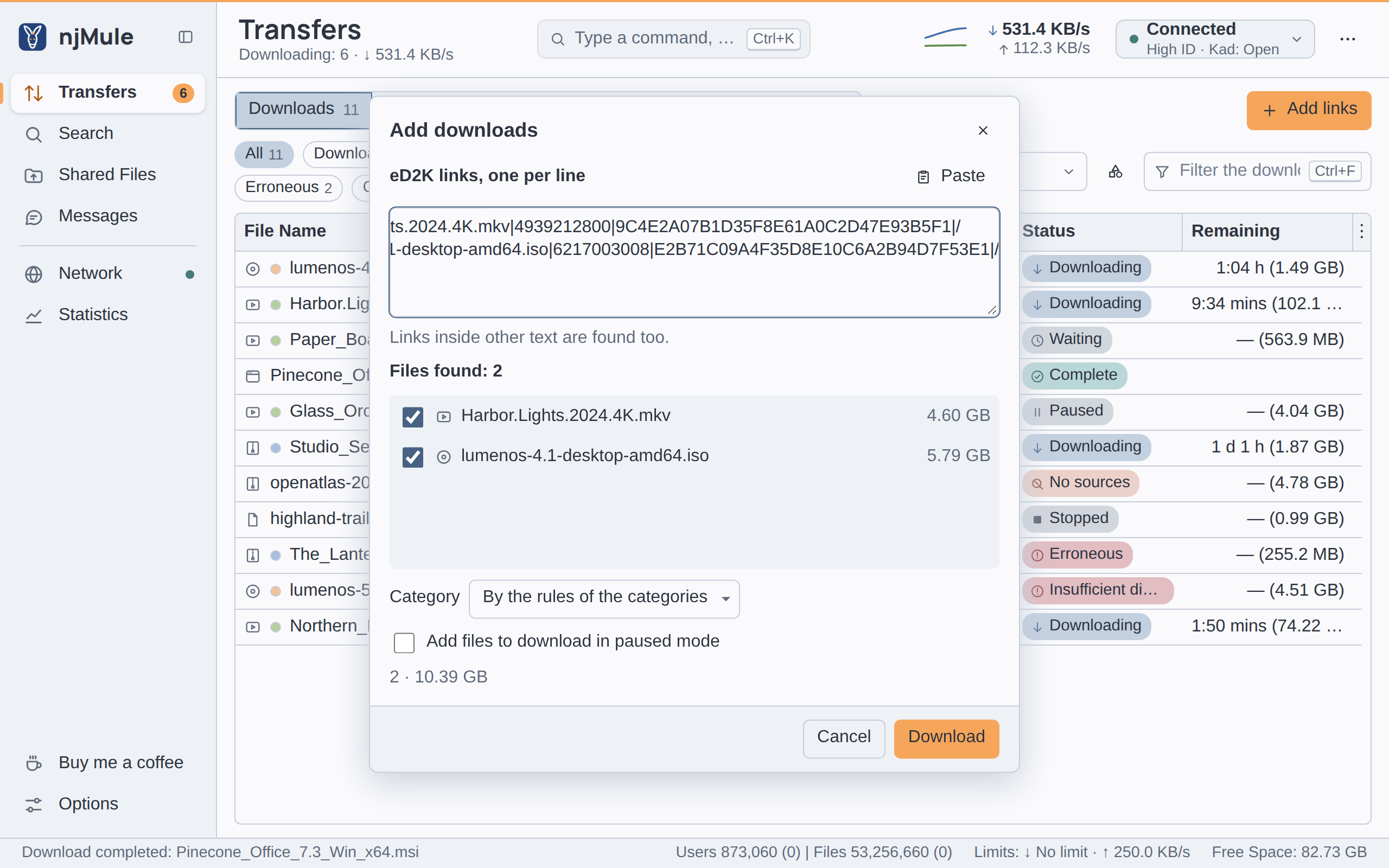
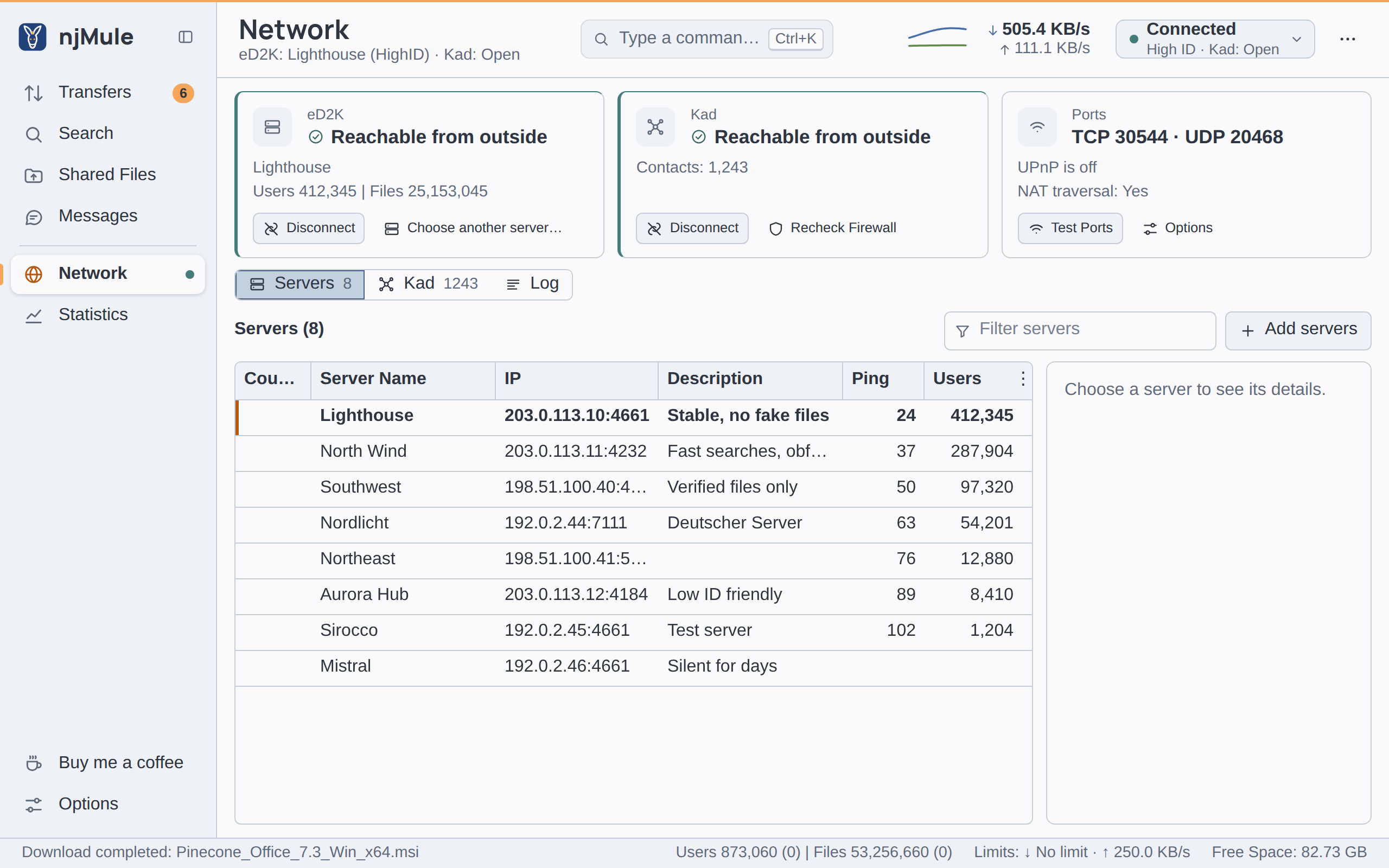
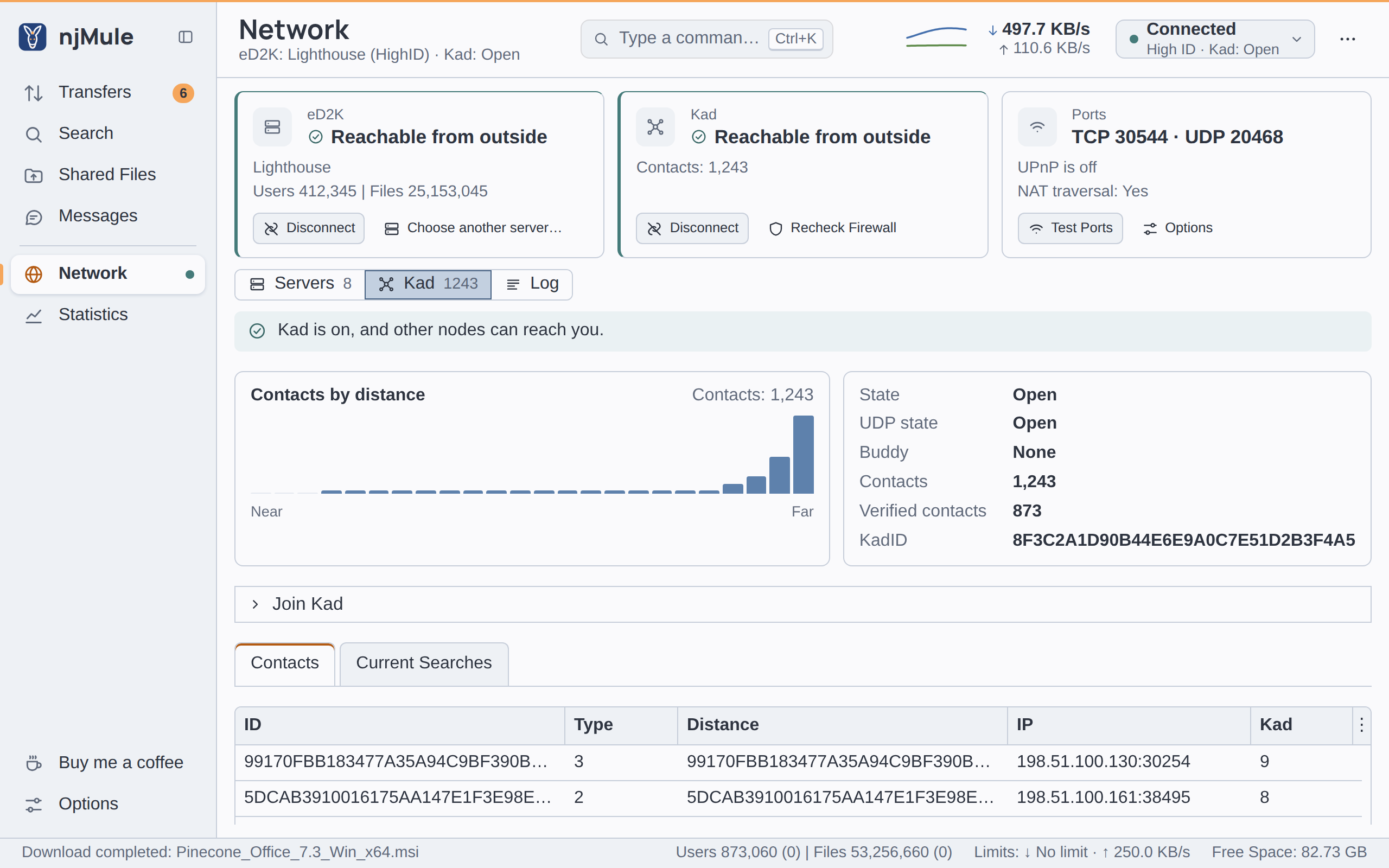
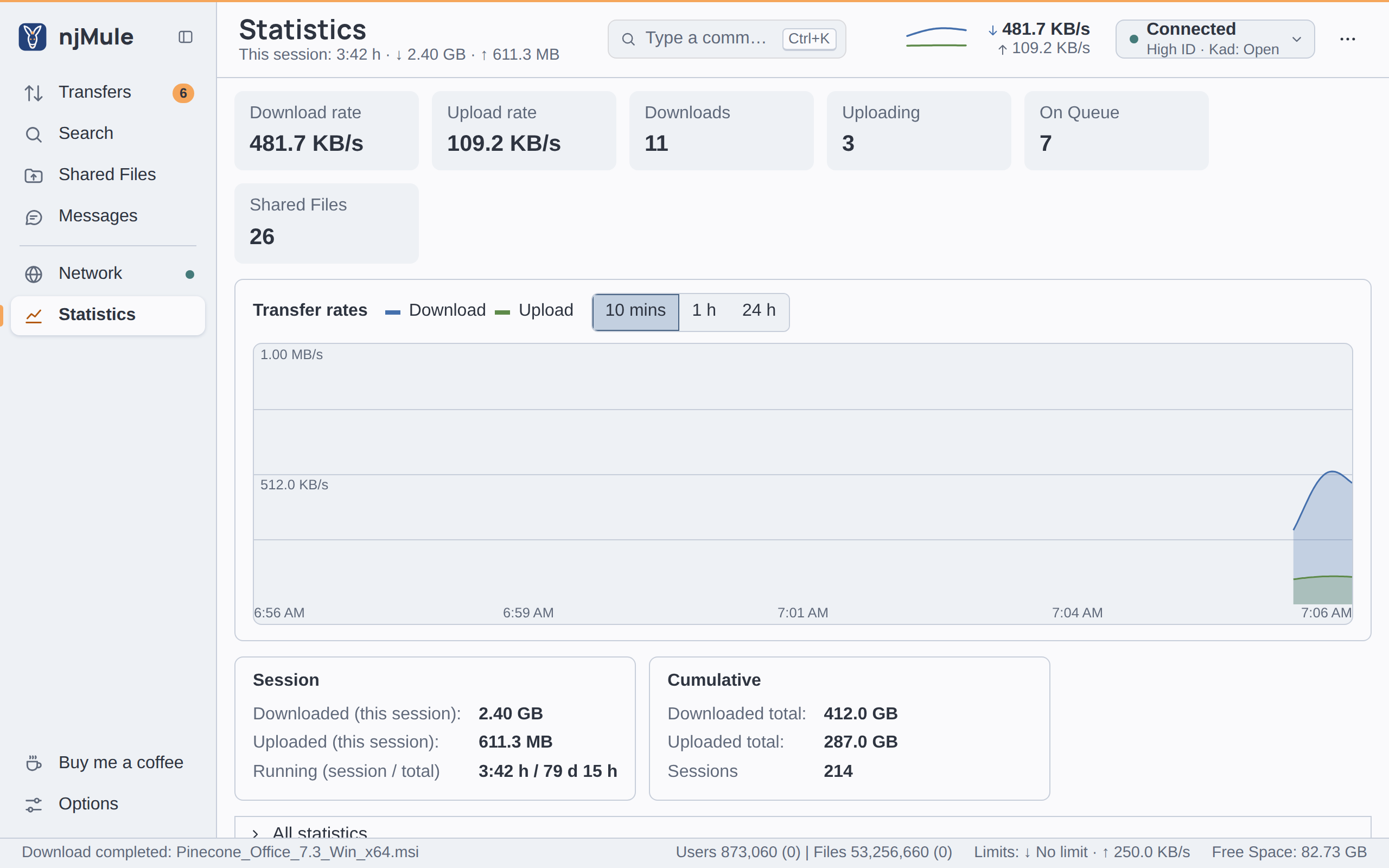
The window is the desktop app's, described in The main window: the
sidebar of places, the top bar with the command palette, the rates and their speed limits, the
network control and ⋯, the banners, the messages at the bottom and the status strip. The
address names the place shown (#/transfers, #/search, …), so a bookmark opens it.
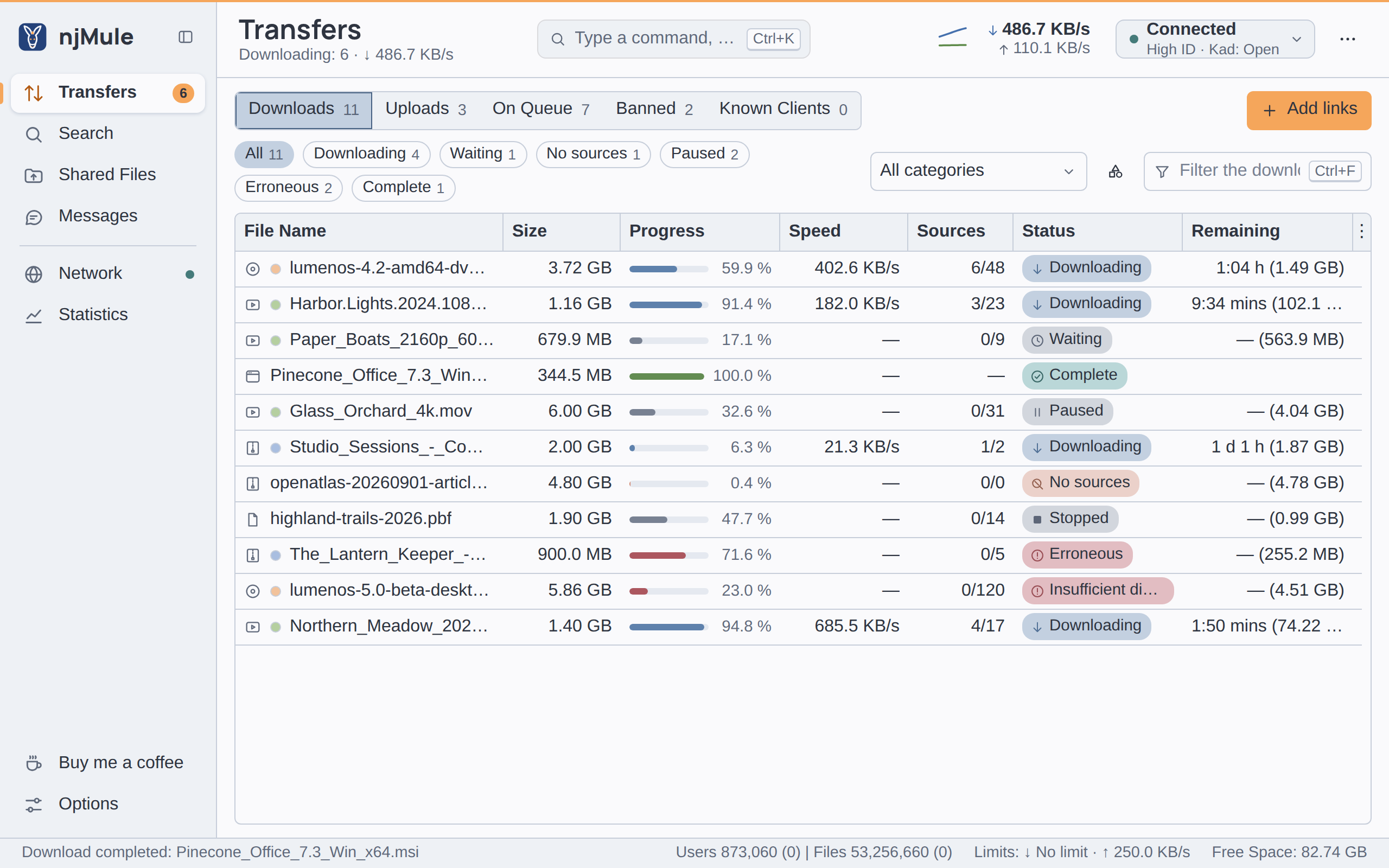
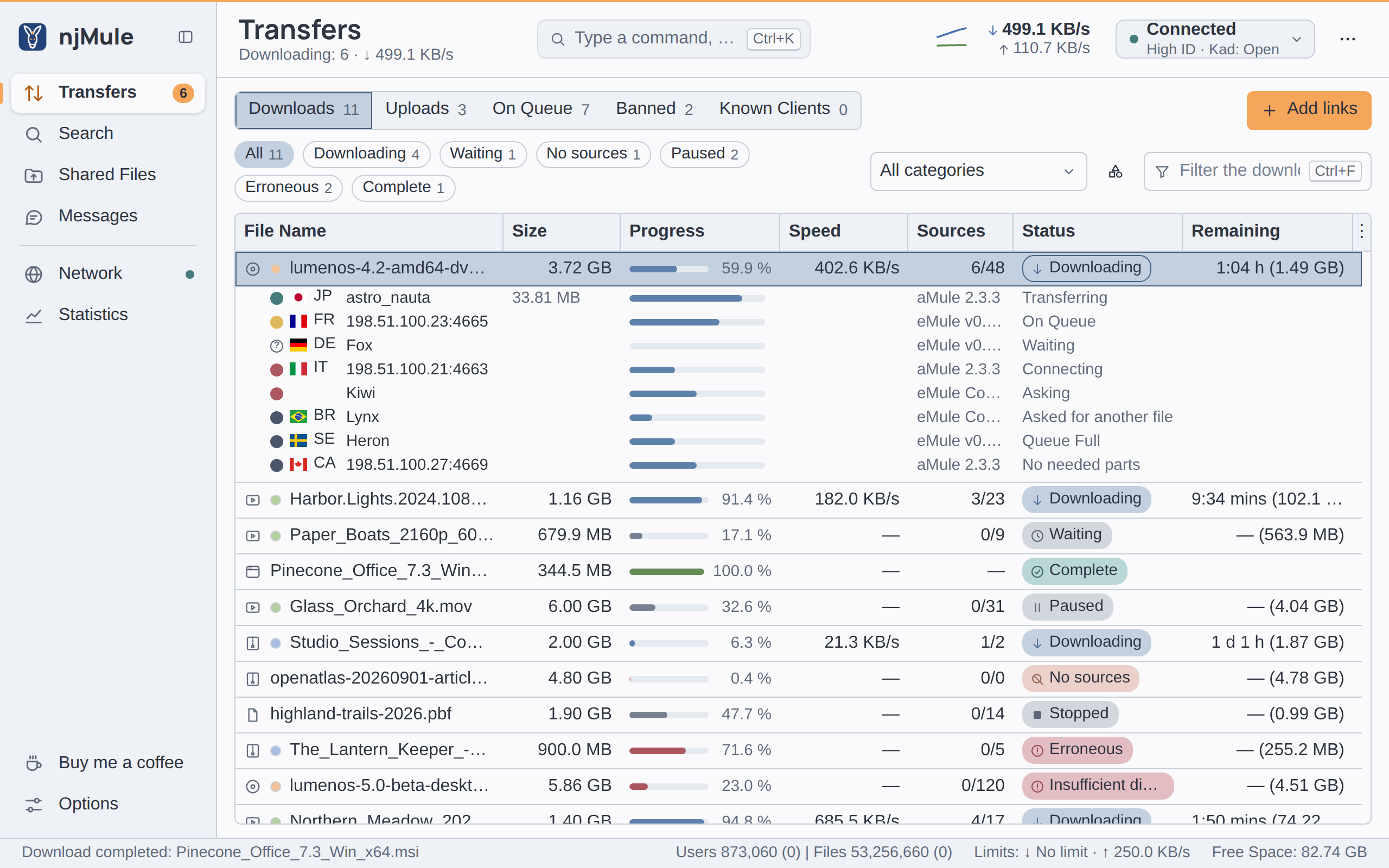
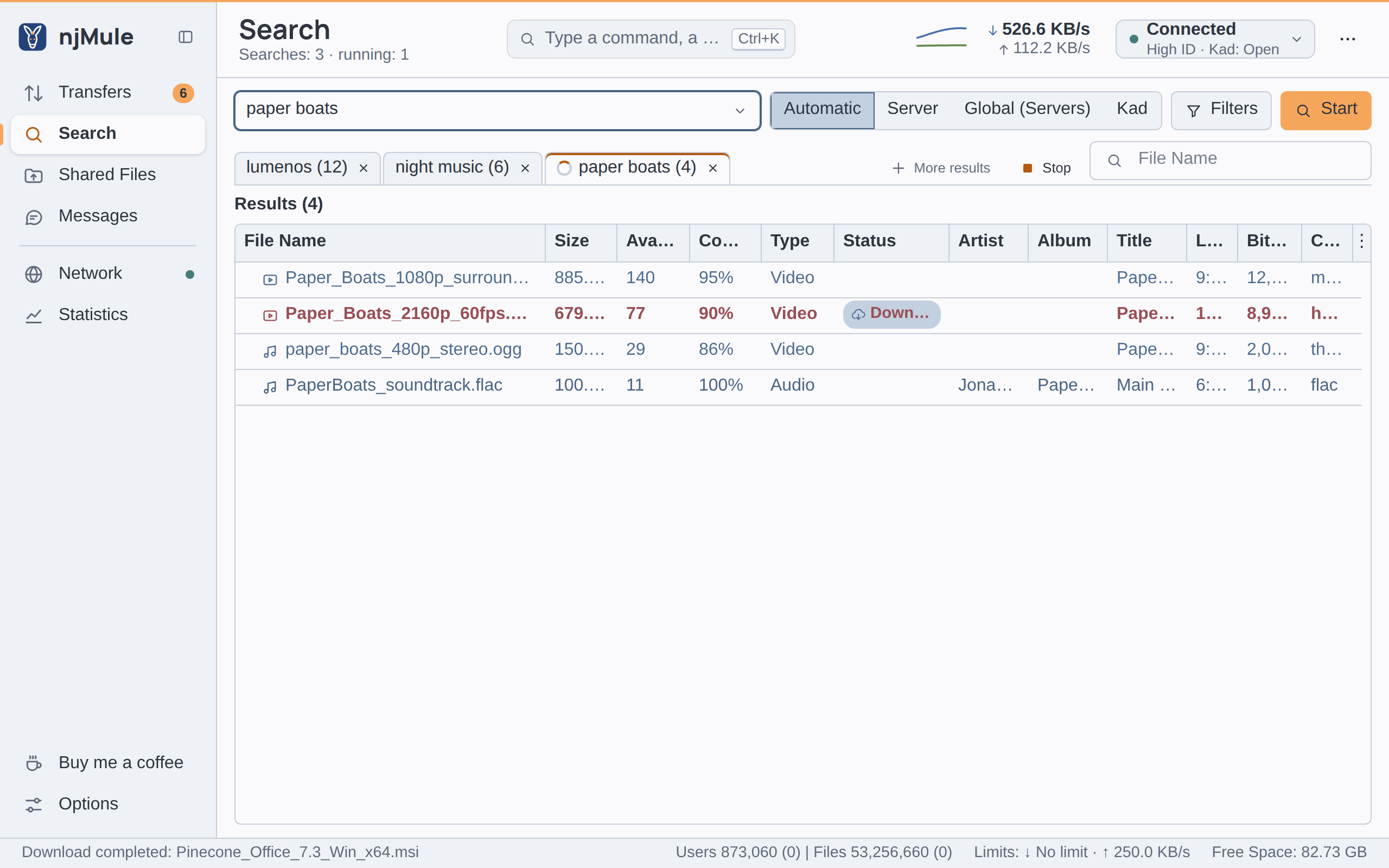
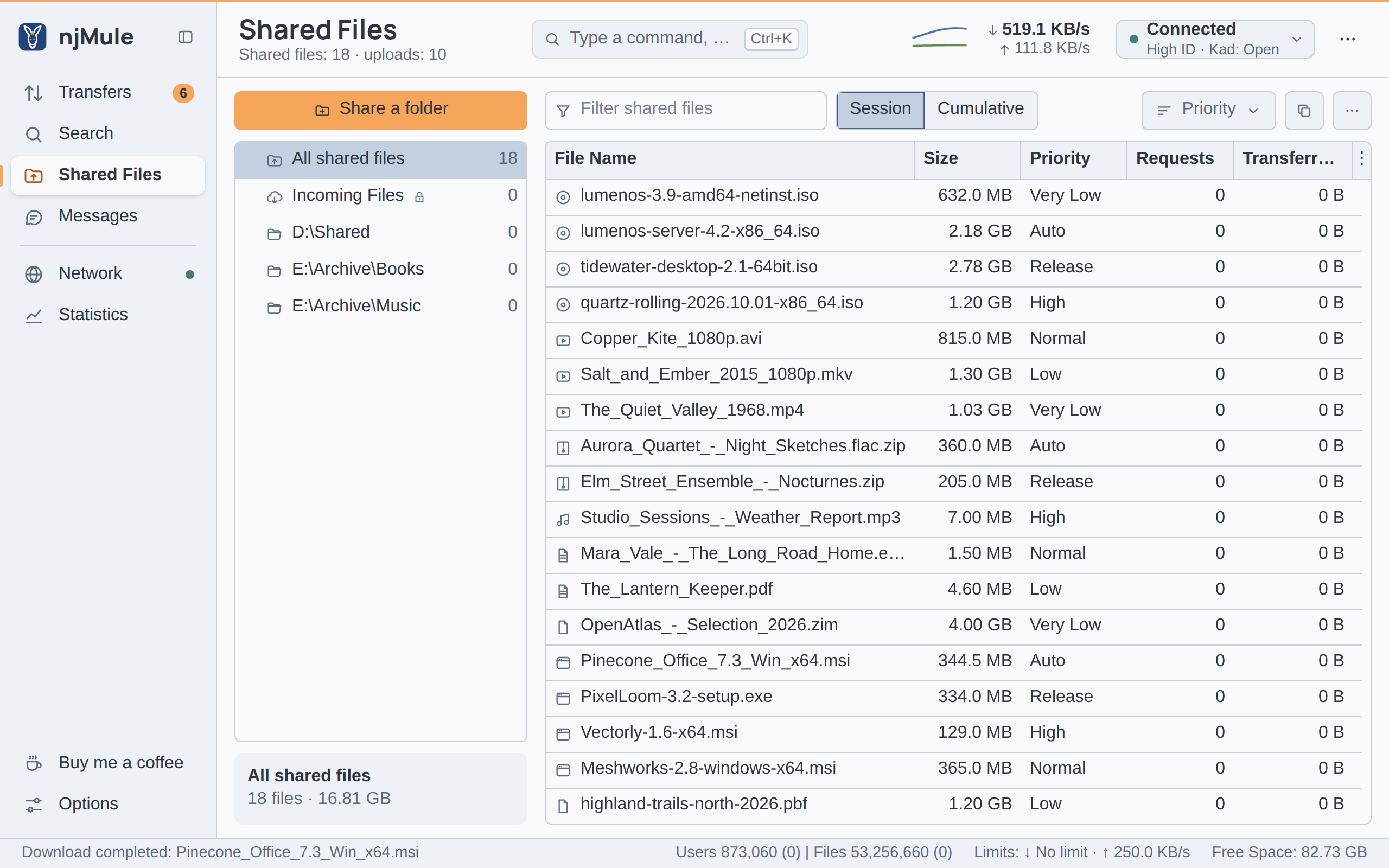
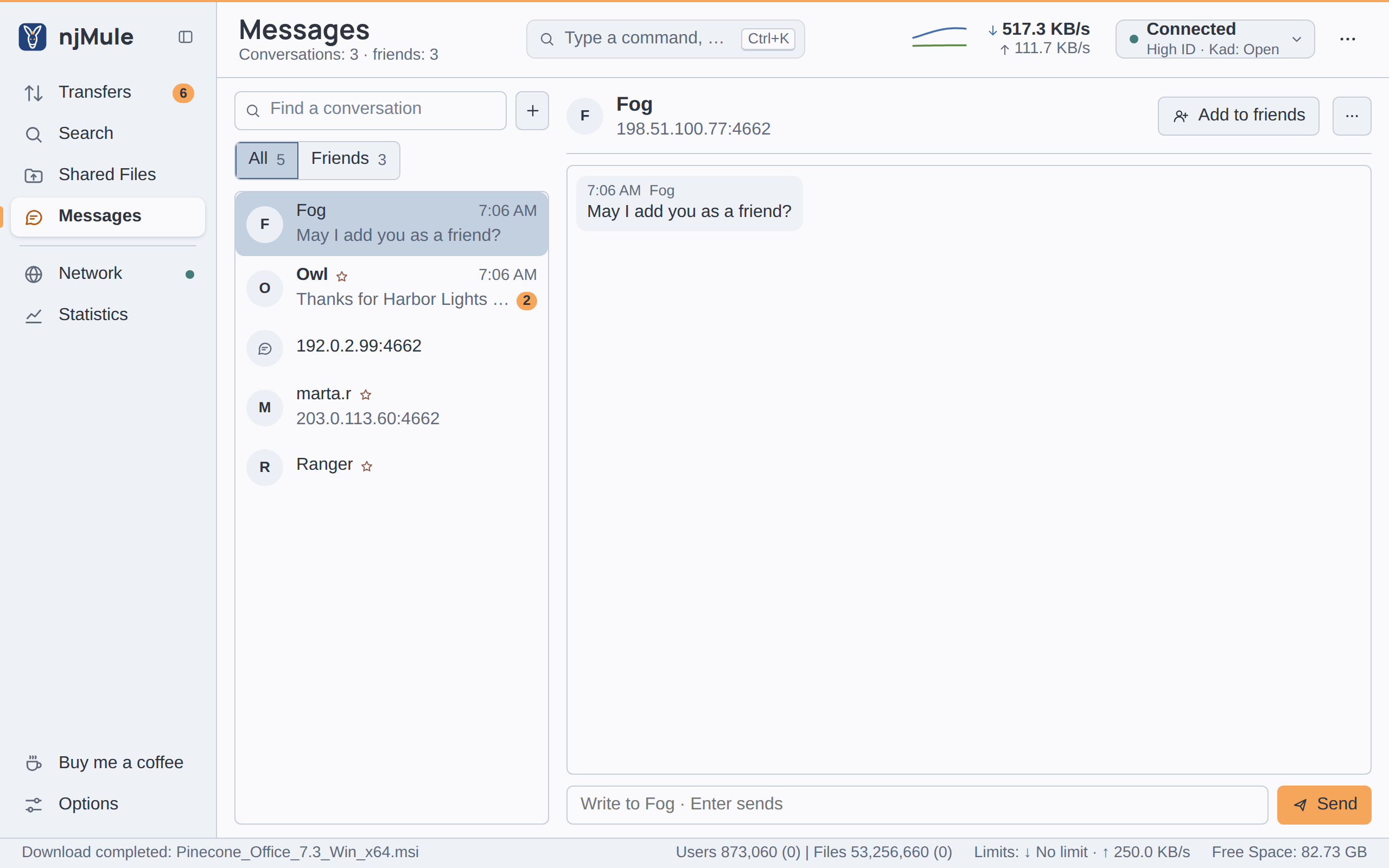
Each place works as in the desktop app, and has its page in this guide:
- Transfers: the downloads and their sources, the details, the menu of the downloads, Add links, and the uploads, the queue, the banned and the known clients.
- Search: the searches on eD2K and Kad, kept by njMule, so that every window shows the same tabs.
- Shared files, Messages, Network and Statistics.
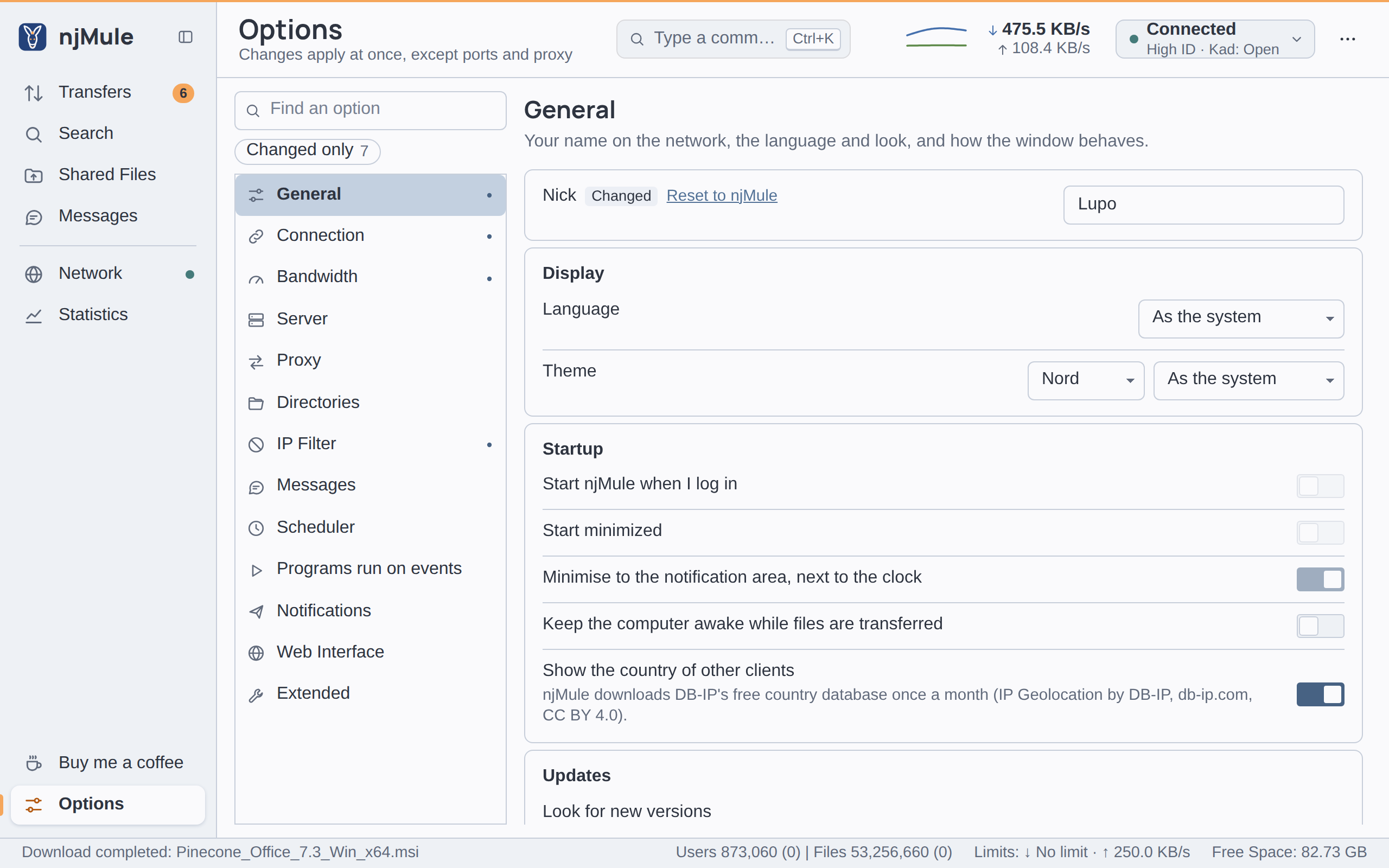
- Options, with the scheduler; ⋯ holds Set up njMule and Import from eMule..., which take the paths of njMule's computer.
What differs in a browser
The interface is the same; what needs the computer njMule runs on stays with the desktop app on that computer:
| What | In a browser |
|---|---|
| Folders and files of njMule's computer | Typed as paths of that computer: Browse... is greyed out, and Share a folder asks for the path. Open Folder, Open Incoming Folder and Preview are greyed out or only tell where the folder is, and opening a completed download says that the folders of this njMule are on its own computer. |
A server.met or nodes.dat file | Chosen on the browser's computer and sent to njMule. |
| The desktop app's own options | Start njMule when I log in, Start minimized, Minimise to the notification area, next to the clock, Prompt on exit, Watch clipboard for eD2K file links and Open ed2k links with njMule are greyed out. |
| The web interface's settings | Greyed out: Only the desktop app on njMule's computer changes these settings. |
| Sounds | The sound of a notification plays only in the desktop app on njMule's computer. |
| Connect to a remote njMule | Greyed out: the page is already on its njMule. |
| Closing | Closing the tab leaves njMule running. |
| Look and language | Kept by each browser: see Look and language. |
The questions of Set up njMule open by themselves at the first start, in whichever window opens first, desktop app or browser, until they are answered or put aside.
Command palette and keys
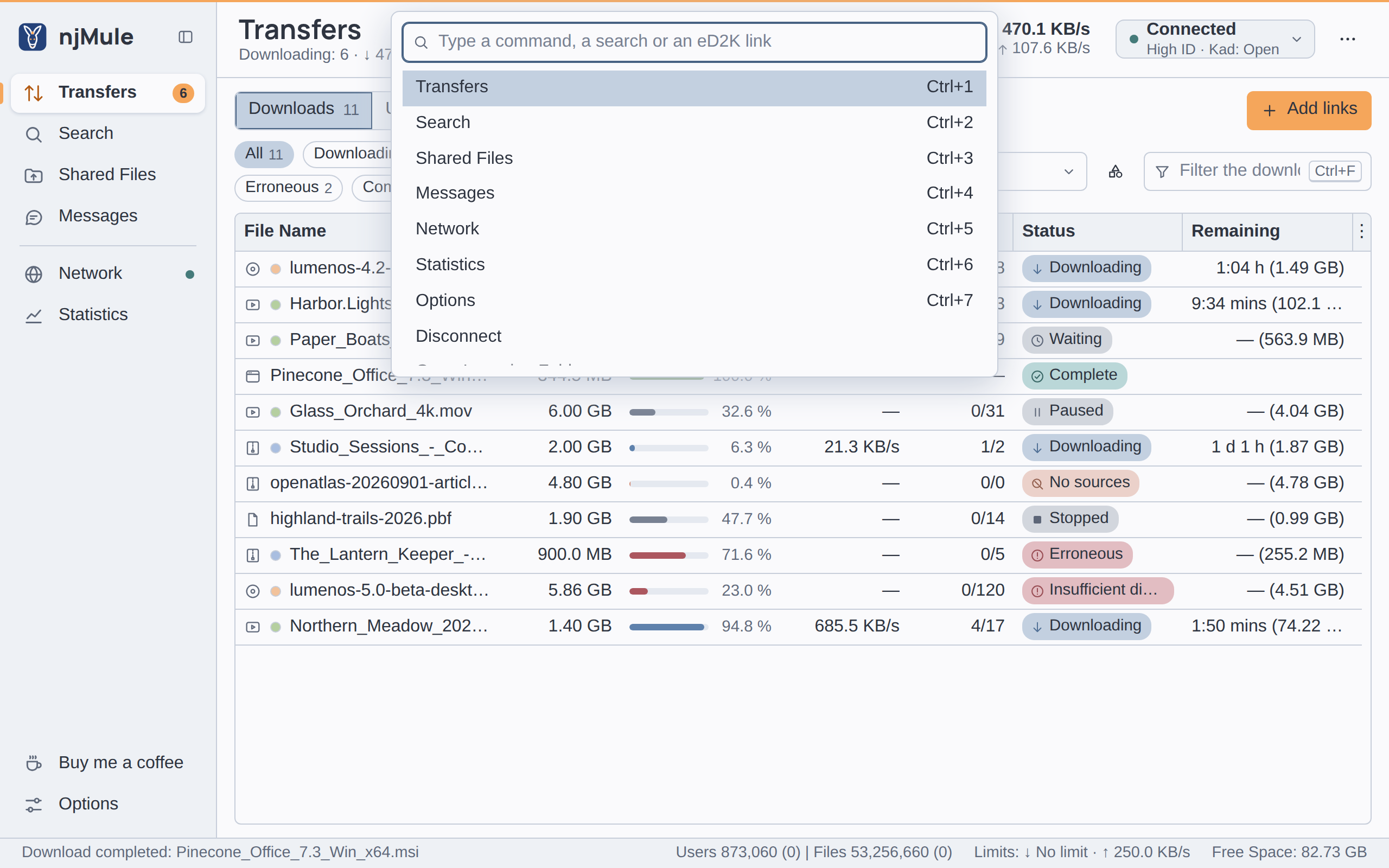
Ctrl+K opens the command palette. Type the name of a place or a command and press Enter to go there, type words to search the network for them, or paste eD2K links to download them at once. The keys are those of the desktop app, Cmd in place of Ctrl on a Mac: see Keyboard shortcuts.
Look and language
Each browser keeps its own theme and language, chosen in Options → General → Display as in the
desktop app (see Appearance and language). Until you choose, the
interface follows the browser's light or dark scheme and speaks the first of its preferred
languages that njMule has (36 of them), English otherwise; Arabic, Persian and Hebrew are laid out
from right to left. Adding ?lang= and a language code to the address, as in
http://localhost:4711/?lang=it, also chooses the language, and the browser keeps it.
On a phone
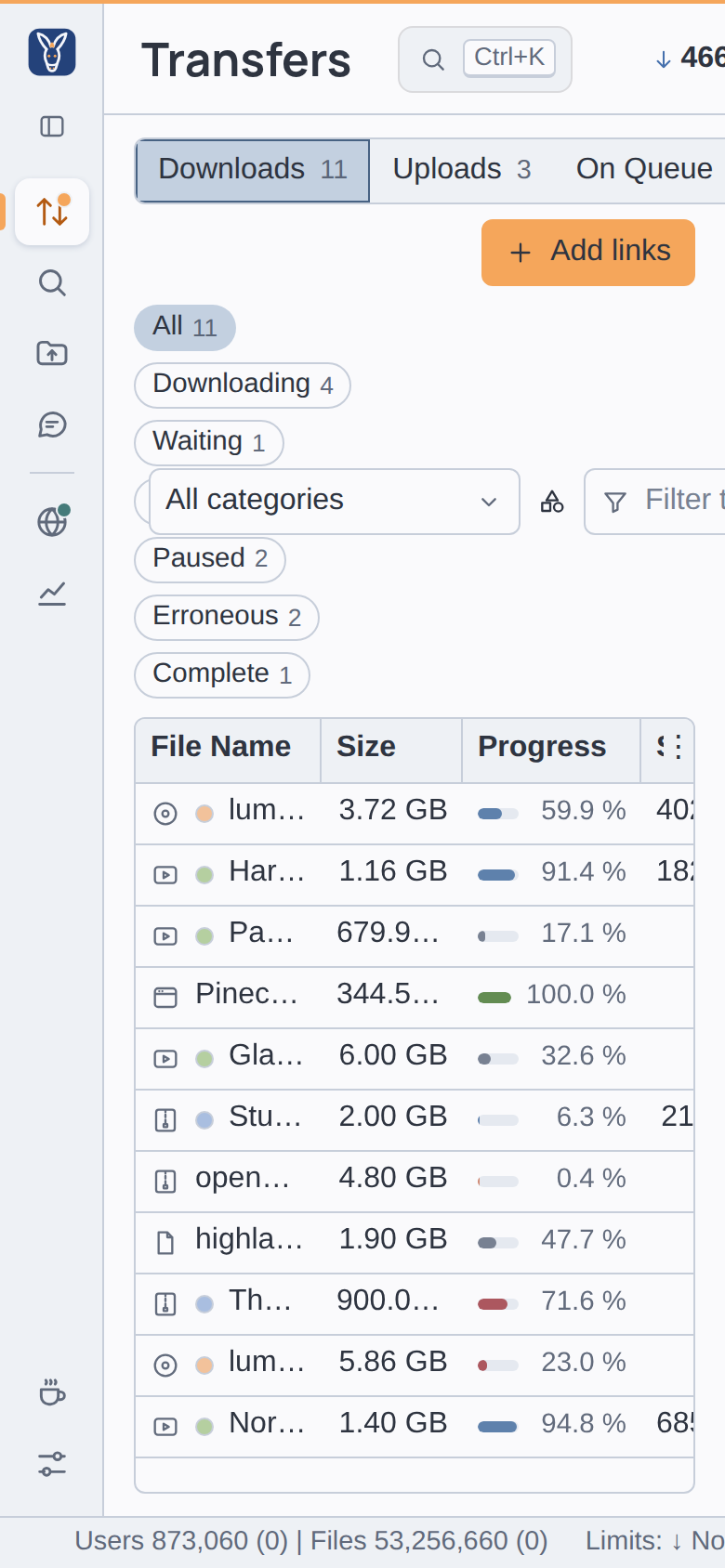
On a narrow screen the sidebar folds to its icons and the top bar keeps to its essentials, as in a narrow desktop window; wide lists scroll sideways.
Related pages
- Security: what protects the interface, and what to watch out for.
- Reverse proxy: HTTPS and a name of its own.
- Guest access: a password that only lets one look.
- Remote control: the same server as a JSON API.
- Running headless: njMule without a window.