Guest access
A guest is someone who signs in to the web interface with a password of its own and may only look: your family checking whether a download is done, or you on a borrowed computer where you would rather not type your real password. njMule has no guest until you give it a password; there is at most one guest password, shared by everyone you give it to.
Set the guest password
The guest password needs at least 8 characters and must differ from yours.
In the desktop app on the computer that runs njMule:
- Open Options → Web Interface.
- Type the password twice in Guest password, twice (a guest may only look).
- The web interface takes the guest password at once.
No guest takes the guest away, again at once. In a browser, even signed in with your own password, the page shows these settings greyed out: Only the desktop app on njMule's computer changes these settings.
On a headless njMule
A njMule without the desktop app (on a server, in Docker, on a Synology NAS, as the Windows
service) takes the guest password from the first line of a file, as it takes yours:
--webui-guest-password-file <file>. --webui-no-guest takes the guest away. Both come with
--webui-password, --webui-password-file or --service=install:
njmule --webui-password --webui-guest-password-file ~/njmule-guest-password.txt
njmule --webui-password-file /run/secrets/njmule_webui_password \
    --webui-guest-password-file /run/secrets/njmule_webui_guest_password
njmule --service=install --webui-guest-password-file C:\Users\you\njmule-guest-password.txt
With --webui-password-file alone, the guest's file is read again at every start, as yours is.
Without either option the guest stays as it was, also when you set your own password again.
- Docker: a second secret, see Install with Docker.
- Synology: the installation wizard asks for a guest password too; leave it empty for no guest.
What a guest sees
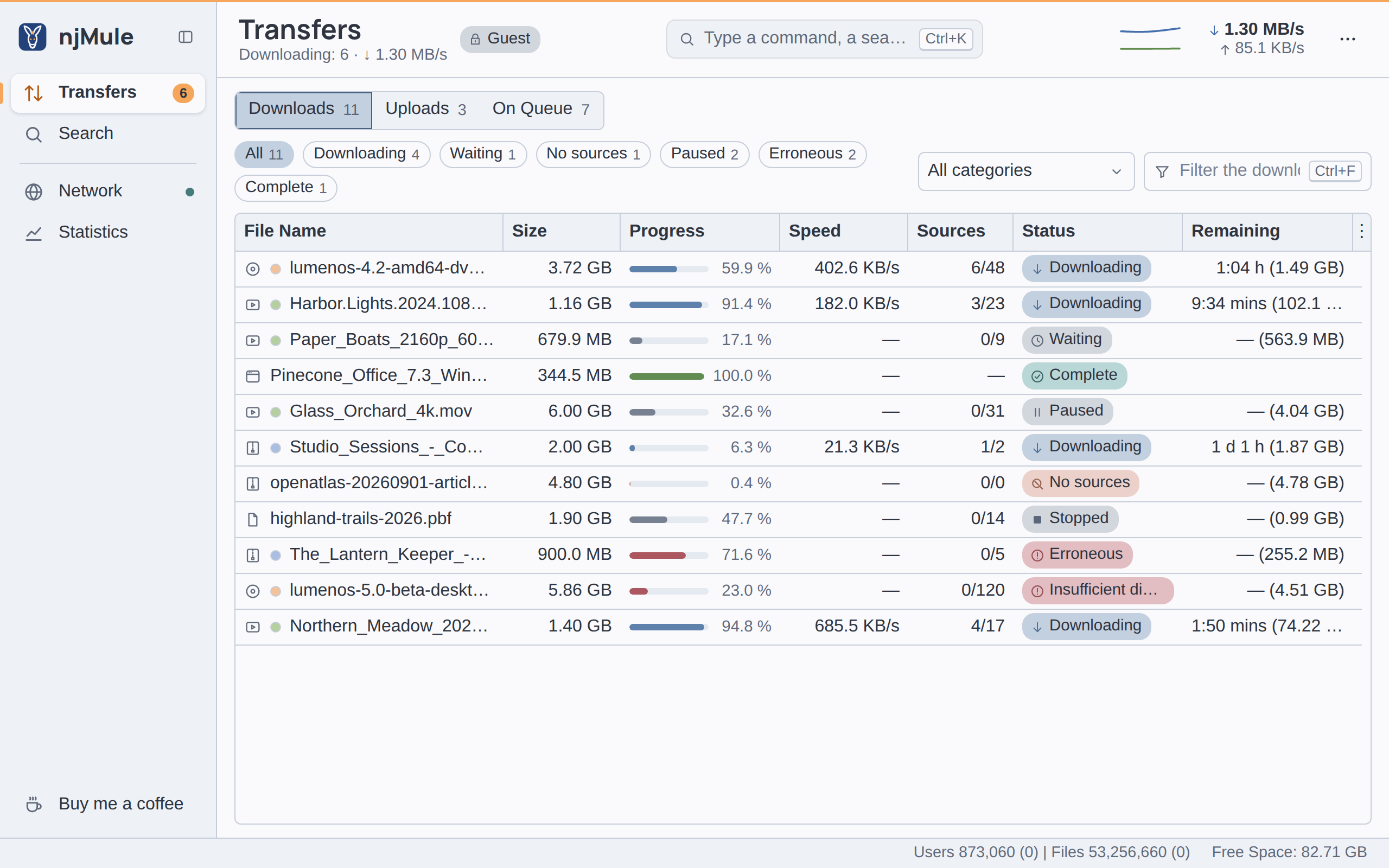
The guest signs in on the same page as you, with the guest password. The top bar then says Guest (its tooltip tells what a guest sees), and the sidebar, the shortcuts and the command palette offer only the places a guest may open.
| Place | What the guest sees | What it cannot do |
|---|---|---|
| Transfers | The downloads with their details, sources, names and comments; the uploads and the queue | Any action on a download; the banned and the known clients |
| Search | The searches made through the web interface, with their results | Start, close or download a search |
| Network | The eD2K, Kad and port cards; the servers; Kad's state, contacts and searches | Connect, add or change servers, join Kad, test the ports; the log |
| Statistics | The rates and figures |
A guest never sees Shared Files, Messages or Options, nor the speed limits, the network control of the top bar or the log line of the status strip. Copy eD2K link and the filters still work, since they change nothing; the other items of the right-click menus are greyed out. Of the live notices, a guest gets only those of finished downloads. A guest ends its session as you do, with ⋯ → Logout.
The searches a guest sees are those made in a browser through the web interface, or by the remote-control API on its port; the desktop app's own searches are not among them.
What protects it
The page a guest gets leaves out what it may not do, but that is only for comfort: njMule itself refuses every change a guest's session asks for, and every read outside the list above (the settings, the log, the chats, the shared files and the banned and known clients), answering A guest can only look at the transfers, searches, servers, Kad and statistics. A guest's session otherwise follows the same rules as yours: the same lockout after wrong passwords, the same idle time of 30 minutes. njMule logs each guest login with its address.
A guest sees the names of the files you download and the searches made through the web interface. Give the password only to people who may know them.