Options
The Options screen holds everything you can set in njMule, one subject per page: your nick and the look of the app, the ports and networks, the speed limits, the folders, the filters, the scheduler, the programs and messages njMule sends when something happens, and the web interface. This section is the reference of every option: what it does, its default, its limits and the key it is kept under. Most options apply as soon as you set them; the few that cannot are said below.
Open the options
- In the desktop app, click Options at the bottom of the sidebar, press Ctrl+7 (Cmd+7 on macOS), or choose ⋯ → Options. On Windows, the menu of the icon in the notification area has Options too; on macOS, the Settings item of the application menu in the menu bar opens it.
- In the web interface, click Options in the sidebar. A guest of the web interface cannot see or change the options.
The pages
The list on the left of the screen holds the pages. A dot beside a page says it holds an option you changed from its default.
| Page | What you set there |
|---|---|
| General | Nick, language and theme, start at login, update checks, prompt on exit, clipboard, ed2k links, notification sound |
| Connection | TCP and UDP ports, UPnP, the port test, eD2K and Kad, protocol obfuscation, the network interface, connection limits |
| Bandwidth | The capacity of your line and the download and upload limits |
| Server | How the server list grows and shrinks, which servers njMule connects to, server lists fetched at start |
| Proxy | A SOCKS or HTTP proxy for the connections |
| Directories | Incoming and temporary folders, free space, what happens to new and idle downloads, preview, who sees your shared files |
| IP Filter | IP filter lists and their updates, filter level, LAN addresses, addresses always allowed, spam in search results |
| Messages | Which chat messages you receive |
| Scheduler | Limits that change at the times of the week you choose |
| Programs run on events | Your own programs, started when a download ends or fails, a message arrives or the disk runs short |
| Notifications | E-mails and web hook messages (ntfy, Gotify) when something happens |
| Web Interface | The web interface and the remote-control API of this computer |
| Extended | Searches kept between runs, configuration backups |
Find an option
Type a few words in Find an option above the list. njMule keeps only the pages, sections and options whose name, description, section or page holds every word you typed, in any order; a page with nothing left disappears from the list, and No option matches. shows when no page is left.
- Esc clears the box.
- Down moves to the list of pages.
- Enter puts the cursor in the first option shown.
Changed only and reset
Every option that differs from its default carries a Changed mark and a link beside its name, such as Reset to 4662 or Reset to Yes, that puts it back to its default, as if you had set it by hand (a port, for one, then waits for Apply and reconnect). The chip Changed only under the find box, with the count of changed options, keeps only those options; it works together with the words you typed.
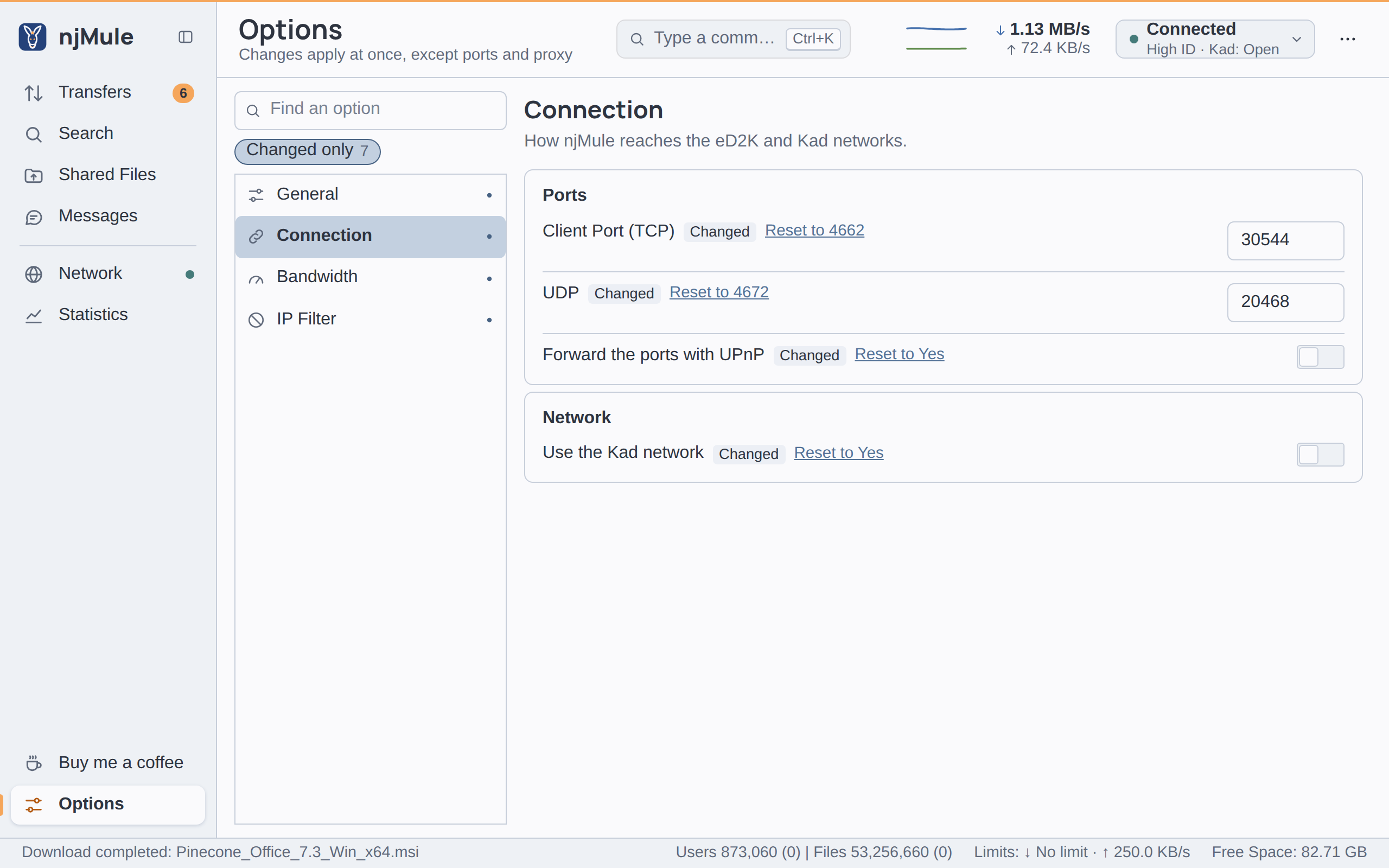
A few rows have no reset link: switches whose state lives in the system (start at login, ed2k links), the password fields of the web interface, the scheduler's rules, and rows that are only buttons. On the Proxy and Notifications pages, kept each as one setting, a row is marked and reset by what it shows: resetting Host and port leaves the type and the credentials as they are.
When a change applies
Most options apply at once. A switch or a list applies when you change it; a field applies when you leave it (Tab, or a click elsewhere) or press Enter. There is no Save button: what you see is what njMule uses. The subtitle of the screen says it: Changes apply at once, except ports and proxy.
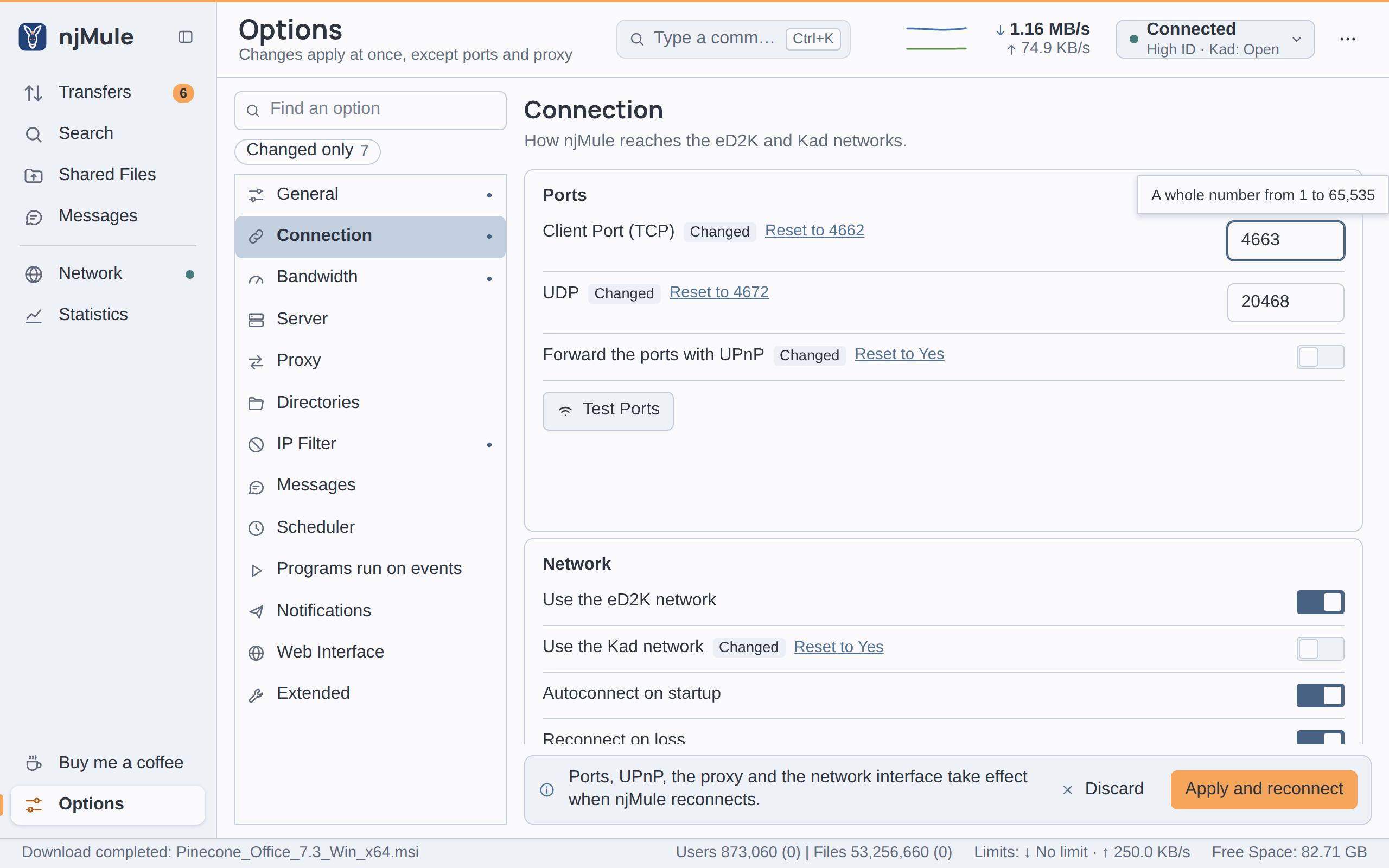
Some options wait for Apply and reconnect. Changing them means reopening connections, so njMule collects them in a bar under the page:
- Client Port (TCP), UDP and Forward the ports with UPnP on the Connection page;
- Network interface on the same page;
- every option of the Proxy page.
The bar says Ports, UPnP, the proxy and the network interface take effect when njMule reconnects. Apply and reconnect saves them and njMule applies them without a restart: it listens on the new ports and tells the server, Kad and the router about them, opens everything again on a new network interface, and makes its next connections through a new proxy. Discard puts back the values that are saved.
The language waits for a restart. After you choose another language the bar says The language takes effect when njMule restarts. and its button becomes Apply and restart, which saves what waits and starts the desktop app again.
A few options are read at the next start only: the Temporary Files folder (the page says Takes effect at the next start.) and the whole Web Interface page, which the web interface follows from the next start of njMule.
Options changed elsewhere while the screen is open, for example a speed limit set from the top bar, from the notification area or from the web interface, show at once, except an option you are typing in or one that waits for Apply and reconnect. While a rule of the scheduler holds, its limits replace those of the options; the options themselves stay as you set them.
Wrong values
Each field takes only its kind of value: other characters are dropped as you type or paste them, and a field takes no more characters than its option allows. When a value is out of range or not of the right form, the field turns red and the option says under its name what it takes, such as A whole number from 1 to 65535. A wrong value is never saved: njMule keeps using the last good one.
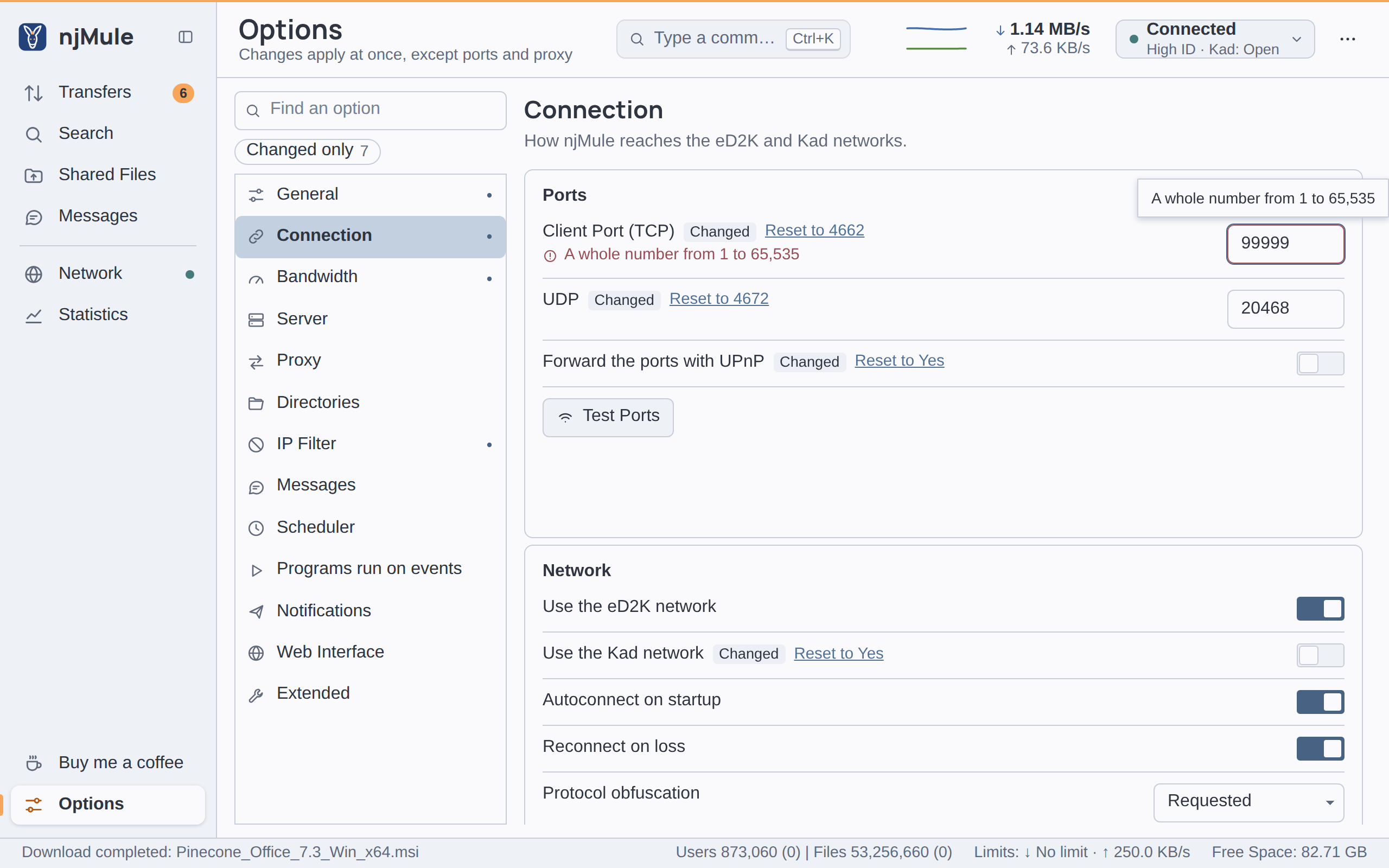
While options wait for Apply and reconnect, a wrong value anywhere on the screen is named in the bar, as Fix “Client Port (TCP)” first., and the button stays off until you fix it.
Where options are stored
njMule keeps the options in plain text files of its profile. The file reference describes each file and Locations says where the folders are on each system.
| File | Folder | What it holds |
|---|---|---|
njmule.properties | configuration | The engine's options: almost every page; the keys are given on each page |
scheduler.properties | configuration | The rules of the scheduler |
addresses.dat | configuration | The addresses of the server lists of the Server page |
webui.properties | configuration | The Web Interface page, with the password hashes |
api-token | configuration | The token of the remote-control API |
desktop.json | desktop app (gui) | Start minimised, notification area, prompt on exit, watch the clipboard |
Two options of the General page are kept by the system itself, not in a file: Start
njMule when I log in and Open ed2k links with njMule. njMule reads them back from the system
each time the screen opens. The language and the theme are kept by the interface: the desktop
window's in the profile's data/webview, and each browser its own for the web interface.
Editing njmule.properties
njmule.properties is a sorted list of key=value lines. njMule reads it once at start and writes
it whenever an option changes, so edit it only while njMule is not running (njmule --exit stops a
running one). Reading is forgiving:
- a wrong value keeps its default, with a warning in the log naming the key;
- a switch takes
trueorfalse(alsoyes,no,on,off,1,0); - a choice takes the names given on each page, in upper or lower case;
- a key njMule does not know, from a newer version or typed by hand, is kept as it is.
# njMule preferences - edited by the application; invalid values revert to defaults.
limits.downloadKiBps=0
limits.uploadKiBps=250
net.tcpPort=4662
net.udpPort=4672
security.obfuscation=REQUESTED
user.nick=njMule
The same keys are read and changed through the remote-control API,
which is how the web interface sets them. The proxy password and the SMTP password never leave
njMule through the API; they are kept in njmule.properties as you typed them, so keep the profile
folder to yourself.
Keys without a control
A few keys of njmule.properties have no control on the Options screen:
| Key | Default | What it does |
|---|---|---|
log.level | INFO | How much the log says: ERROR, WARN, INFO, DEBUG or TRACE. Read at start; the command-line option --log-level overrides it. |
comments.filter | http://|https://|ftp://|www.|ftp. | File comments of other users that hold one of these words, apart by |, are left out. At most 4,096 characters. |
update.url | empty | Where njMule looks for new versions instead of GitHub, as for a fork or a test; an http or https address. Empty for GitHub. |
net.udpEnabled | true | Kept for the display of the ports; this version uses the UDP port whatever it says. |
Options in the web interface
The web interface has its own Options screen with the same pages, the same names and the same keys, so a change made in one shows in the other. What only makes sense on a desktop is left out: the language and theme of the desktop app, starting at login and minimised, the notification area, the prompt on exit, the clipboard, ed2k links, the notification sound and the video player. Each page of this section says what its web version leaves out.
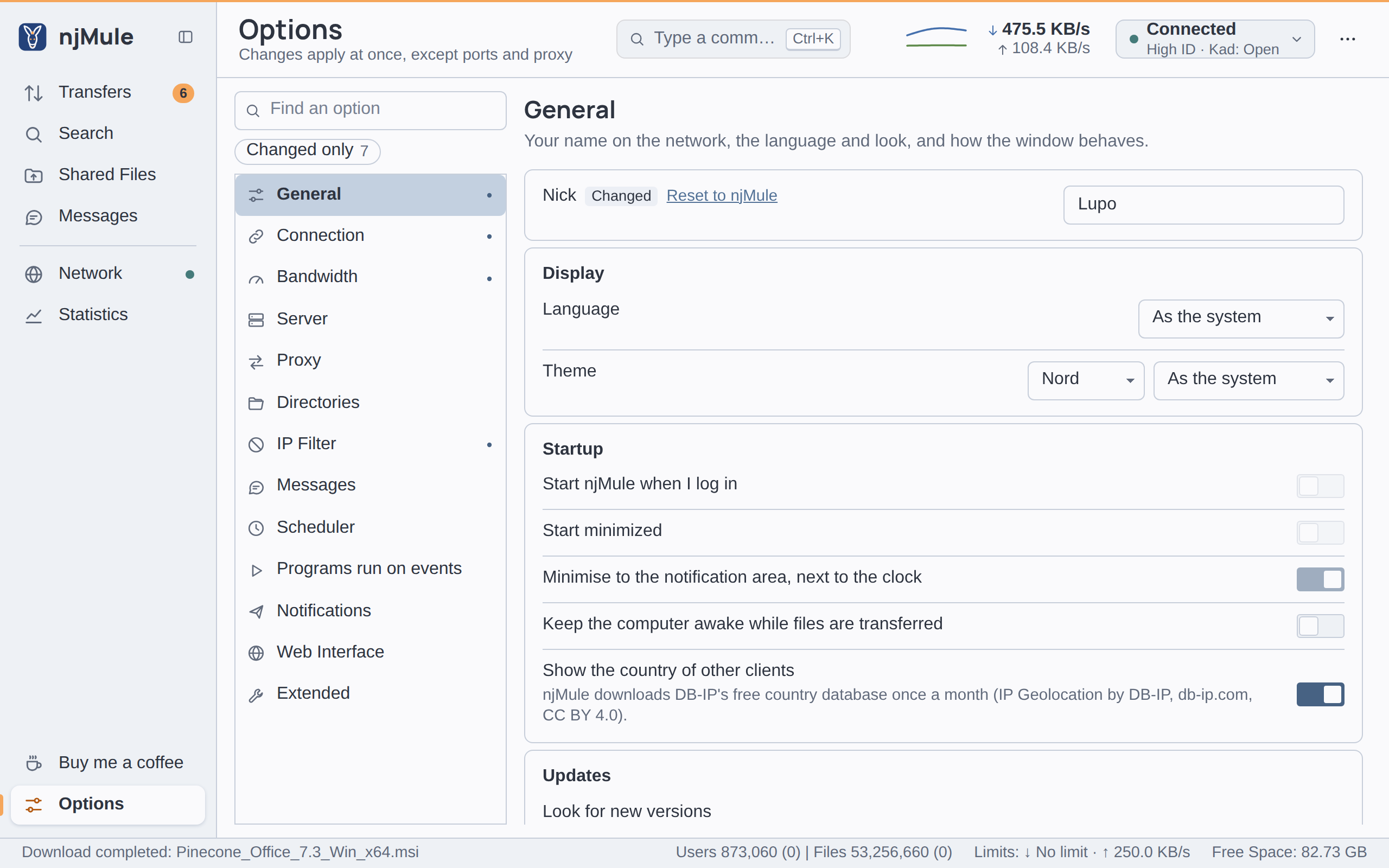
It works as the desktop screen does, with a few differences:
- Find an option keeps the options whose name, description or page holds every word typed; there is no Changed only chip and no reset links.
- Each option applies as soon as you change it; the ports, UPnP, the network interface and the proxy wait for Apply and reconnect in a bar at the bottom, with Discard.
- A number field only takes values within its range; a wrong value that reaches njMule is refused with a message, and nothing is saved.
- The stored proxy and SMTP passwords are never shown: the fields stay empty, and what you type replaces the stored password.
- Below the pages, the list has Scheduler, Import from eMule..., Set up njMule (the first-start wizard) and Web Interface, whose settings only the desktop app on njMule's computer changes.
- The update check, the IP filter update, the notification test and the addresses of the server lists have their buttons on their pages; the port test is on the Network screen.