First start
The first time you open njMule, in the desktop app or in the web interface, a short wizard sets it up: the language and the look, your nick, the folders, the connection and, if it finds one, an eMule profile to take over. It takes about two minutes, every page can be skipped, and everything it sets can be changed later in the Options. In a browser a few things work differently (see In the web interface).
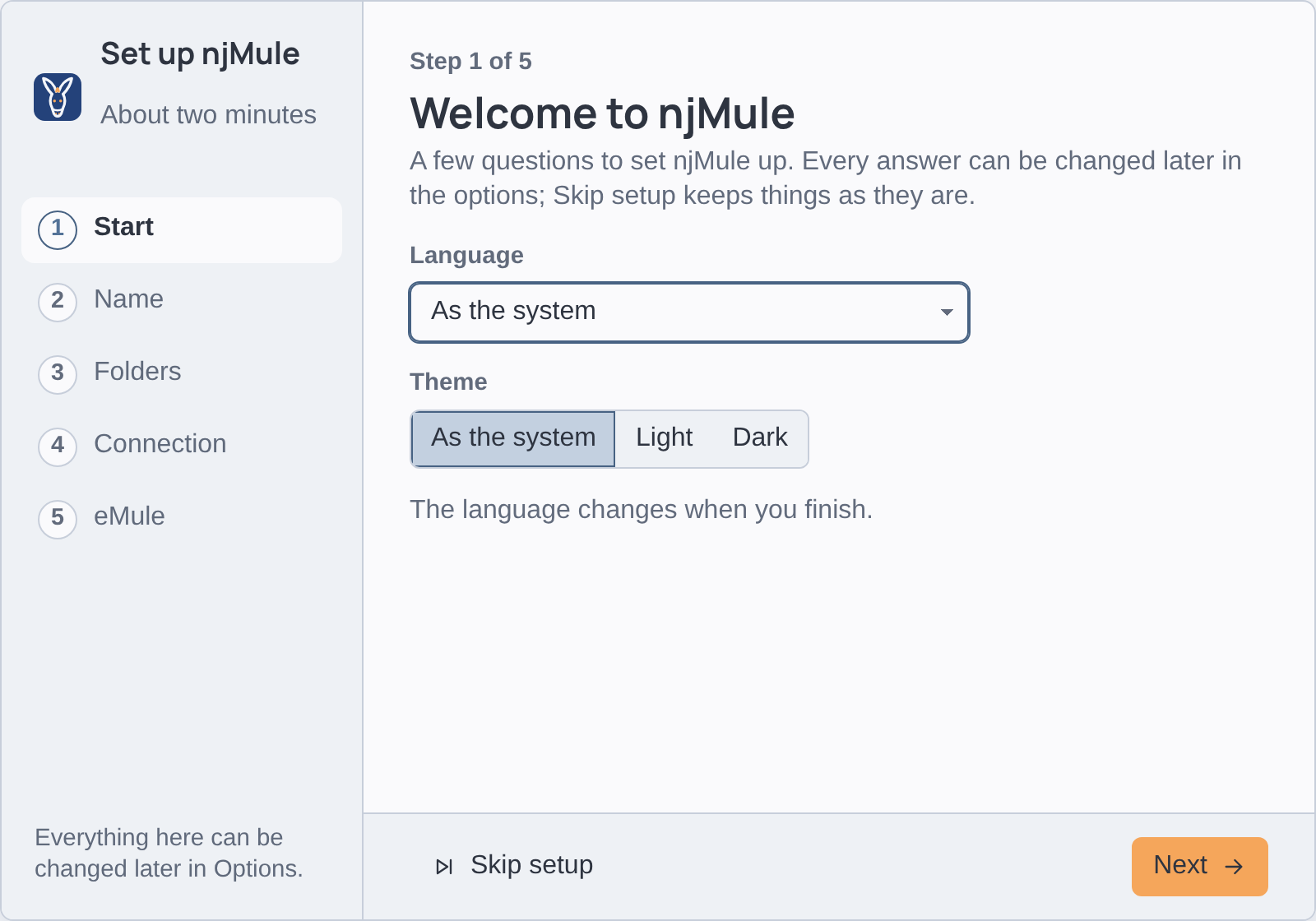
How the wizard works
- The steps are listed on the left; a step you have done shows a check, and a click on it takes you back there.
- Next goes on once the fields of the page are right; Back returns to the page before.
- Skip setup, on every page but the last, closes the wizard and changes nothing.
- Finish, on the last page, applies every page at once and saves your settings.
Every page starts from your current settings, so going through it with Next only changes what you change.
Start
| Field | What it sets |
|---|---|
| Language | the language of the interface: As the system or one of its 36 languages |
| Theme | As the system, Light or Dark; it shows at once, on the wizard too |
The language changes when you finish, at once.
Name
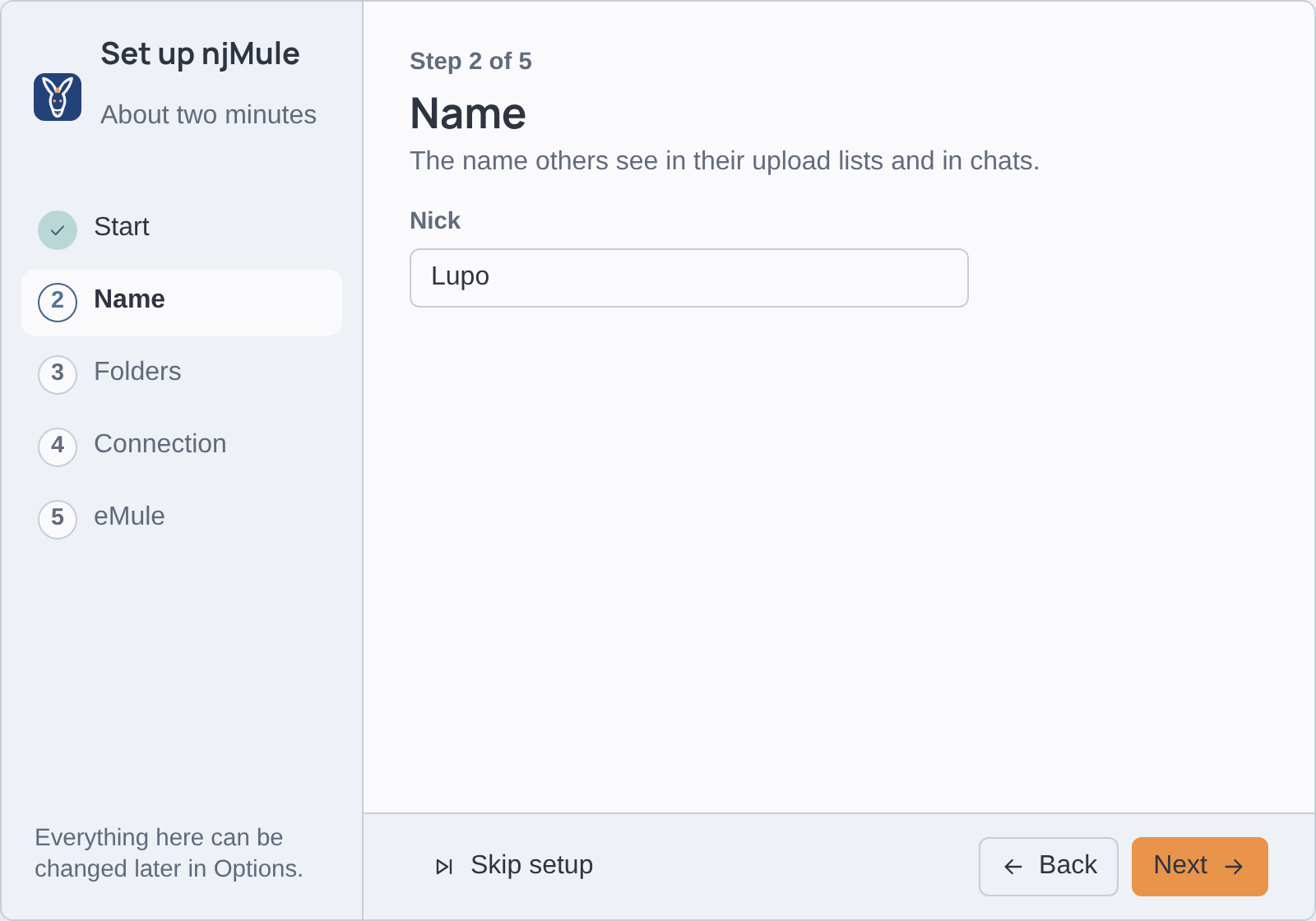
Nick is the name other users see in their upload lists and in chats. It starts as njMule; it
may be up to 50 characters long.
Folders
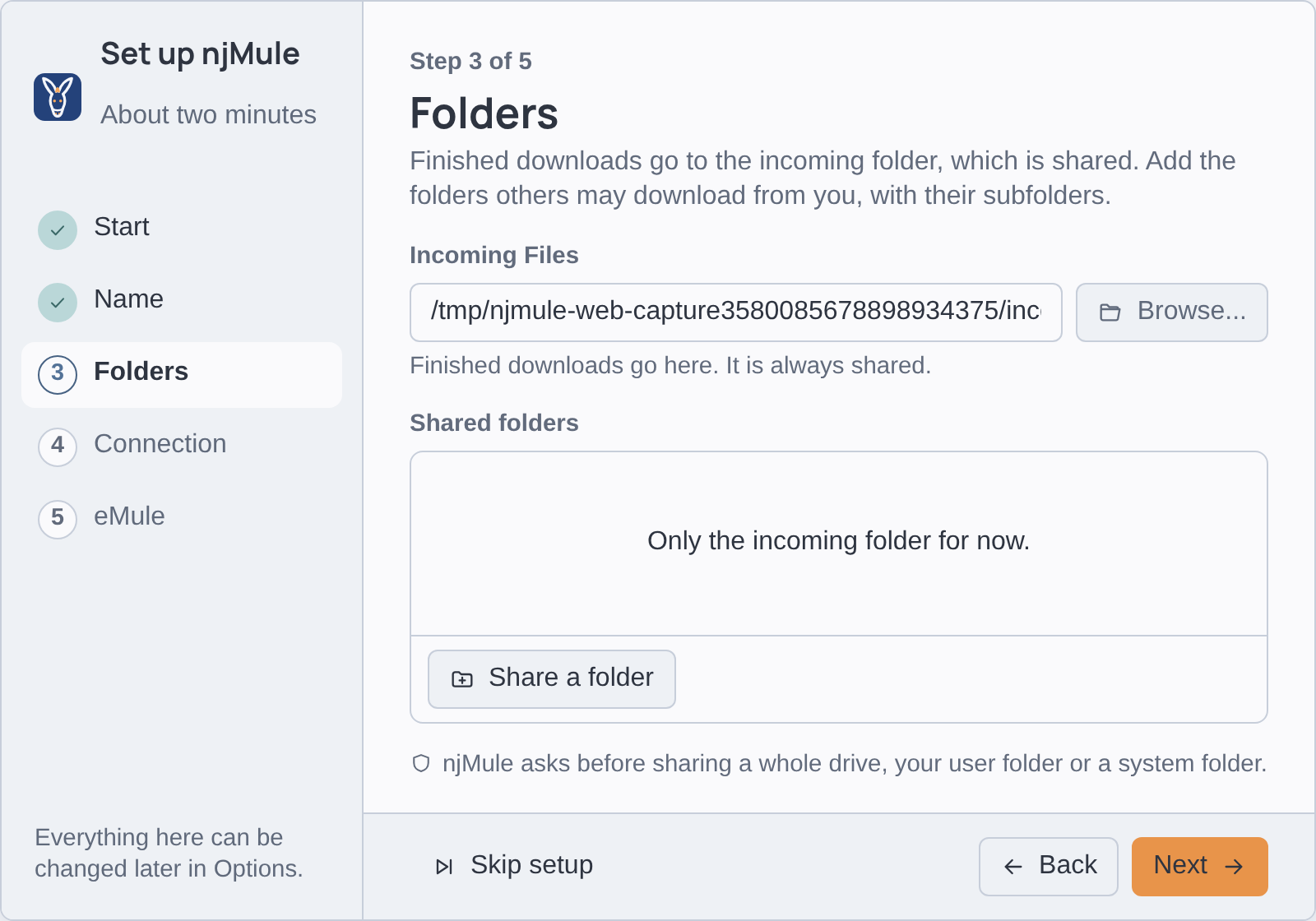
| Field | What it sets |
|---|---|
| Incoming Files | where finished downloads go; type a folder or choose one with Browse.... It is always shared. |
| Shared folders | the folders others may download from you, each with its subfolders; add one with Share a folder and remove it with the cross on its line |
Unless you change it, the incoming folder is the default one, Downloads\njMule or
Downloads/njMule in your home folder (see Data locations).
Before sharing a whole drive, your user folder or a system folder, njMule asks Share everything in this folder?, because everyone on eD2K and Kad could download what it holds: choose Choose another folder to pick one inside it, or Share everything if you mean it. The folders you add are shared when you finish. See Shared files.
Connection
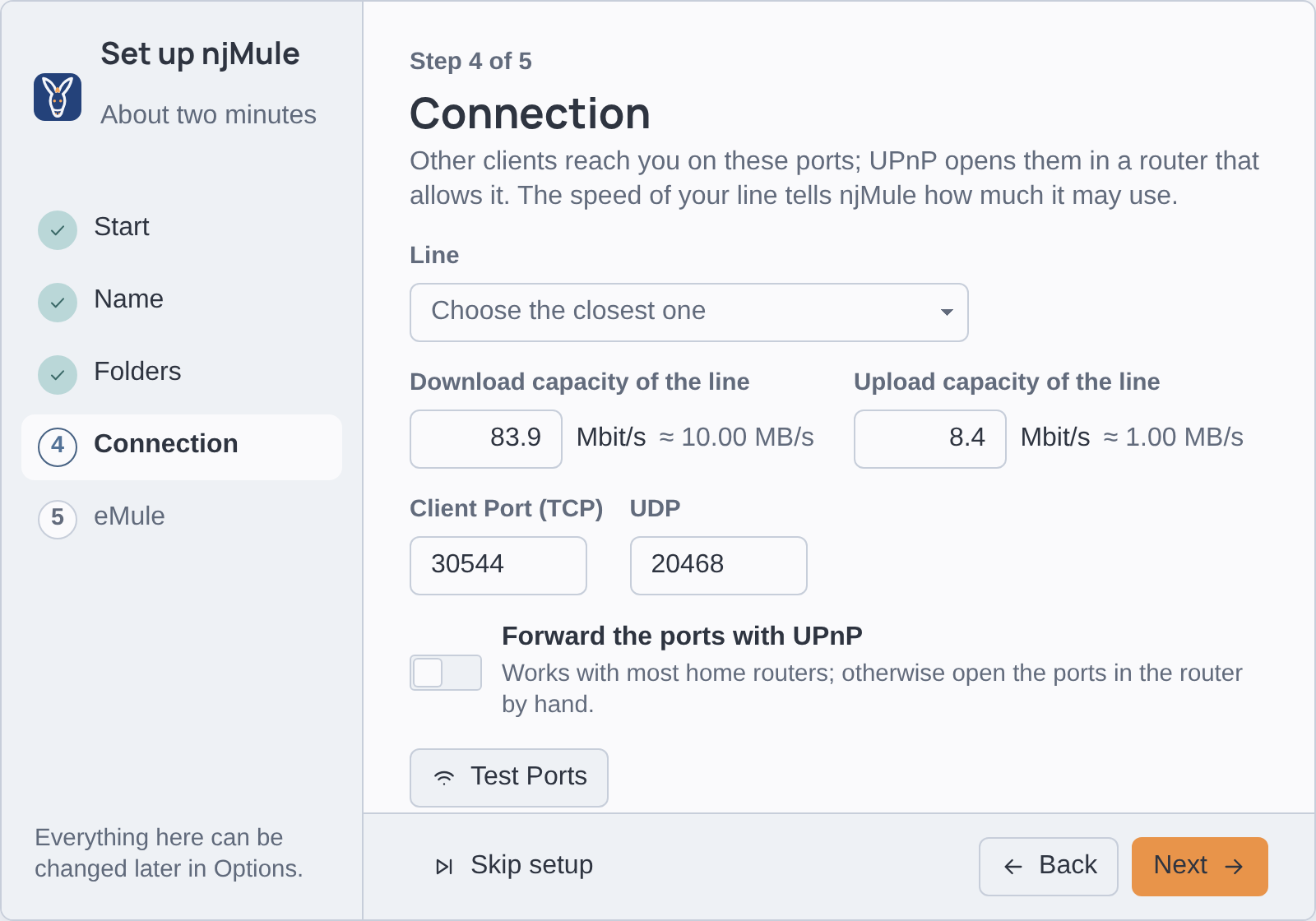
| Field | What it sets |
|---|---|
| Line | fills both capacities with a usual line: 20/1, 100/20, 300/50, 1000/300 or 2500/1000 Mbit/s |
| Download capacity of the line, Upload capacity of the line | the speeds of your Internet line, in Mbit/s as lines are sold (the same speed in bytes is shown beside); they tell njMule how much it may use |
| Client Port (TCP) | the eD2K port other clients connect to, 4662 by default |
| UDP | the client UDP port of eD2K and Kad, 4672 by default |
| Forward the ports with UPnP | lets njMule ask your router to forward both ports; on by default, it works with most home routers |
| Test Ports | checks at once whether others can reach you on these ports |
Test Ports applies the ports and the UPnP switch as the page shows them, then tells, as it goes, what the router answered and whether the TCP and the UDP port can be reached from outside, with what to do about a closed one. Since it applies them first, the ports stay changed even if you skip the rest. If you are not sure about your router, keep the default ports and UPnP: see Ports and firewalls.
eMule
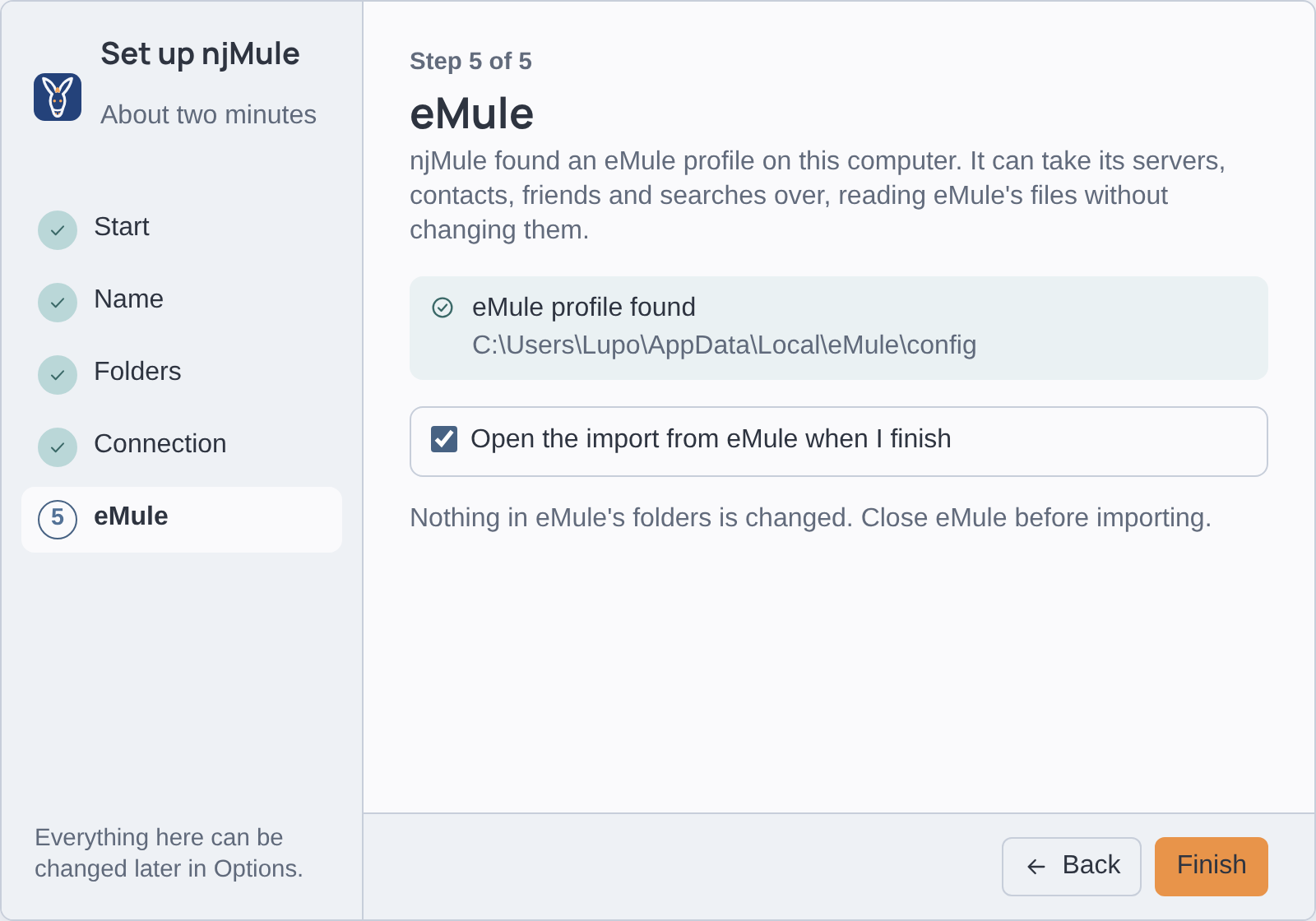
This page is there only when njMule finds an eMule profile on the computer (in
%LOCALAPPDATA%\eMule\config or %APPDATA%\eMule\config). It shows where the profile is, and offers
Open the import from eMule when I finish, ticked by default. Nothing in eMule's folders is
changed. Close eMule before importing.
With the box ticked, the Import from eMule window opens after Finish, where you check the profile first and then take it over: see Import an eMule profile.
What the wizard changes
| Wizard field | Option | Key in njmule.properties |
|---|---|---|
| Language, Theme | Options → General | (kept by the interface: the desktop app's window, or each browser) |
| Nick | Options → General | user.nick |
| Incoming Files | Options → Directories | dirs.incoming |
| Shared folders | Shared Files | (the list of shared folders) |
| Download and upload capacity | Options → Bandwidth | limits.downloadCapacityKiBps, limits.uploadCapacityKiBps |
| Client Port (TCP), UDP | Options → Connection | net.tcpPort, net.udpPort |
| Forward the ports with UPnP | Options → Connection | net.upnp |
The capacities are kept in KiB/s. See Options for every option.
Open it again
The wizard opens by itself at the first start only. To go through it again, choose ⋯ → Set up
njMule in the top bar, or press Ctrl+K and type Set up. It starts from
your settings as they are now. To import an eMule profile without the rest, choose
⋯ → Import from eMule....
In the web interface
The web interface shows the same wizard, with the same pages. It opens by itself in the first window that reaches njMule, the desktop app's or a browser's, until it is finished or skipped, and again from ⋯ → Set up njMule; a guest never sees it. In a browser:
- the language and the theme are kept by that browser, each browser its own; As the system follows the browser's languages;
- Browse... is disabled: type the incoming folder's path as it is on the computer where njMule runs, and Share a folder asks for a path the same way;
- the eMule page shows when njMule finds an eMule profile on its own computer, which may not be the one you browse from.
Without a window
The headless engine has no window of its own. Set it up from the web interface, which shows the same wizard, or with the command line. See Running headless.