Your first download
This tutorial takes you from a freshly set up njMule to a finished download in the desktop app: connect, search, download, watch the progress and open the file. It ends with the other way to start a download, an eD2K link. The web interface works almost the same way.
Share and download only files you have the right to. See the legal note.
1. Connect
njMule connects by itself when it starts: to an eD2K server and to Kad, the serverless network. A new profile already knows a list of servers and Kad contacts shipped with njMule, so there is nothing to set up.
The control at the right of the top bar tells the state of both networks: Connected, with your ID on eD2K (High ID or Low ID) and Kad's state below. Click it to see each network, connect or disconnect it, choose another server or open the Network.
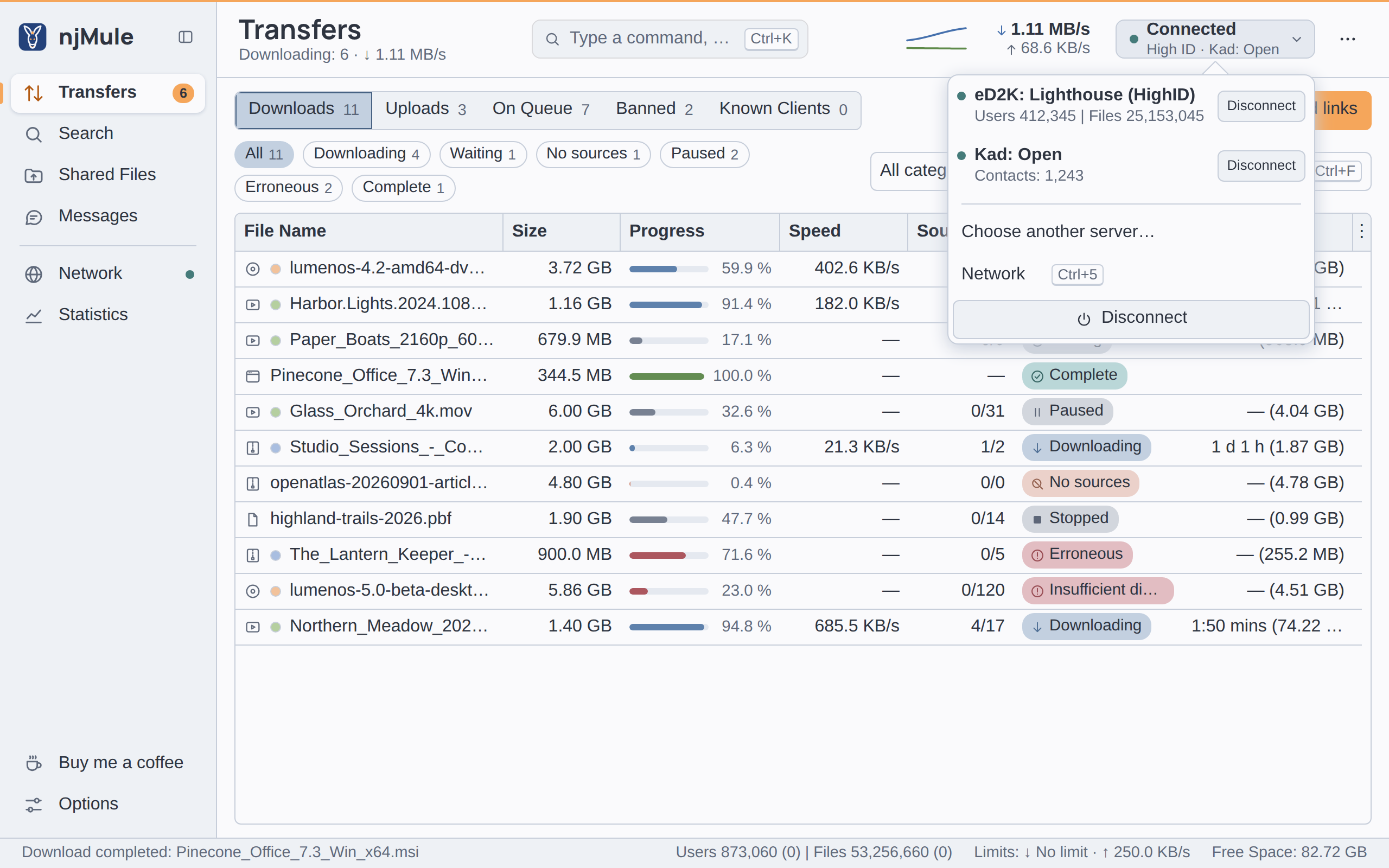
If it shows Not Connected, choose Connect there. With a Low ID, or Kad Firewalled, other clients cannot connect to you: you still download, but from fewer sources. Forwarding your ports fixes it; see Ports and firewalls.
2. Search
- Open Search in the sidebar (Ctrl+2).
- Type a few words of the file name in the Search for box. Put words in quotes to keep them together, and a minus before a word to leave it out.
- Choose where to search, beside the box: Automatic picks the server or Kad by what is connected; Server asks your server, Global (Servers) every known server, Kad the Kad network.
- Choose Start, or press Enter.
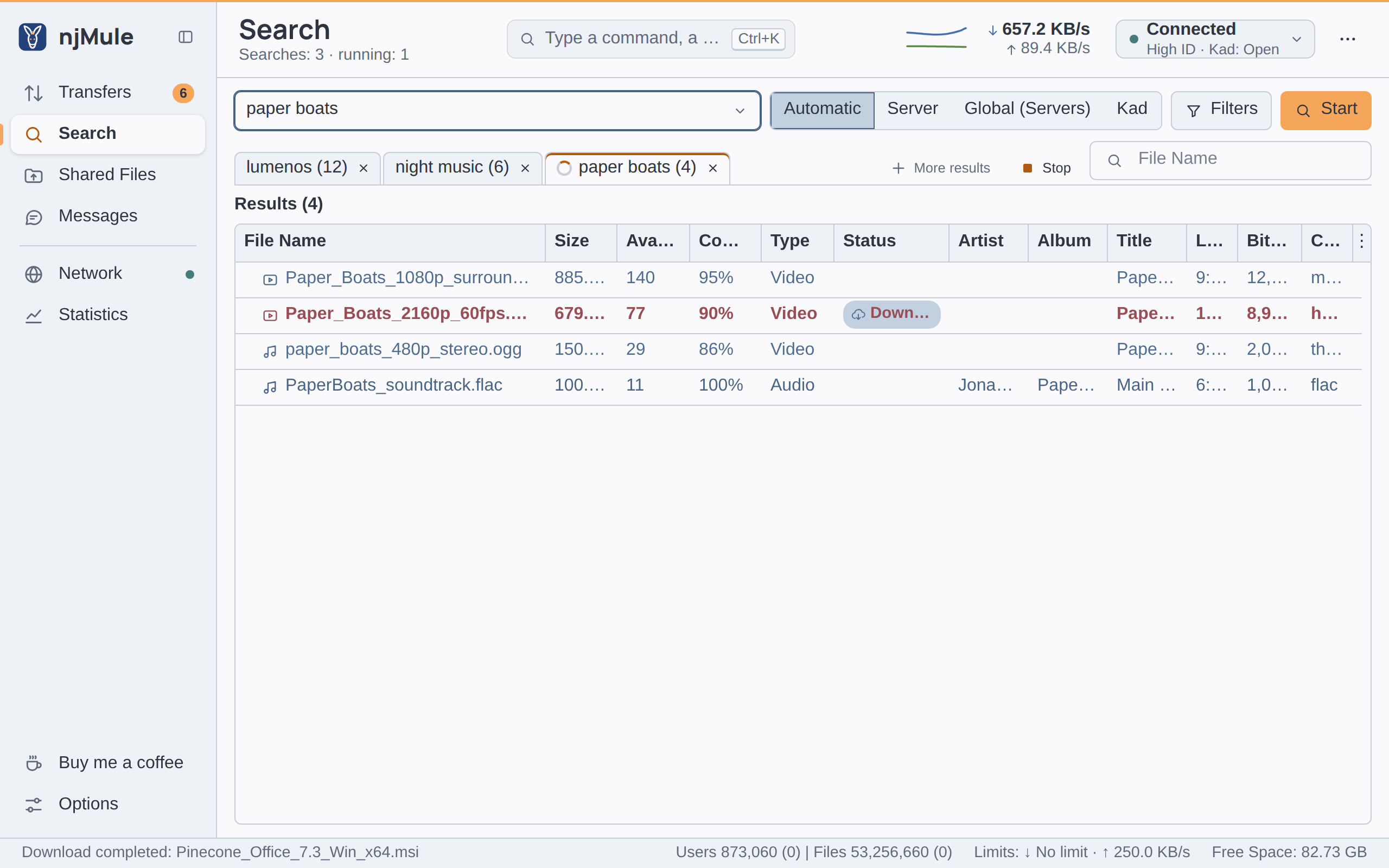
A tab opens with your words and the number of results, which arrive for a while; Stop ends the search early, and More results asks the server for the next ones when it has some. Filters narrows the next search by type, size, availability or extension. You can also search from anywhere: press Ctrl+K, type the words and choose Search the network for “…”.
3. Choose a file and download it
Each result shows its Size, its Availability (how many sources have it) and Complete (the share of those sources that have all of it). More sources mean a faster, surer download. Names in red are files you are already downloading or sharing, green ones you downloaded or cancelled before, faded ones are marked as spam; the others turn bluer the more sources they have.
To download a result, do one of these:
- double-click it;
- choose it and press Enter;
- choose it, then Download in the bar under the results, which also shows its size and sources;
- right-click it and choose Download.
The result turns bold, with a Downloading status. Choose several results to download them all at once. See Search for everything else.
4. Watch the progress
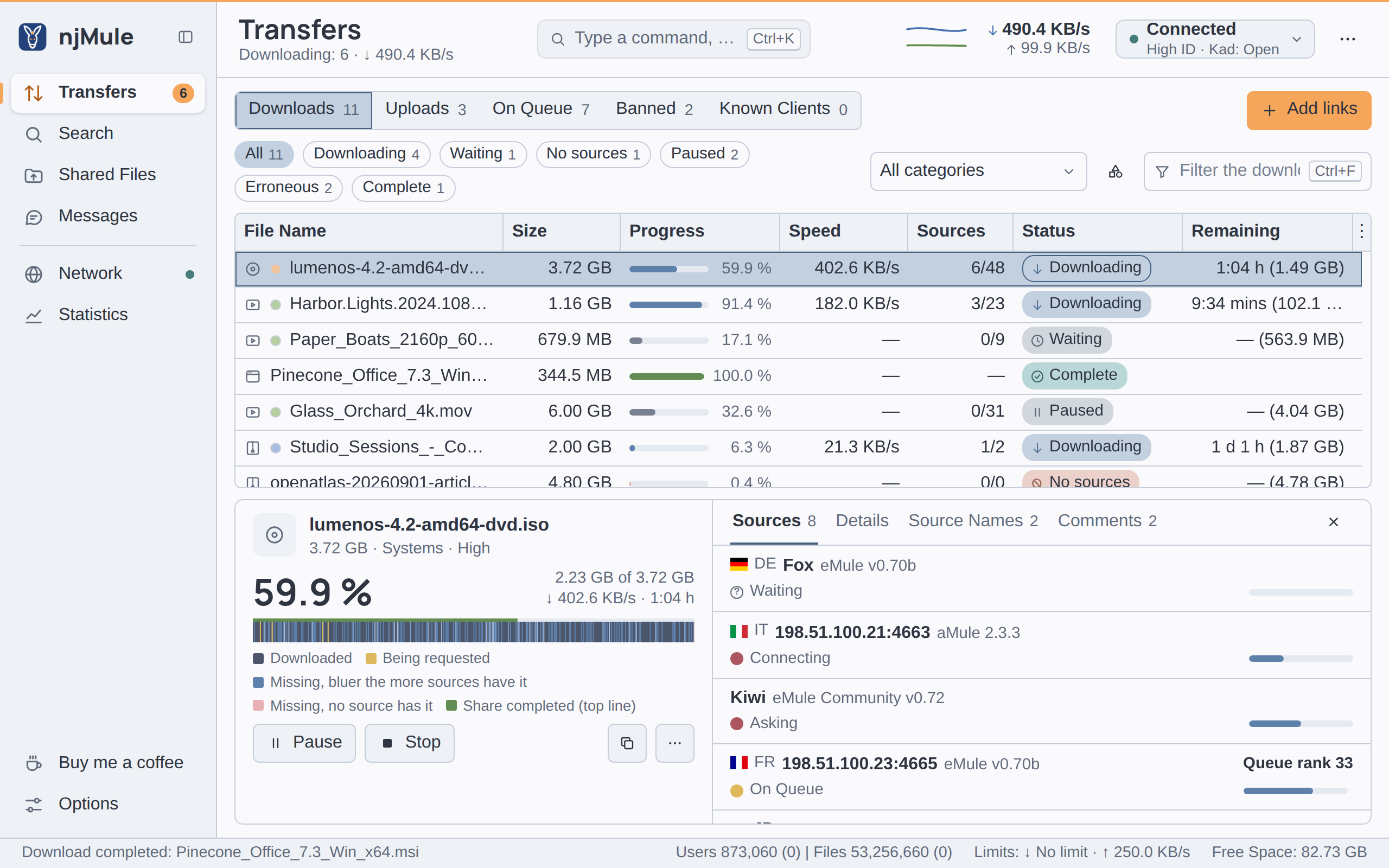
Open Transfers (Ctrl+1). Each download shows its progress bar and percentage, its speed, its sources (those sending out of those known), its state and the time left with what is missing.
The state tells what happens:
| State | Meaning |
|---|---|
| Downloading | at least one source is sending |
| Waiting | sources are known, but you wait in their upload queues |
| No sources | no client with the file was found yet |
| Paused, Stopped | you paused or stopped it |
| Complete | finished and moved to the incoming folder |
Waiting is normal on eD2K: other clients serve their upload queue in turn, and your credits with them move you up. Leave njMule running. To see more of a download, choose it and press Alt+Enter or Details: its parts, its sources and the names they give it. A double-click or the right arrow opens a download onto its sources.
See Transfers.
5. Find the finished file
Each part of a download is checked against its hash once complete, and repaired or downloaded again if it is corrupt. When the last one is in, njMule moves the file from the temporary folder to the incoming folder and tells you with a message. The download stays in the list as Complete until you choose Clear Completed.
- Double-click the completed download, or press Enter, to open the file in the program your system gives its kind.
- Right-click it and choose Open Folder to see it in your file manager, selected.
- Choose ⋯ → Open Incoming Folder to open the incoming folder.
Unless you changed it, the incoming folder is Downloads\njMule (Windows) or Downloads/njMule
(macOS, Linux) in your home folder. It is shared: others can now download the file from you. See
Data locations.
Add an eD2K link
If you have an eD2K link to a file, of the form ed2k://|file|<name>|<size>|<hash>|/, you do not
need to search:
- Copy the link.
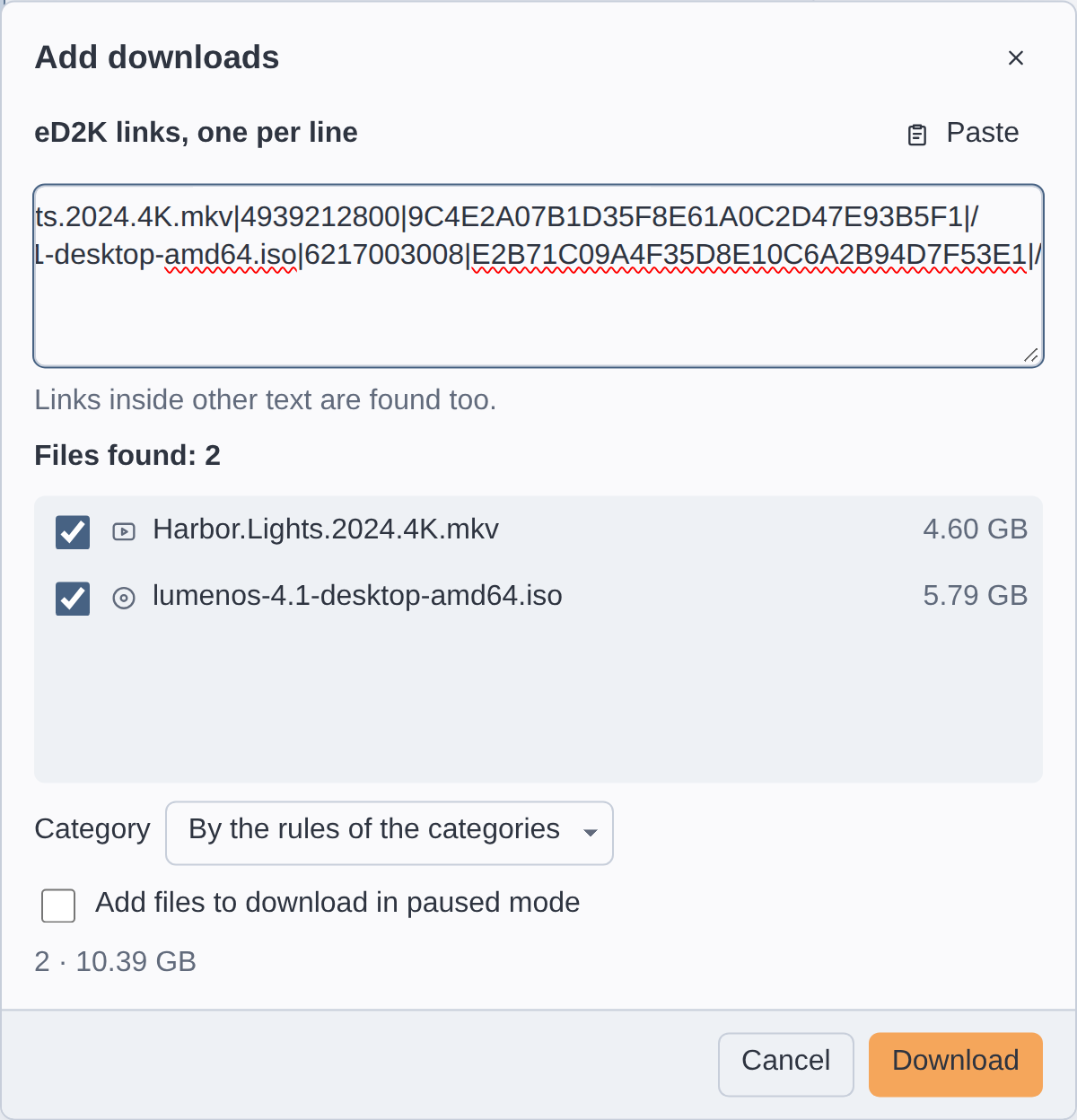
- In Transfers, choose Add links. The Add downloads window opens with the links of the clipboard already in its box; paste or type others, one per line (links inside other text are found too).
- Under Files found, untick those you do not want, choose a Category if you like, and tick Add files to download in paused mode to start them later.
- Choose Download.
Other ways to add a link:
- press Ctrl+V in Transfers: the links on the clipboard become downloads at once, in the category shown;
- paste it in the field at the top (Ctrl+K) and choose to download it;
- drop it on njMule's window;
- click it in your browser, once njMule opens ed2k links: turn on Open ed2k links with njMule (from browsers and other programs) in Options → General (Windows and Linux; on macOS the app is registered for them already);
- pass it to the desktop app:
njmule-gui "ed2k://|file|…|/"hands it to the desktop window already open, or opens one with it.
See eD2K links.
In the web interface
The web interface is the same interface, with the same places, menus and keys: connecting, searching, downloading, following the progress and adding links work there the same way. What needs the files and programs of the computer njMule runs on stays with the desktop app on that computer: opening a completed file, its folder or the incoming folder, and taking the ed2k links clicked in a browser. See Web interface.
From the command line
Without a window, njmule searches and adds downloads too:
njmule --search "paper boats" --kad   # search on Kad, print the results and exit
njmule "ed2k://|file|…|/"             # add the download to the njMule running on this computer
Given links and no njMule running, the second command starts the headless engine with them.
See Command line.
Next steps
- Share your own files: Shared files.
- Organise downloads in categories: Categories.
- Set your speed limits: Bandwidth.