Features
This page is a tour of njMule, area by area, with a link to the page that explains each feature. If you are new to njMule, Getting started is the place to begin.
eD2K
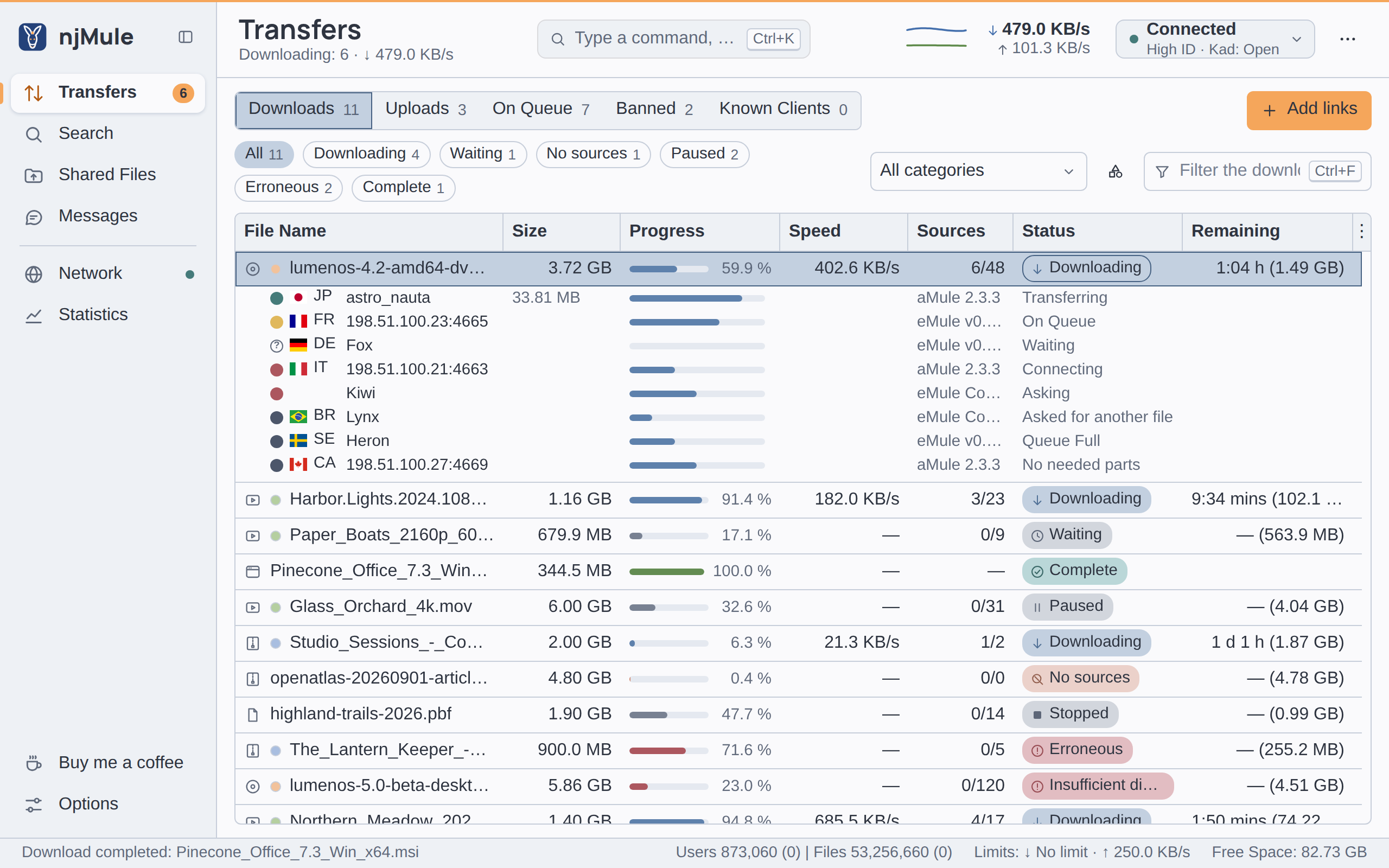
njMule connects to the same eD2K servers as eMule and works with the clients already on the network.
- Servers: a starting list shipped with njMule;
server.metlists added from a file or an address, and updated at each start from the addresses you keep; static servers; priorities; dead servers dropped after a number of failed attempts; servers learnt from the server you use and from other clients, if you want. Two servers are tried at once when njMule looks for one, and a lost connection is replaced at once. - Obfuscation of the connections to servers and clients, and of UDP, requested by default or required. See Protocol obfuscation.
- High ID and Low ID: the server checks whether others can reach you; firewalled clients are called back through the server.
- Searches on the connected server, on every known server over UDP (encrypted to the servers that take it), or on Kad, with Automatic choosing for you. Filters by file type, minimum and maximum size, availability, complete sources and extension; More results from the server; related files; media details (artist, album, title, length, bitrate, codec) in their own columns; every name a file is shared under. The searches left open come back at the next start.
- Spam filter: results you mark as spam teach njMule their hash, name, size and the servers that gave them, and similar results are rated as spam from then on.
- Downloads checked part by part against their hashes, rarest parts first; a corrupt part is repaired from AICH recovery data, downloading only its bad blocks, and a source that keeps sending corrupt data is banned. Sources come from the links, the server, the other servers over UDP, Kad and source exchange with other clients; a client that is a source of several of your downloads is asked for one at a time (A4AF), and sources are asked again over UDP to spare connections.
- Download control: priorities (Low, Normal, High or Auto), pause, stop and resume, a cancel that asks first and can be undone for a few seconds, new downloads paused and the next one started when one ends, preview of the first and last parts in your video player, renaming, and tidy file names. Downloads that receive nothing for a number of days can be deleted by themselves (off by default).
- Uploads through a queue scored by waiting time, credits and file priority, with secure identification, so that your credits with other clients stay yours; bans for clients that ask too often.
More in Transfers, Search and Servers and Kad.
Kad 2
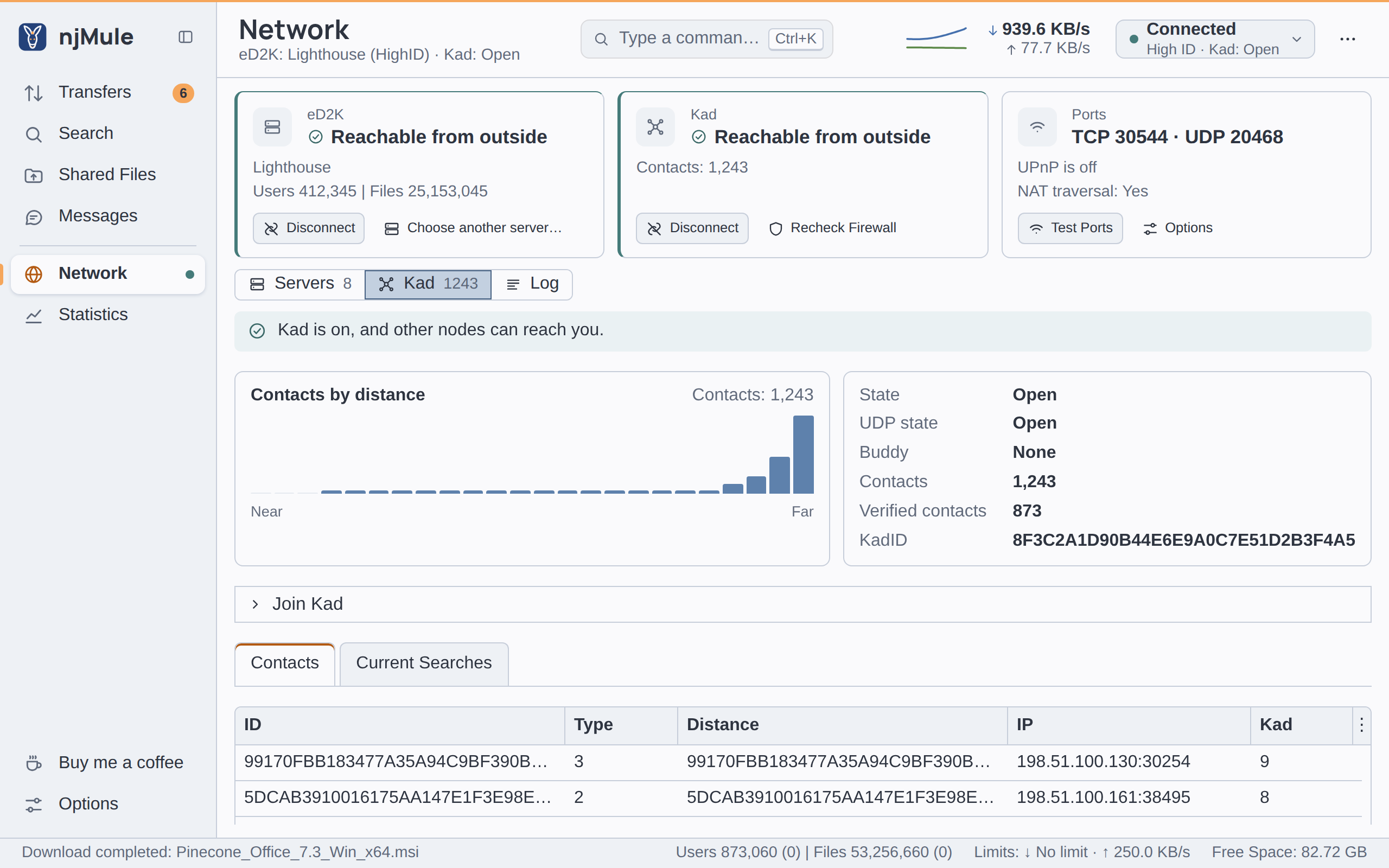
The serverless network, alongside eD2K or alone.
- A routing table of contacts, keyword and source lookups, and the publishing of your shared files and of their comments and ratings (notes).
- Firewall checks of the TCP and the UDP port, and Recheck Firewall on request.
- Firewalled clients reached through buddies and callbacks; firewalled yourself, njMule finds a buddy so that others can still reach you.
- Joining from the contacts shipped with njMule, from a
nodes.datfile or address, from a client you know, or through the eD2K clients you meet. - An estimate of the users and files of the network, beside those of the servers.
More in Network and Servers and Kad.
Files and sharing
- Shared folders, with their subfolders if you want, watched so that new and changed files are shared within seconds; the incoming folder is always shared. Shared files are hashed once and remembered.
- Safe by default: njMule asks before sharing a whole drive, your user folder or a system folder, and never shares private folders, its own configuration, backup and temporary files, or the files other programs are still writing.
- Upload priorities (Very low to Release, or Auto), renaming, comments and ratings, and the requests, accepted requests and bytes sent of each file, for this session or all of them.
- Who may see your files: everybody, your friends or nobody (the default).
- Categories for downloads, each with a name, a tint, a folder of its own, a priority and file name patterns that sort new downloads into it.
More in Shared files and Categories.
Coming from eMule
- Import of an eMule profile, offered at the first start when one is found, and from the desktop app, the web interface and the command line: preferences, servers, Kad contacts, known and shared files, the IP filter, friends, searches, categories and comments; on request your identity with its credits, and copies of your unfinished downloads.
- Only ever read: a check shows first what would happen, and every import leaves a manifest of what it read.
- eMule's file formats: njMule keeps its part files, known files, credits, friends and server and node lists in the same formats as eMule.
- ed2k links given back: when you turn off njMule's handling of ed2k links, or uninstall it on Windows, it gives them back to the program that opened them before.
More in Import an eMule profile.
Desktop app
The desktop app starts the engine and shows njMule's interface in a window of its own, through the system's web view (WebView2 on Windows, WebKit on macOS, WebKitGTK on Linux). The interface is the same one the web interface shows:
- A sidebar of places, a top bar with the rates and the state of both networks, a command palette (Ctrl+K) that finds a place or a command, searches the network or takes eD2K links, and a status strip. The window works down to 900 × 600.
- Themes from AtlantaFX, Nord light and dark by default, following the system; the system's colours under Windows high contrast.
- 36 languages, right-to-left ones with a mirrored layout, following the system's language.
- Accessible: text contrast measured in every theme, and screen readers hear the progress bars, states and graphs.
- eD2K links pasted, dropped on the window or typed in the palette.
- Keep the computer awake while files are transferred, off by default.
What only the desktop app does, on the computer that runs njMule:
- Notification area on Windows, with MiniMule, a small status window, and the speed limits in its menu; minimising hides the window there.
- Start at login, off by default.
- eD2K links from the browser (an option on Windows and Linux; on macOS the app is registered for them), or watched on the clipboard if you want.
- The system's dialogs to choose folders and files, files and folders opened in their programs, and on Windows the icon of the program of each kind of file beside its name.
- A remote njMule, such as one on a NAS or a Windows service, shown and driven in a window of its own.
More in The interface, Appearance, Notification area, eD2K links, Keyboard shortcuts and Remote njMule.
Web interface
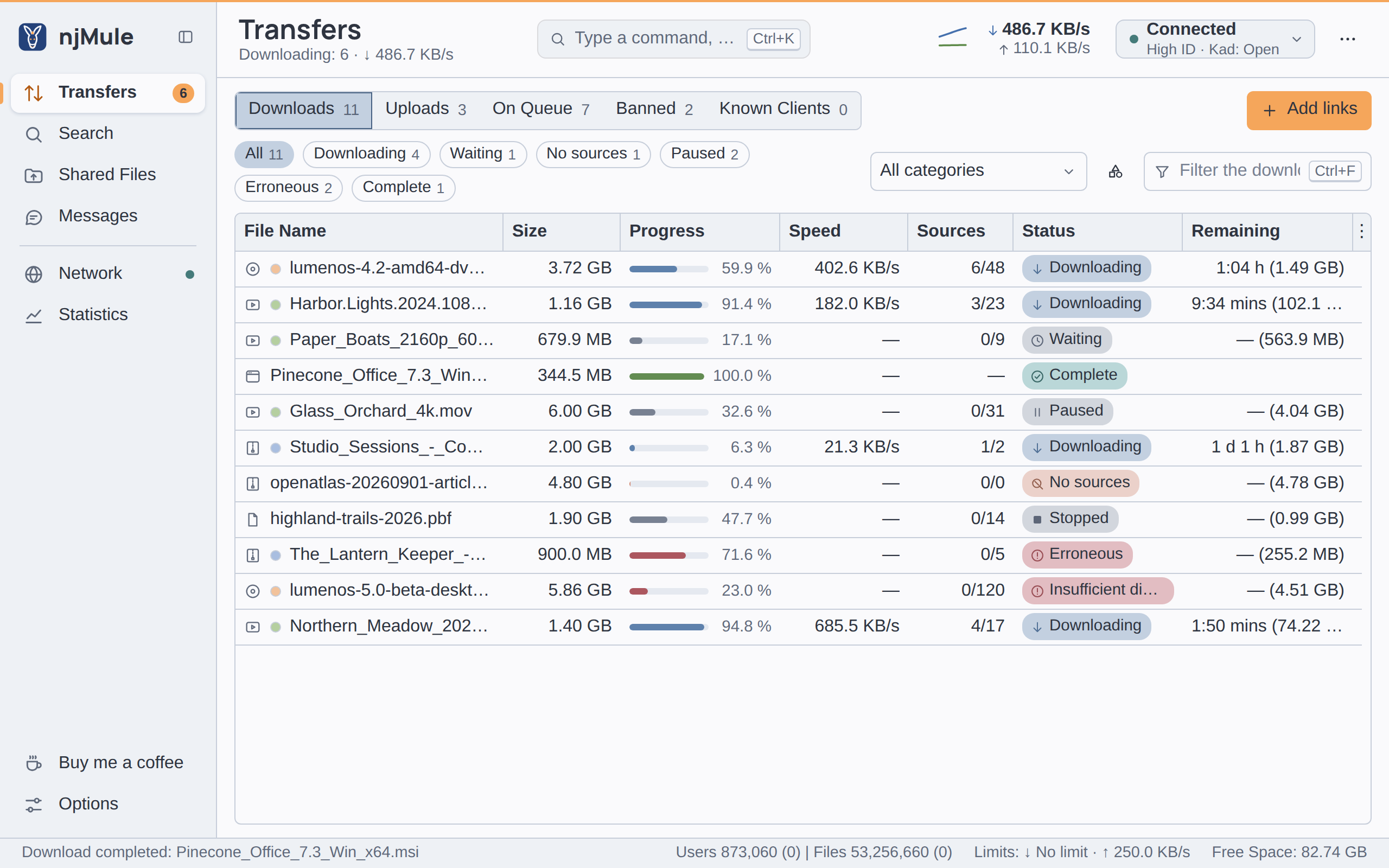
The desktop app's interface in a browser: the same places, menus and dialogs, from the transfers to the options, the set-up wizard and the eMule import, in the same 36 languages, light or dark. What needs njMule's computer (choosing and opening its files, the notification area, the web interface's own settings) stays with the desktop app.
- Behind a password, on this computer only unless you allow other computers; host names for a LAN name or a reverse proxy.
- A guest password of its own lets someone look without changing anything.
- Each browser keeps its own theme and language; on a narrow screen, as a phone's, the sidebar folds to its icons.
More in Web interface, Security, Reverse proxy and Guest access.
Networking
- IPv6 alongside IPv4, for clients and sources.
- Connections through routers between two firewalled clients, over QUIC or uTP.
- Port forwarding with UPnP, NAT-PMP or PCP, and a port test that tells whether others can reach you.
- Proxies: SOCKS 4 and 5, with or without credentials, and HTTP CONNECT; with SOCKS 5 the UDP of Kad, clients and servers goes through the proxy too.
- A network interface to bind to, such as a VPN: njMule stays offline while it is gone and comes back by itself.
- IP filter:
ipfilter.dat, PeerGuardian and P2B lists, updated from up to 16 addresses, with a level, a whitelist, and LAN addresses left out by default.
More in Ports and firewalls, IPv6, Connections through routers, Proxies, Network interface and IP filter.
Messaging
- Chat with other clients, with CAPTCHA checks both ways, and smileys shown as emoji.
- Friends, and the friend slot, which lets a friend download from you before the queue.
- Filters: messages from friends only, filtered words, and an anti-spam filter.
- A client's shared files, viewed and downloaded from, when it shows them.
More in Messages and Messages options.
Statistics
- Rates over the last ten minutes, hour or day, with the overhead of the protocol.
- Figures of the session and of all sessions, and a tree of every statistic.
- Requests and transfers of each shared file.
- A 90-day history of the clients you met, and, if you want, their countries with flags (IP Geolocation by DB-IP).
More in Statistics.
Automation and notifications
- Scheduler: weekly rules that change the speed limits and connections, and stop or resume the downloads of a category.
- Programs run on events: a program of yours when a download completes or fails, a chat message arrives or the temporary disk runs short of space, with the file, hash, size or message as arguments.
- Notifications of the same events by e-mail through your SMTP server (always encrypted), a web hook (ntfy, Gotify), and a sound of your own for finished downloads and chat messages; all off by default.
- Command line: search, download, share, hash files, import, and drive a running njMule with
njmule --remote. - Remote-control API in JSON, with the engine's events as a stream, described by an OpenAPI document.
More in Scheduler, Programs run on events, Notifications, Command line and Remote control.
Self-hosting
- Headless engine, on any desktop package or the static Linux build.
- Windows service, running before anyone logs in.
- systemd user unit in the Linux packages.
- Docker image for
linux/amd64andlinux/arm64. - Synology package for DSM 7.
- Portable mode and
--config-dir, to keep a profile on a removable drive or run several.
More in Running headless, Windows service, Linux service, Docker, Synology and Portable mode.
Updates
njMule looks for a new version at each start and once a day, believes it only when it is signed by a key built into njMule, and can download it and, where it may replace itself, install it: at once, when it exits or in the night hours. Elsewhere (the deb and rpm packages, Synology, Docker) it tells you how to update. Test versions are optional. More in Updates.
Privacy and security
- Hardened parsing: everything read from the network or from disk is size-limited and checked.
- Crash-safe saving and dated backups of the configuration.
- Secure identification and obfuscation on the network; the IP filter and connection limits against abuse.
- The web interface keeps only a hash of its password, locks out repeated wrong passwords, checks every form and refuses unknown host names.
- Few outside contacts: GitHub for updates (or only when you ask), the lists you set, and DB-IP only if you turn the countries on. The client history never keeps addresses.
- Your files: on Linux and macOS, the identity key, the user hash, the backups and the web interface settings are readable by you only; uninstalling never deletes your completed downloads.
More in Privacy, Web interface security, Backups and Security.