Notification area and app menu
On Windows njMule can hide in the notification area, next to the clock, instead of the taskbar: it keeps downloading and uploading while its window is out of the way. On macOS it takes the application menu of the system. On Linux the window minimises as usual.
The notification area (Windows)
Minimise to the notification area, next to the clock is on by default (in General options, under Startup; it is greyed out on macOS, on Linux and in the web interface). While it is on, minimising the window hides it, and the njMule icon appears in the notification area.
With the window hidden:
- Rest the pointer on the icon to see the rates, as
njMule - Download: … | Upload: …. - Click the icon to open MiniMule, a small window with njMule at a glance.
- Double-click the icon to bring the main window back.
- Right-click the icon to open its menu.
- The messages of njMule, such as a finished download or a new chat message, show as notifications of Windows.
When the window comes back, the icon goes. If Windows cannot show the icon, the window stays minimised on the taskbar.
Starting hidden
Turn on Start minimized (also under Startup, off by default) to start njMule out of sight: in the notification area while minimising goes there, or minimised on the taskbar otherwise. Together with Start njMule when I log in, njMule then runs in the background from the moment you log in.
The menu of the icon
A right click on the icon opens njMule's menu:
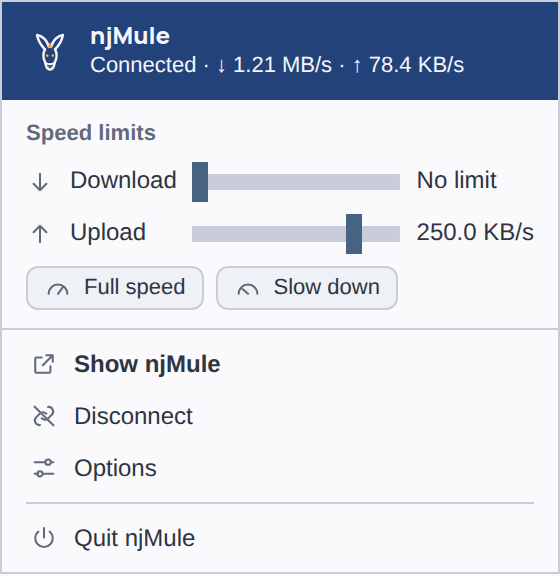
- The head names njMule with its state and its rates, as
Connected · ↓ 1.26 MB/s · ↑ 95.8 KB/s. - Speed limits: the Download and Upload sliders, with Full speed and Slow down, as under the rates of the top bar; see Speed limits.
- Show njMule (the default, in bold) brings the window back.
- Connect or Disconnect: only the one that applies shows. It connects to an eD2K server, or leaves it; Kad is started and stopped from the window.
- Options brings the window back on the options.
- Quit njMule ends njMule, asking first unless you turned the question off; see Closing the window.
The menu closes when you click elsewhere or press Esc.
MiniMule
A click on the icon opens MiniMule in the corner of the screen, over the other windows:
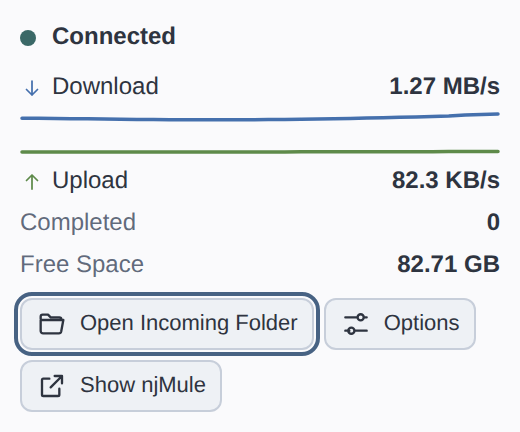
- Connected or Not Connected, with a dot.
- Download and Upload: the rates, with their last half minute drawn between them.
- Completed: the downloads finished since njMule started.
- Free Space: the room left on the disk of the incoming folder.
- Open Incoming Folder, Options and Show njMule.
It is read again every second while it is open.
The application menu (macOS)
On macOS the items of the application menu lead into njMule:
- About njMule opens njMule's About window.
- Settings… opens the options.
- Quit njMule asks first, as closing the window does, unless you turned the question off.
The shortcuts of the window use Cmd on macOS: see Keyboard shortcuts.