Transfers
Transfers (Ctrl+1) is where your downloads are, and where you see who downloads from you. The segments at the top choose the list shown, one at a time, each with its count:
| Segment | What it lists |
|---|---|
| Downloads | The files you download, and those completed until you clear them. |
| Uploads | The clients downloading from you now. |
| On Queue | The clients waiting in your upload queue. |
| Banned | The addresses banned for a while. |
| Known Clients | The clients met in the last 90 days. |
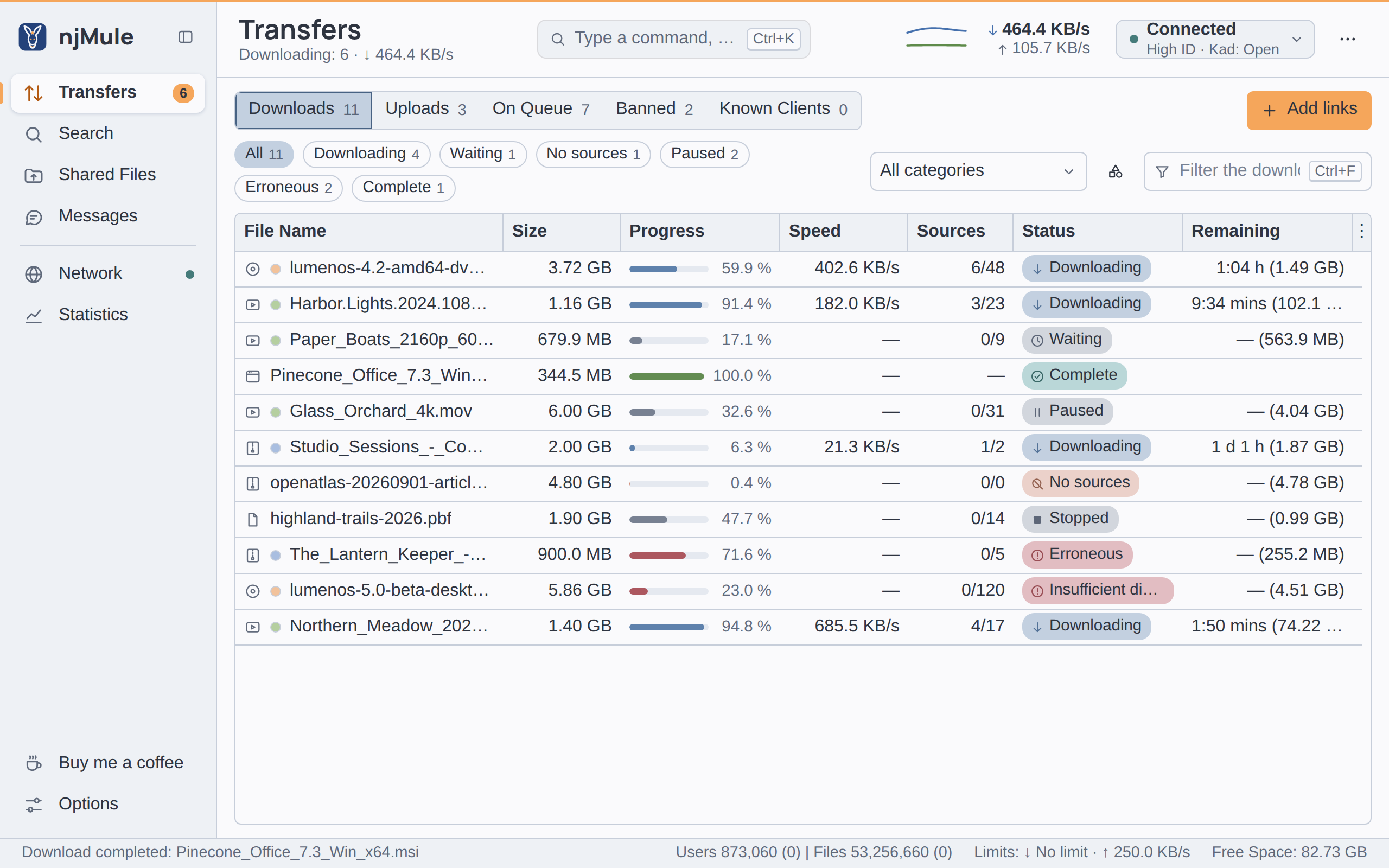
The summary under the title tells how many downloads run and the total download rate, for example
Downloading: 6 · ↓ 1.26 MB/s; the same count shows on Transfers in the sidebar.
Adding downloads
- Press Add links (top right) and paste eD2K links into the dialog that opens; links already on the clipboard are in it. See eD2K links.
- Press Ctrl+V on the screen, outside its fields: the eD2K file links on the clipboard become downloads at once, in the category shown.
- Download a result of a search.
- Paste links in the command palette (Ctrl+K), drag them onto the window, or click them in a browser: see eD2K links.
While the list is empty it offers Search and Paste eD2K Links, which do the same.
The list of downloads
Narrowing the list
Above the list:
- Chips keep the downloads in one state, each with how many are in it: All, Downloading, Waiting, No sources, Paused (stopped ones too), Erroneous (those short of disk space too) and Complete.
- All categories shows the downloads of every category; choose one to see only its downloads. The button beside it opens the Categories dialog: see Categories.
- Filter the downloads (Ctrl+F) keeps the downloads whose name holds every word you type, whatever the case. Esc empties it.
Columns
| Column | What it shows |
|---|---|
| File Name | The name, after an icon of what the file holds and the dot of its category (the tooltip names the category). In the desktop app on Windows the icon is the one Windows gives the kind of file, that of the program that opens it. |
| Size | The size of the file. |
| Progress | A thin bar of what is downloaded, in the colour of the state, with the percentage beside it. |
| Speed | The rate it downloads at now, or —. |
| Sources | The sources sending now out of those known, as 6/48; — once complete. |
| Status | The state, on a chip with its own icon. |
| Remaining | The time left at the current speed, then how much is missing, as 9:34 mins (102.1 MB); — for the time while nothing arrives. |
| Completed | How much is downloaded (hidden at first). |
| Priority | The download priority; an automatic one shows what it acts as, as Auto [Hi] (hidden at first). |
| Category | The category's name (hidden at first). |
The ⋮ button at the right end of the column heads opens the column menu, which shows or hides each column. Every list of njMule remembers its columns: their order, widths, which ones show, and the sort.
The downloads also take the order you give them by dragging: drag one, or the ones chosen, onto another, and they go before or after it, as the line in the list shows. The sort of the columns is then undone, and the list keeps that order, new downloads after it, until a click on a column head sorts it again. The order is the list's only: it does not change which download njMule serves first.
States
| State | Meaning |
|---|---|
| Downloading | At least one source is sending data now. |
| Waiting | Sources are known, but none sends yet: you are in their queues. |
| No sources | No source has the file right now; njMule keeps asking the servers and Kad. |
| Paused | Paused by you; the sources are kept. |
| Stopped | Stopped by you: paused, with its sources forgotten. |
| Insufficient disk space | The disk of the temporary files is full; the download goes on by itself once there is room again. |
| Erroneous | The file could not be written; Resume tries again. |
| Complete | Finished, its file in the incoming folder. |
The progress bar
The thin bar in Progress takes the colour of the state, and the percentage is always written beside it:
| Colour | State |
|---|---|
| Blue | Downloading |
| Grey | Waiting, Paused, Stopped |
| Orange | No sources |
| Red | Erroneous, Insufficient disk space |
| Green | Complete |
The bar of each part, with what every colour means, is in the details.
Sources under a download
A download opens onto its sources, a line each under it, in the columns of the list:
- Double-click it, or choose it and press Enter, to open or close it.
- Press → to open the chosen downloads, ← to close them.
Each source line shows a dot of what it does, the flag and code of its country (its name in the
tooltip) when the country is known, and its name (or address, in the tooltip too), what it sent
under Size, the share of the file it has under Progress, its speed under Speed, its
program and its place in its queue (QR: 33) under Sources, and what it does under Status.
The sources sending come first, then the others by their place in the queue.
| Dot | Status of the source |
|---|---|
| Green | Transferring: it sends you data. |
| Yellow | On Queue: you wait in its queue. |
| Red | Connecting or Asking: njMule is reaching it. |
| Dark grey | Queue Full, No needed parts or Asked for another file: of no use for now. |
? in a ring | Waiting: not asked yet. |
A source Asked for another file has the file of several of your downloads and is asked for one at a time; see sources shared with other files.
Completed downloads
A completed download stays in the list, also after a restart, until you take it off:
- Double-click it, or press Enter, to open its file in the program your system uses for that kind of file.
- Open Folder in its menu opens its folder in your file manager, with the file selected.
- Clear Completed at the bottom of the menu takes every completed download off the list. Delete takes off the completed downloads chosen. Their files always stay where they are.
If the file was moved or deleted since, njMule says Requested file not found. Opening the file or its folder works in the desktop app on njMule's computer only: in a browser, or in a window on a remote njMule, Open Folder is greyed out and a double click says that the folders of this njMule are on its own computer.
The details pane
Details in the menu of the downloads, or Alt+Enter, shows the details of the download chosen under the list. Drag the divider to give them more or less room: njMule remembers the height, and keeps it tall enough for the buttons. The cross at the end of the tabs hides them.
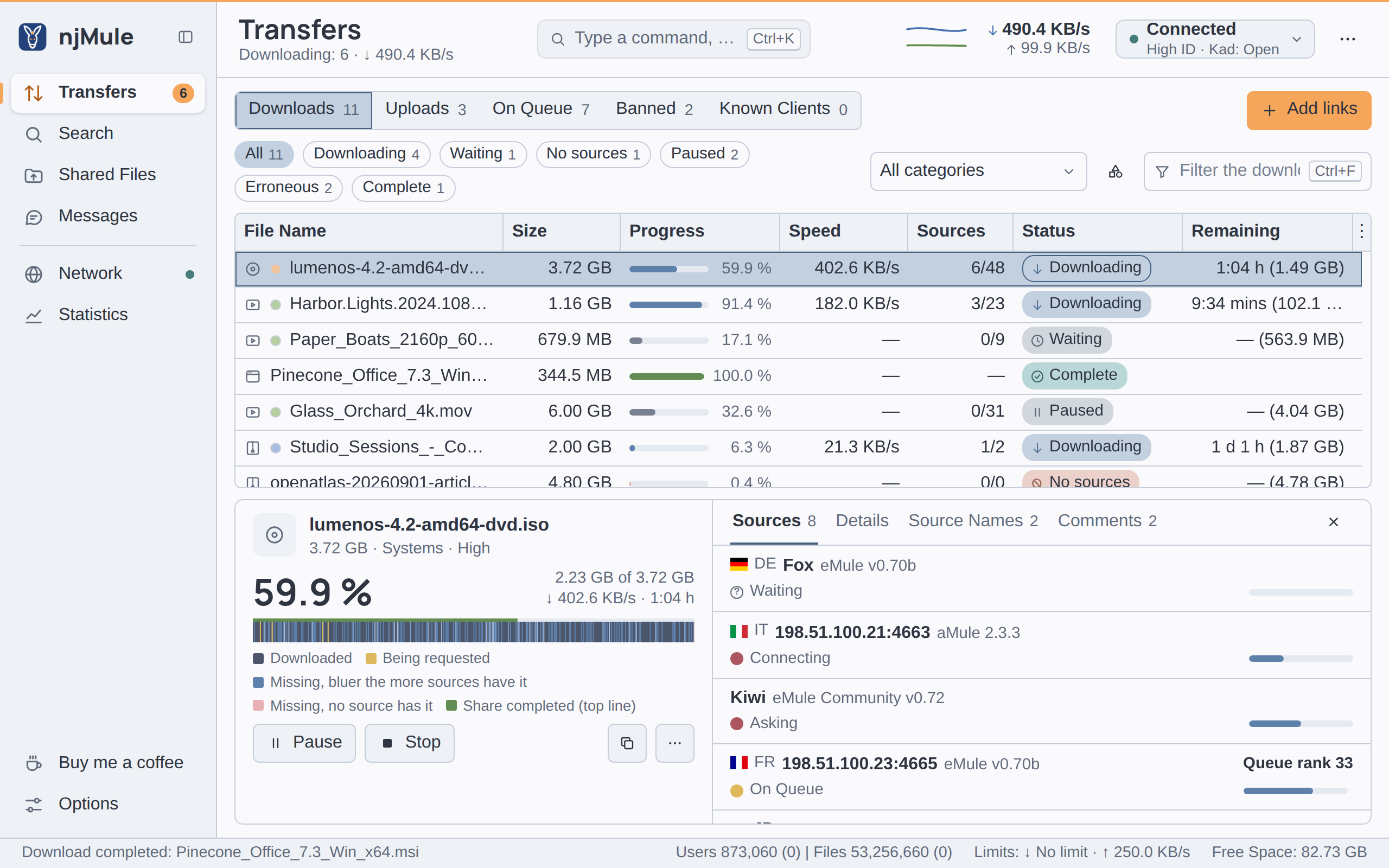
On the left is the download itself:
- Its icon and name, with its size, category and priority.
- The share done in large figures, how much of how much, and the speed with the time left (or the state while it does not download).
- The part map, the whole file drawn from start to end, with its legend.
- A note when you need to act: No source has this file right now: njMule keeps asking the servers and Kad., The disk is full: free some space and the download goes on by itself., or The file could not be written: resume to try again.
- Two buttons for what the state asks: Pause and Stop while it downloads or waits, Pause and Add Sources... with no source, Resume and Stop while paused, Resume once stopped, Resume and Open Incoming Folder after an error, Pause and Open Incoming Folder with a full disk, Open Incoming Folder once complete. Open Incoming Folder opens the folder in the desktop app on njMule's computer; elsewhere it only names the folder.
- The copy button (Copy eD2K link, Ctrl+C) and ⋯ with Preview, Comments..., Priority, Category, Add Sources... and Cancel download.
With several downloads chosen, the pane says Downloads chosen: … and offers Pause, Resume, Stop, Cancel downloads and Copy eD2K link for all of them; with none, it asks you to choose one.
The part map
The part map shows where the file stands, part by part. The words of the legend are always under it:
| Colour (light theme) | Legend | Meaning |
|---|---|---|
| Dark grey | Downloaded | This piece is on your disk. |
| Yellow | Being requested | A source is being asked for this piece now. |
| Pale to strong blue | Missing, bluer the more sources have it | Missing, but sources have it: the more sources (up to ten), the stronger the blue. |
| Soft rose | Missing, no source has it | Missing, and no source known has it. |
| Green line on top | Share completed (top line) | How much of the file is done, as a thin line along the top. |
In the dark theme the downloaded pieces are light and the blues brighter; under Windows high contrast the map takes the system's colours. A download that has just started is all rose until its sources tell what they have.
Tabs
- Sources (with their count): each source with its name, country and program, what it does with
its dot, how much it sent or its place in the queue (
Queue rank 33), and a bar of the share of the file it has. Its menu has View Shared Files, which asks the client for the files it shares (it may refuse), and Ask this source for this file for a source asked for another file. While there is no source, Add Sources... is there too. - Details: Status, Size, Completed, Parts, Datarate, Sources, Transferring, Priority, Category and Remaining, then the file's Hash with a Copy button.
- Source Names: the names the sources give the file, with how many sources give each, the most given first. See renaming a download.
- Comments: the comments and ratings the sources give the file, with Comments... to write your own. See comments and ratings.
Renaming a download
The name a download gets once complete can be changed while it runs:
- Open the Source Names tab.
- Choose a name and press Take over (or double-click it): it goes into the box under the list. You can also type a name there.
- Press Cleanup to tidy it: escapes, dots and underscores used as spaces and tags in square brackets go, and each word starts with a capital (the words to drop are an option of Directories).
- Press Rename. The name is made safe for any file system.
The menu of a download
Right-click the downloads chosen. The commands that do not apply are greyed out, never hidden.
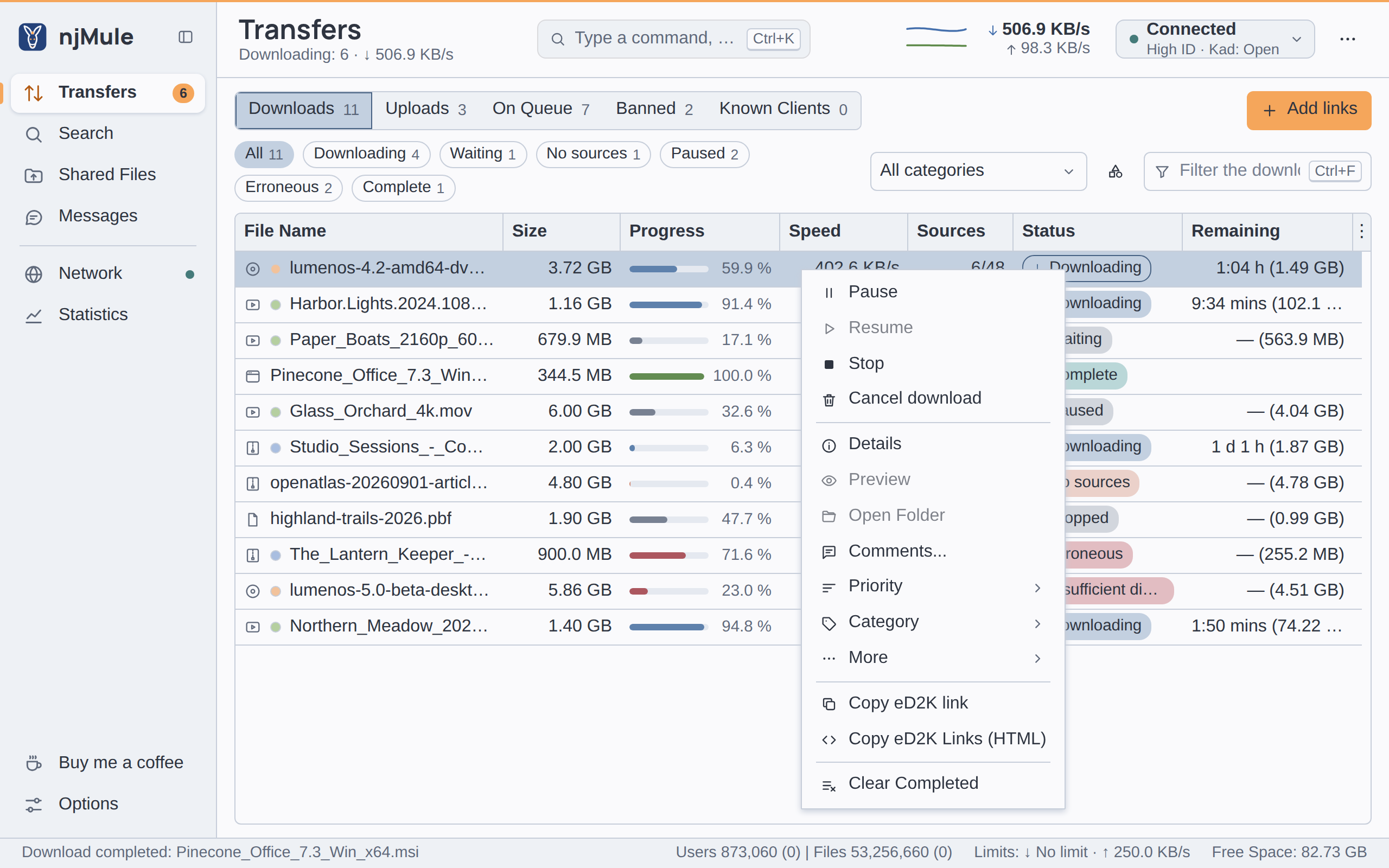
| Command | What it does |
|---|---|
| Pause | Pauses the download; its sources are kept. |
| Resume | Resumes a download paused, stopped or in error. |
| Stop | Pauses the download and forgets its sources. |
| Cancel download | Cancels the download after a question, deleting what was downloaded; see Cancelling. |
| Details | Shows the details pane. |
| Preview | Opens what is downloaded so far in your video player; see Preview. |
| Open Folder | For a completed download: opens its folder, the file selected (in the desktop app on njMule's computer). |
| Comments... | Your comment and rating of the file, and those of others; see Comments. |
| Priority ▸ | Low, Normal, High or Auto. Higher priorities ask for sources and start transfers first; Auto gives rare files a higher one. |
| Category ▸ | (Unassign) or one of your categories; see Categories. |
| More ▸ Add Sources... | Adds a source you know by its address; see Adding a source. |
| More ▸ Try to download preview chunks first | Downloads the first and the last parts first, so that a film can be previewed sooner. |
| More ▸ Sources shared with other files ▸ | Moves the sources this download shares with others; see below. |
| Copy eD2K link | Copies the links of the downloads chosen, one per line (Ctrl+C). |
| Copy eD2K Links (HTML) | Copies them as HTML links for a web page. |
| Clear Completed | Takes every completed download off the list, their files kept. |
Cancelling and undo
Cancelling deletes what was downloaded, so njMule asks first, naming the files (up to five): Cancel this download? or Cancel … downloads?, with Cancel download in red and Keep downloading as the default. Delete asks the same for the downloads chosen.
Once cancelled, the message Downloads cancelled: … offers Undo for ten seconds: it brings the downloads back with what they had. Shortly after, their files are deleted for good.
Adding a source
Add Sources... asks for the Address of a user who has the file: a host or an IP address, a
colon, then the TCP port, such as 192.0.2.10:4662 (an IPv6 address goes in brackets, as
[2001:db8::1]:4662). njMule says Source … added, or Source … not added: known already or
refused by the IP filter. A source at a LAN address can be added this way too.
Preview
Preview starts the video player chosen in the options with what is downloaded so far. It works in the desktop app on njMule's computer, where the data is; elsewhere it is greyed out. Choose the player, and its arguments if needed, under Video Player in Directories; without one njMule says Choose a video player in the settings first. Until the start of the file has arrived, it says The start of the file has not arrived yet: try the preview again later. Try to download preview chunks first makes a preview possible sooner; the option of the same name in Directories applies it to every download that can be previewed.
Comments and ratings
Comments... opens Rate and comment:
- Choose a File Quality: Not rated, Invalid / Corrupt / Fake, Poor, Fair, Good or Excellent.
- Type a File comment:, one line of at most 128 characters. The clients downloading the file from you see it.
- Press Save.
Under Comments are those of the sources of the download, and the notes Kad holds on the file, marked with the Kad icon; the name the commenter gave the file is in the tooltip. Search Kad looks for more notes on Kad. Comments holding a filtered word are left out.
Sources shared with other files
A client that has the files of several of your downloads is asked for one at a time; the others list it as Asked for another file. njMule moves such sources by itself to where they are most useful, and you can move them by hand under More ▸ Sources shared with other files:
- Take the sources shared with other files now: their sources are asked for this download (for downloads that run).
- Take sources shared with other files whenever possible: this download takes them by itself from now on (a tick, kept with the download).
- Give this file's shared sources to the other files.
njMule says how many sources moved (Sources swapped: …). One source can also be moved from the Sources tab of the details, with Ask this source for this file; a source being asked or sending data cannot move then.
Uploads, queue, bans and clients
Uploads and On Queue
Uploads lists the clients downloading from you, On Queue those waiting for a slot, with the same columns: User Name, Country, Software, File Name, Speed, Transferred and Waited. Their menu has View Shared Files, which asks the client for its list of files, shown in a window where you can download them.
Banned
Banned lists the addresses banned for a while, for misbehaving (such as asking too often or sending corrupt data), with the Time left. Unban in their menu lifts the ban.
Known Clients
Known Clients lists the clients met in the last 90 days: User Name, Country, Software, First seen, Last Seen, and the bytes exchanged with each of all times (Uploaded total, Downloaded total). It keeps the name and program each gave last and, when countries are shown, where it was from, never its address.
Countries and flags
When Show the country of other clients is on (in General options, on by default), the sources, the uploads, the queue and the known clients show the country of each client, and the servers' list and details the country of each server: its flag beside its code, and its name in the tooltip. njMule then downloads DB-IP's free country database once a month.
Downloads that receive nothing
njMule can delete by itself the downloads that receive nothing for a number of days. It is off by
default; see Delete downloads that receive nothing for (days, 0 = never) in
Directories. Paused and stopped downloads are never deleted, and the
link of each one deleted is first written to deleted-downloads.txt in the profile folder, so that
you can add it again.