Shared files
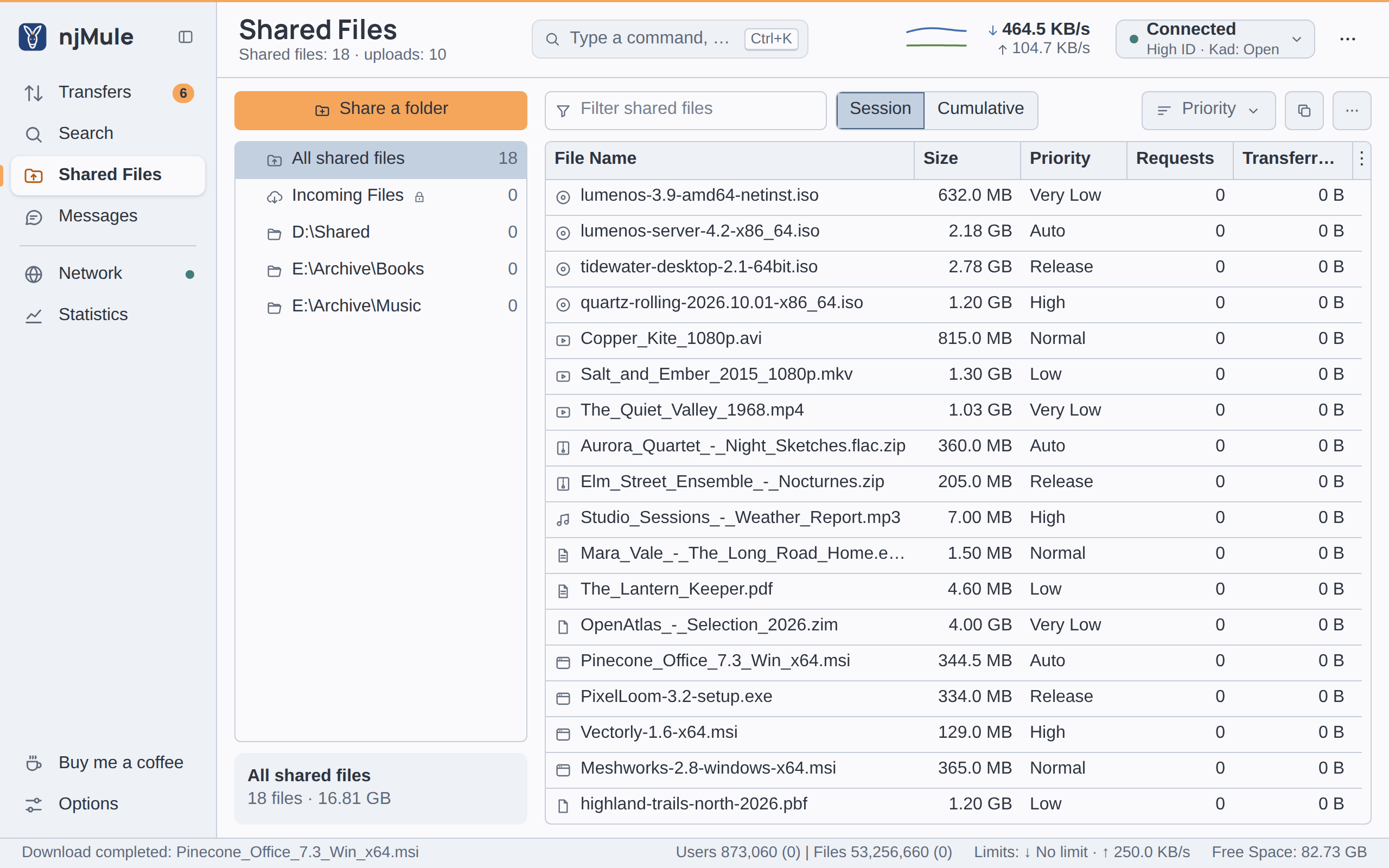
Shared Files (Ctrl+3) shows what you share with the eD2K and Kad networks: the places you share in a tree on the left, their files on the right. Everyone on the networks can download the files you share, so share only what you have the right to share. The summary under the title counts the files shared and the uploads running.
The places
The tree lists:
- All shared files: every file you share.
- Incoming Files, with a lock: the folder where finished downloads go. It is always shared.
- Each folder you share. A folder shared with its subfolders opens onto the subfolders that hold files.
Each place shows how many files it holds. Choose one to see its files; under the tree, a panel names
it and tells its files and their size (as 18 files · 16.81 GB). For a folder you share, the panel
has the switch Share with Subdirectories: share its subfolders too, those made later included,
or the folder alone.
Right-click a place for its menu:
- Open Folder: opens it in your file manager. This works in the desktop app on njMule's computer; elsewhere njMule says that the folders of this njMule are on its own computer.
- Unshare Directory (for a folder you share): stops sharing it. Its files stay on your disk.
njMule watches the shared folders: files added or changed show within seconds, once they are hashed.
Sharing a folder
- Press Share a folder, at the top of the tree (also offered while nothing is shared).
- Choose the folder in your system's dialog. In the web interface, and in a window on a remote njMule, there is none: type the path of the folder, as njMule's computer writes it, in the question that follows.
- njMule asks Share this folder? and names it. Leave Share with Subdirectories ticked to share its subfolders too.
- Press Share.
Folders that need a second thought
Some folders may hold personal or system files. For them njMule warns Share everything in this folder?: sharing them is Share everything, in red, and the safe answer, the default, is Choose another folder, which asks for a folder again.
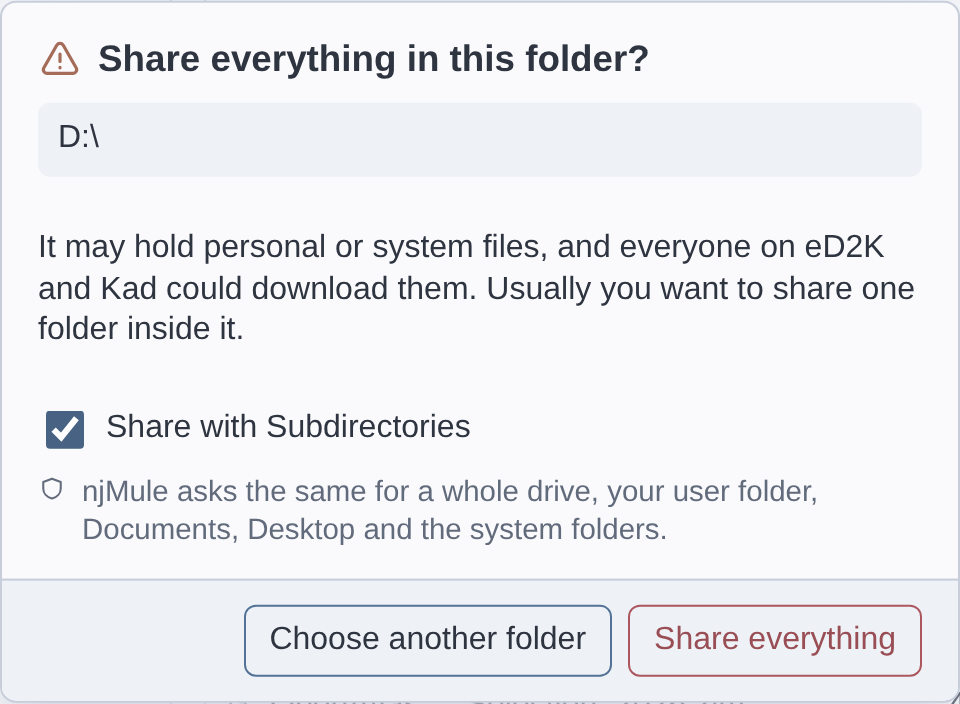
njMule asks this for:
- The root of a drive, such as
D:\or/. - Your user folder, your Documents, Desktop and Pictures (also those OneDrive keeps on
Windows), and the folders that hold your keys (
.ssh,.gnupg). - The system folders: on Windows those of Windows, of the programs and of the application data; on
Linux and macOS folders such as
/etc,/usr,/var,/System,/Libraryor/Applications. - Any folder holding one of them. Links and junctions are judged by where they lead.
Whatever you share, njMule never shares its own configuration and temporary folders, folders holding
a client's key, backup files, or files other programs keep beside their work or are still writing
(Office owner files ~$…, macOS ._ files, lock files, .crdownload, .partial and other
downloads in progress).
The files
Above the files:
- Filter shared files (Ctrl+F) keeps the files of the place chosen whose name holds every word you type. Esc empties it.
- Session and Cumulative choose what the counters count: this run, or every run.
- Priority, Copy eD2K link and ⋯ act on the files chosen, and are off while none is.
| Column | What it shows |
|---|---|
| File Name | The name, after an icon of what the file holds. |
| Size | The size of the file. |
| Priority | Its upload priority. |
| Requests | How often clients asked for it. |
| Accepted Requests | How many of those requests got an upload slot (hidden at first). |
| Transferred Data | How much of it was uploaded. |
| Folder | The folder it is in (hidden at first). |
The counters are those of the run or of all runs, as the segment says; those of all runs are kept with the file, in eMule's format. Show or hide columns with ⋮ at the end of the heads.
What you can do with a file
Right-click the files chosen, or use the buttons above them:
| Command | What it does |
|---|---|
| Open Folder | Opens the file's folder in your file manager, with the file selected (one file; in the desktop app on njMule's computer). |
| Rename | Renames the file on disk: see renaming (one file). |
| Comments... | Your comment and rating of the file: see comments (one file). |
| Priority ▸ | Very Low, Low, Normal, High, Release or Auto. |
| Copy eD2K link | Copies the links of the files chosen, one per line, to give to others. |
| Copy eD2K Links (HTML) | Copies them as HTML links for a web page. |
Upload priorities
The priority of a shared file weighs the place in your upload queue of the clients that want it: Release puts them well ahead, Very Low behind. Auto lets njMule choose. The priorities are kept as eMule keeps them, so an imported profile keeps its own.
Renaming a shared file
Rename asks Rename the shared file, with the New name filled in. Type the new name and press Rename. The file keeps its hashes and its priority, and others find it under the new name once njMule publishes it again. Names that are never shared (such as backup, temporary or hidden files) are refused.
Comments and ratings
Comments... opens Rate and comment, as for a download: choose a File Quality, type a File comment: of one line, and press Save. The clients that download the file from you see your comment, and njMule publishes it with your rating on Kad, where others find it. The list below shows the notes Kad holds on the file; Search Kad looks for more. See Transfers.
Who sees your list of files
Other clients can ask for the list of the files you share, as you can with View Shared Files in Transfers. Whether you answer is up to See My Shared Files/Directories in Directories: Nobody (the default), Friends or Everybody.