Search
Search (Ctrl+2) finds files on the eD2K servers and on Kad, the serverless network. Each search opens a tab of results, which you can narrow, sort and download from. The summary under the title tells how many searches are open and how many still run.
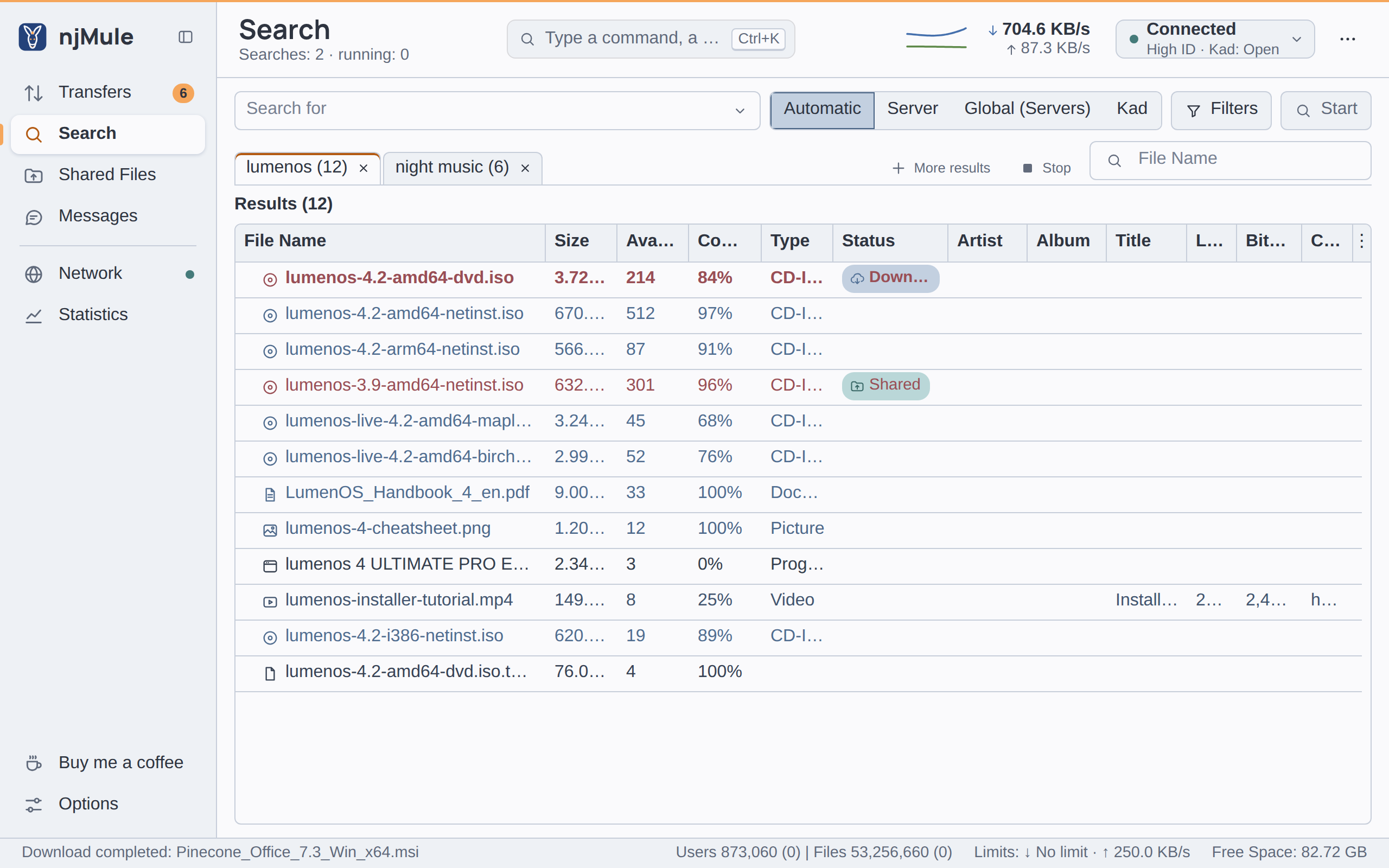
Starting a search
- Type a few words of the file name in Search for. The arrow of the box (or F4) offers the last searches typed in this window; each browser keeps its own. While it has none, it offers those typed in eMule, after an import. Delete takes the search highlighted out of the list.
- Choose where to search, on the joined buttons beside the box: see where to search.
- If you want, set the filters.
- Press Start or Enter.
A new tab opens, named after the words, with a spinning ring while the search runs. You can also search from anywhere with the command palette: press Ctrl+K, type the words and choose Search the network for “…”.
A search box that does not take what you typed says what it expects, and Start stays off. If you are connected to no network, njMule says You are not connected to a server or the Kad network!
Where to search
| Method | Where it searches |
|---|---|
| Automatic | The network you are connected to. With both, Kad, unless the server you are on is a static one, or a big one (between 40,000 and 2 million users, more than 5 million files) in a short list of servers (fewer than 40). |
| Server | The server you are connected to. |
| Global (Servers) | The server you are connected to, then the other servers of your list. It asks no further server once it holds more than 100 results. |
| Kad | The Kad network, without servers. |
Kad looks up one word of the search: the longest word every result must contain. A search made only
of alternatives joined by OR cannot run on Kad, and njMule says why. Every answer from Kad is
checked again against the whole search.
Wording a search
The empty screen gives three tips, and the search box takes more:
| You type | It finds |
|---|---|
night music | Names holding both words (the words of a search are joined by AND). |
"night of the living dead" | The exact words, in that order. |
debian -netinst | Names with debian but without netinst (also debian NOT netinst). |
mkv OR avi | Names with either word. |
lumenos (iso OR img) | Brackets group the words. |
lumenos @size>700m | Attributes filter the results, as the filters do. |
The attributes are @size, @type, @ext, @sources (or @availability), @complete,
@bitrate, @length, @codec, @rating, @title, @album and @artist. Numbers take the
comparisons =, >, <, >=, <= and <>. A size takes b, k, m or g (megabytes when it
has no unit), a length takes s, m or h, or 1:30:00. A type is audio, video, image,
document, program, archive or iso. A search takes at most ten operators, counting the
AND between words and the filters.
Have an eD2K link already? You do not need to search: paste it in the command field at the top. See eD2K links.
Filters
Filters opens the filters of the next search; the button counts those in use, as Filters (2).
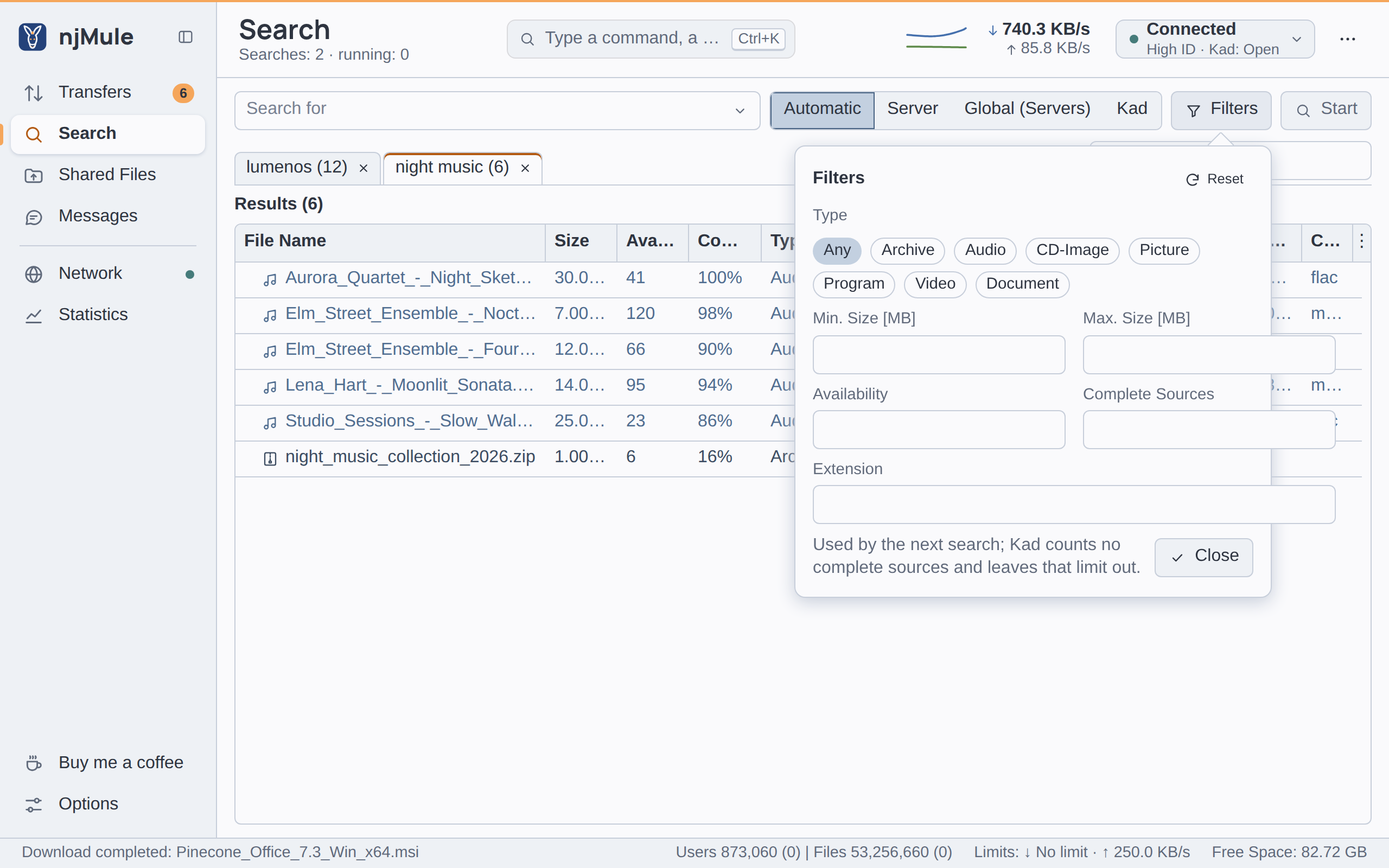
| Filter | What it keeps |
|---|---|
| Type | Any, Archive, Audio, CD-Image, Picture, Program, Video or Document. |
| Min. Size [MB] | Files at least this large, in megabytes. |
| Max. Size [MB] | Files at most this large (never below the minimum). |
| Availability | Files with at least this many sources. |
| Complete Sources | Files with at least this many complete sources. Kad counts none, so a search on Kad leaves this filter out. |
| Extension | Files with this extension, such as mkv or .mkv. |
Reset clears them all. The filters stay set for the following searches until you change them.
Results
Each tab is named after its search, with the number of results, as lumenos (12); above its list,
Results (…) counts those shown, as 5/12 while a filter hides some. Close a tab with its cross,
which also stops its search.
Columns
| Column | What it shows |
|---|---|
| File Name | The name. A file found under several names has an arrow: see other names. |
| Size | The size of the file. |
| Availability | How many sources have it. |
| Complete | The share of the sources that have the whole file, ? when the network does not tell (Kad, a client's list), Yes for a file of one part. |
| Type | The kind of file the network gives: Audio, Video, Picture, Document or Program. The network counts archives and disc images as programs: their extension makes them Archive or CD-Image. Empty when the network gives no type. |
| Status | What you did with the file, on a chip with an icon: Downloading, Shared, Downloaded, Cancelled or Spam. |
| File ID | The file's hash (hidden at first). |
| Artist, Album, Title, Length, Bitrate, Codec | The media details servers and Kad give. |
The media columns show by themselves while a tab holds songs or films, and hide otherwise, until you show or hide one of them yourself in the column menu (⋮ at the end of the heads).
Click a column head to sort. Spam always goes last, missing values go last whichever way you sort, names sort by the rules of your language, and the columns sorted before break the ties.
Colours
The results are coloured by what they are to you; the Status chip and its icon say it in words too:
| Colour | The file is |
|---|---|
| Red, in bold | being downloaded (chip Downloading). |
| Red | shared already (chip Shared). |
| Green | downloaded or cancelled before (chips Downloaded, Cancelled). |
| Muted grey | rated as spam (chip Spam). |
| From the text colour towards blue | new to you: the more sources, the bluer, step by step up to 13 sources. |
The files downloaded and cancelled before are remembered while Remember downloaded files and Remember cancelled files are on (both on by default, in Directories).
Filtering a tab
The box right of the tabs filters the tab shown, on one column: at first the file name, whose title shows in the empty box. It keeps the results whose column holds every word you type, whatever the case; a word after a minus leaves results out. The magnifier at its left (Choose the column to filter on) picks another of the columns shown; Esc or the cross empties the box.
Other names
A file found under several names shows the name most sources give, with an arrow. Click the arrow, or choose the file and press + (− closes), to see its other names under it, each with the sources that gave it. Downloading one of these names downloads the file under that name.
Acting on results
Choose one or more results: a bar under the list names them (with the size and sources of one) and offers Download, Copy eD2K link, Search Related Files and ⋯ with Copy eD2K Links (HTML), Mark as Spam and Mark as not Spam. The same commands are in the menu of the results:
| Command | What it does |
|---|---|
| Download | Adds the files as downloads (also a double click on a result, or Enter on the results chosen). They go into the first category whose names they match: see Categories. |
| Copy eD2K link | Copies their links, one per line. |
| Copy eD2K Links (HTML) | Copies them as HTML links. |
| Search Related Files | Asks the server for the files downloaded together with these ones, in a new tab. Only some servers support it: the menu greys it out on the others. |
| Mark as Spam | Marks the files as spam: see spam. |
| Mark as not Spam | Takes the mark off. |
Above the list:
- More results asks the connected server for the next results of the search shown. A server sends its results a batch at a time and says when it holds more: the button is enabled only then, for a search on the server (the latest one), up to five times.
- Stop stops the search shown while it runs.
Spam
njMule rates every result for spam and shows a result rated as spam in grey, with the Spam chip, at the end of the list. It learns from you: when you mark a file as spam, it learns its hash, its name and the names a few letters away, its name without the words you searched, its size, and the servers and sources that gave it; results that share enough of these with marked files are rated as spam too, and those that only servers of mostly spam give count more. The results of every open tab are rated again at once.
The marks are kept in SearchSpam.met, in eMule's format (an eMule profile's marks come with the
import). The filter is on by default: turn it off with Enable spam filter for search results in
the IP filter options.
Searches kept between restarts
The tabs open when you close njMule come back at the next start, with their results. To start with no tabs, turn off Remember open searches between restarts in the Extended options.