Network
Network (Ctrl+5) tells how njMule stands on the two networks and holds
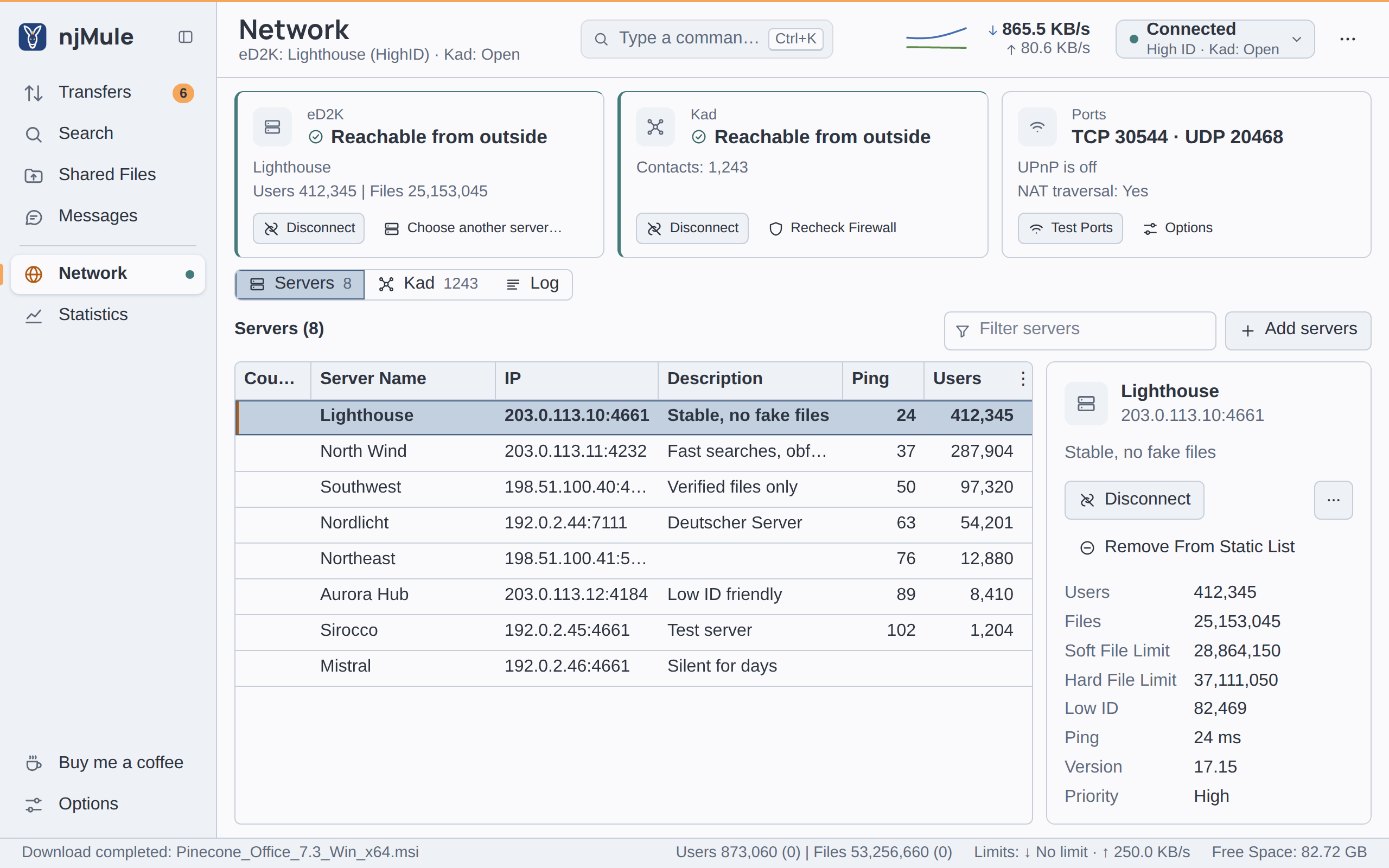
everything about them. At the top, three cards say in plain words whether others reach you on eD2K
and on Kad, and which ports you use. Below them a switch shows one of three parts, each with a count:
Servers (how many servers you know), Kad (how many contacts, while Kad runs) and Log.
The summary under the title gives the state of both networks, as eD2K: Lighthouse (HighID) · Kad: Open. The sidebar's dot on Network tells the same at a glance.
To learn what eD2K, Kad, HighID and LowID are, see Servers and Kad.
The cards
| Card | What it says | Buttons |
|---|---|---|
| eD2K | Reachable from outside (a HighID) or Not reachable from outside (a LowID), Connecting or Not Connected; the server you are on, with its users and files. The tooltip of the state gives the technical term. | Connect, Cancel or Disconnect; Choose another server… opens the server list. |
| Kad | Reachable from outside (open) or Not reachable from outside (firewalled), Connecting or Off; the number of contacts, and whether UDP is open or firewalled once tested. | Connect or Disconnect; Recheck Firewall asks other nodes again whether they reach you. |
| Ports | Your ports, as TCP 4662 · UDP 4672 (the UDP port while Kad runs, which listens on it); what the router answered through UPnP, such as The router at 192.168.1.1 forwards the ports or UPnP is off; your public IPv6 address when you have one, and whether NAT traversal works (it needs Kad). | Test Ports; Options opens the options. |
The ports and UPnP are set in the Connection options; NAT traversal is explained on NAT traversal and IPv6 on IPv6.
Port test
Test Ports checks whether others can reach your ports, and shows what it finds as it comes:
- When UPnP is on, njMule asks the router again to forward the ports, and says whether it did: The router at … forwards the ports, forwards only some of the ports, refused to forward the ports, No router answered through UPnP, or UPnP is off.
- The server checks your TCP port at a new login (njMule connects to the server again), and Kad nodes check both ports.
- Each port then reads others reach it, or others cannot reach it; forward it in the router or allow it in the firewall, or not tested, as no server or Kad node could do it. Without Kad, UDP is not tested, Kad is off; Kad's UDP test may take a few minutes.
The same test is in the first-start wizard and the Connection options. If a port stays closed, see Ports.
Servers
The Servers part lists the eD2K servers you know. Servers (…) above the list counts them; Filter servers keeps those whose name, address, description or version hold every word you type (Esc empties it).
The server you are connected to is in bold, with an accent bar and the tooltip Connected to this server; the one being tried is in italics (Connecting to this server).
| Column | What it shows |
|---|---|
| Country | The flag and code of the server's country (its name in the tooltip), when the countries are shown: see Countries and flags. |
| Server Name, IP, Description | What the server calls itself, its address and port, and its description. |
| Ping | How long it took to answer, in milliseconds. |
| Users, Max Users, Files | How many use it, how many it takes, how many files it knows. |
| Priority | Low, Normal or High: higher ones are tried first. |
| Failed | Failed attempts in a row. Dead servers leave the list after a number of them, as the Server options say; static servers and the one you are on stay. |
| Static | Whether it is in your static list. |
| Soft File Limit, Hard File Limit | How many of your files it takes (the hard limit is hidden at first). |
| Version | Its software version (hidden at first). |
| Low ID | How many of its users have a LowID. |
| Obfuscation | Whether it takes obfuscated connections. |
The columns keep their widths and the list scrolls sideways.
The details of a server
Choose a server to see its details beside the list (over its end, with a cross, in a narrow window): its name, address and description; Connect or Disconnect; Add To Static List or Remove From Static List; ⋯ with Priority, Copy eD2K Links and Remove; its figures (users, files, limits, Low ID users, ping, version, failures, priority); and, for the server you are on, the last messages it sent under Server Info.
Connecting to a server
Connect to the server chosen with Connect in its details, Connect To in its menu, a double click, or Enter. Connecting to another server leaves the one you are on. To let njMule choose, use Connect in the top bar's network menu.
Adding servers
Add servers opens the ways to add them; an empty list offers them too:
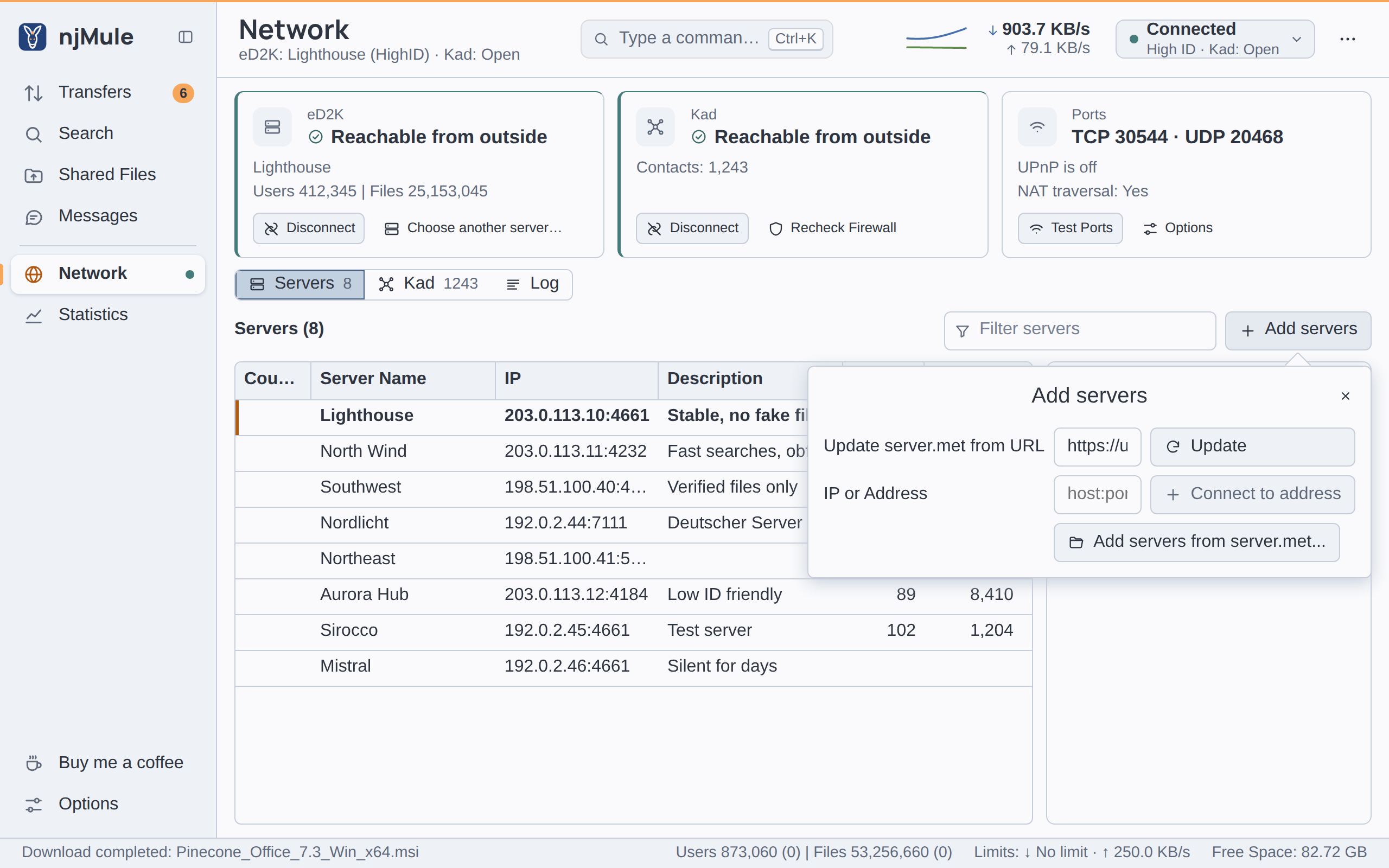
- Update server.met from URL: type or choose the address of a
server.metlist and press Update. The box offers the addresses used before, or those typed in eMule after an import; while it has none, it offers a well-known list. njMule fetches nothing until you press Update, only over http or https, and says how many new servers it added. - IP or Address: type a server's address as
host:portand press Connect to address: the server joins the list and njMule connects to it. - Add servers from server.met...: adds the servers of a
server.metfile on your computer.
Server links work too: ed2k://|server|…|/ and ed2k://|serverlist|…|/ links clicked in a browser,
given on the command line, or pasted with Paste eD2K Links (Ctrl+V) in the
server list. See eD2K links.
njMule can also update the list at each start from addresses of your choice, and grow it from the servers and clients it meets: see the Server options.
The menu of a server
| Command | What it does |
|---|---|
| Connect To | Connects to the server; on the server you are on it reads Disconnect (Enter). |
| Priority ▸ | Low, Normal or High. |
| Add To Static List | Keeps the server in your static list, which is never cleaned of dead servers and can be the only one njMule connects to. |
| Remove From Static List | Takes it out of the static list. |
| Copy eD2K Links | Copies the server links of the servers chosen (Ctrl+C). |
| Paste eD2K Links | Adds the servers of the server links on the clipboard, and fetches the server lists linked there (Ctrl+V). |
| Remove | Removes the servers chosen (Delete). |
| Remove All | Removes every server, after a question. |
Remove All asks Remove all … servers?: the list will be empty and njMule will use Kad only, until you add servers again. Keep the servers is the default.
Kad
The Kad part shows how your node stands on Kad, the serverless network.
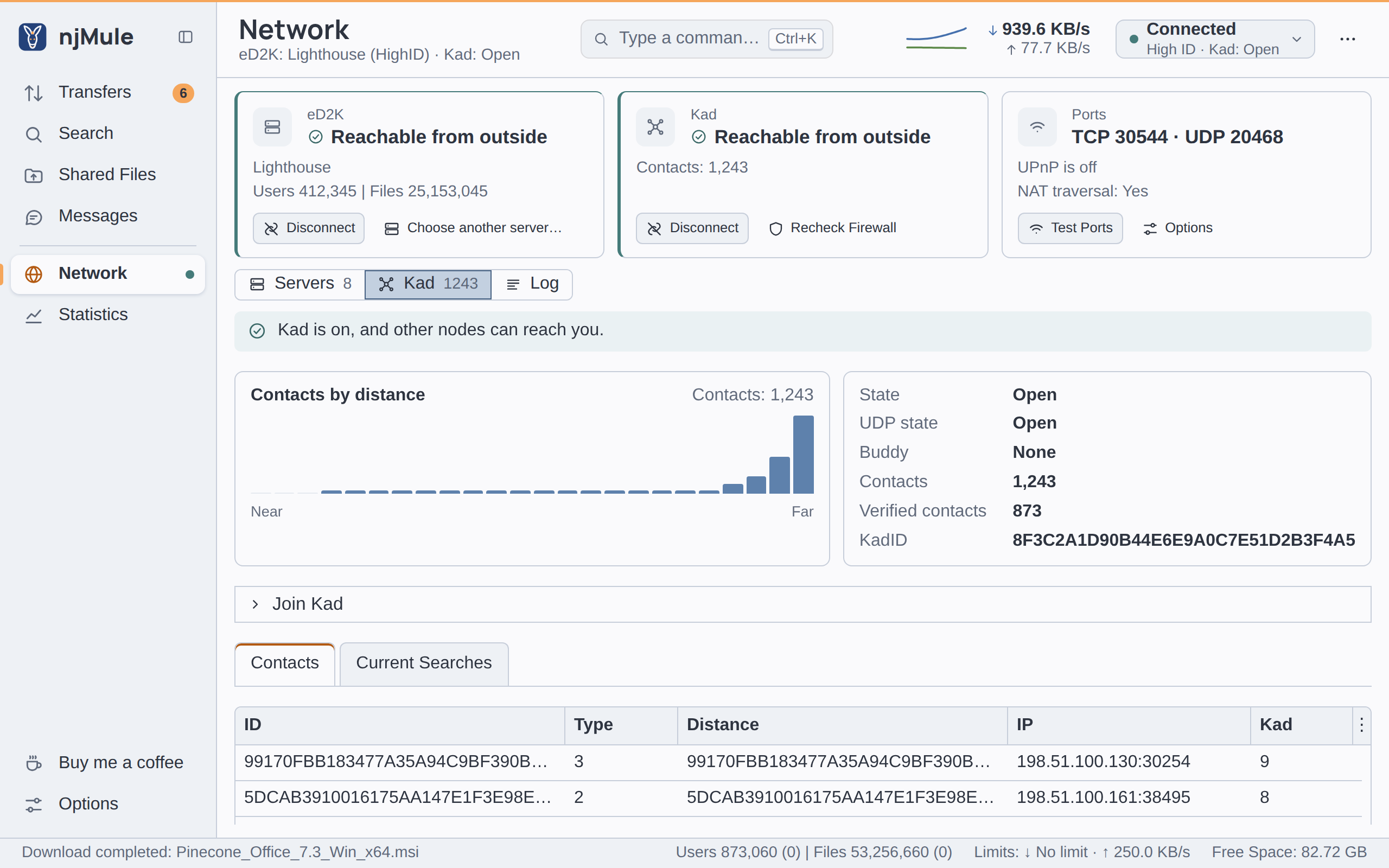
- A line on top says the state in plain words and what to do: Kad is off. (connect to start it), Kad is looking for the nodes it knows., Kad is on, but other nodes cannot reach you on port … (open the port, or turn on UPnP), or Kad is on, and other nodes can reach you.
- Contacts by distance draws your contacts as bars, from the nearest to your node's id to the farthest; the tooltip of a bar counts its contacts. A routing table with contacts at every distance, and many near ones, finds what it looks for in few steps.
- The facts: State (Open or Firewalled), UDP state (Open, Firewalled or Unknown until tested), Buddy (None, Connecting, Connected, or Buddy of a firewalled client when you serve one), Contacts, Verified contacts and your KadID.
Kad starts and stops from its card or the network menu of the top bar. A firewalled node gets a buddy that relays the clients' callbacks to it; an open one may serve a firewalled one.
Joining Kad
Kad starts from the nodes it already knows, and from those shipped with njMule. The first time, or when none answers, give it some. Join Kad gathers the ways; it is open while Kad is not connected:
- Nodes.dat from URL: type or choose the address of a
nodes.datlist and press Download. - Add contacts from nodes.dat...: adds the contacts of a
nodes.datfile on your computer. - From a client you know: type a node's address and UDP port, as
host:port, and press Bootstrap.
njMule says how many new contacts it took. While Kad is not connected, an eD2K client that runs Kad is also asked for contacts, so a working eD2K connection brings Kad in too.
Contacts and current searches
Two tabs list:
- Contacts: the contacts of your routing table, nearest first, with their ID, Type, Distance, IP, after the flag and code of its country when the countries are shown, and Kad version.
- Current Searches: the Kad lookups running now, with their target (KadID), their Type (Node Lookup, Search Keywords, Search Sources, Notes, Store Keyword, Store File, Store Notes) and the Answers received.
They are read again every few seconds while you look at them.
Log
The Log part has three tabs. Reset clears the log or the server info.
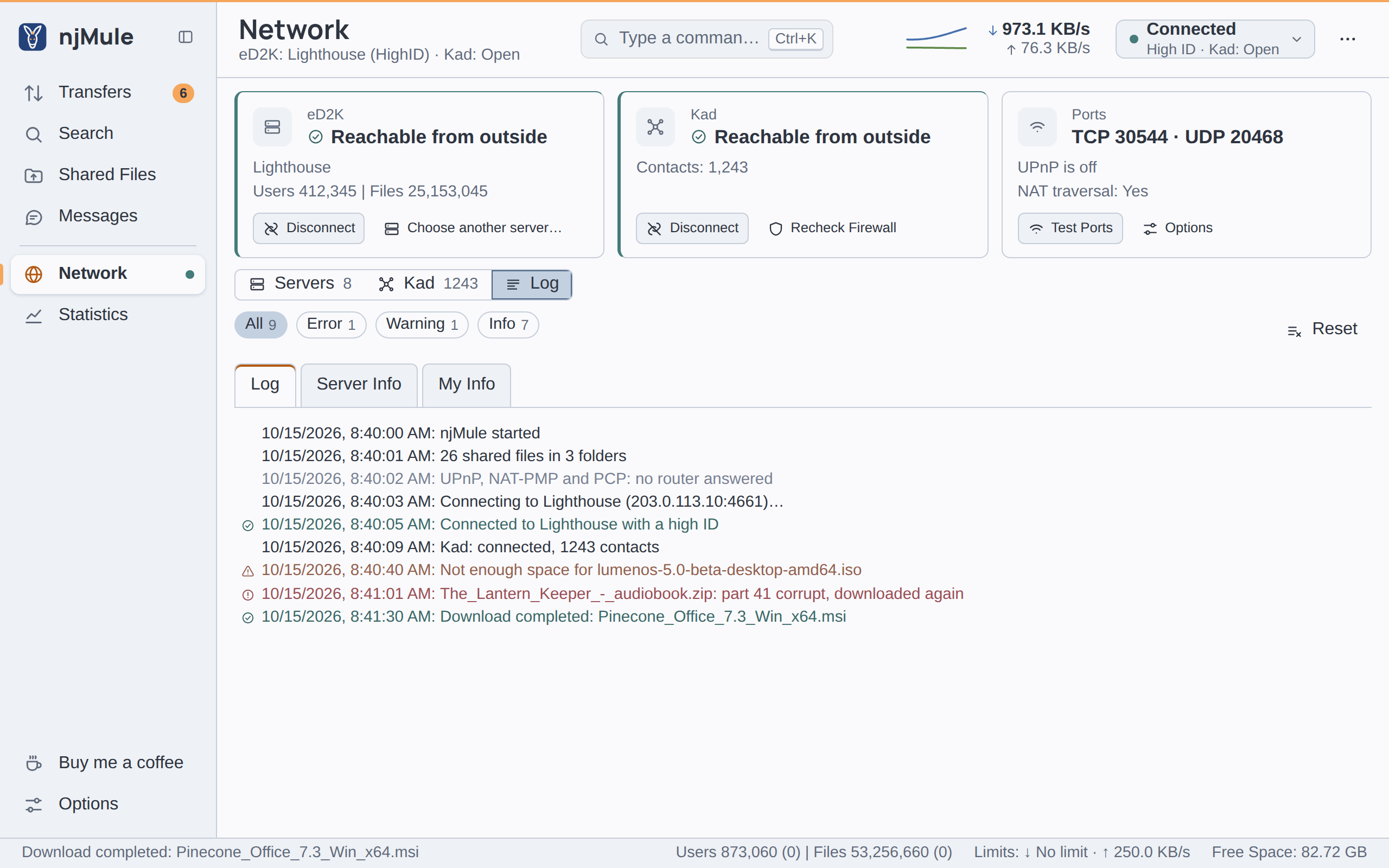
- Log: what njMule did, each line after its date and time. Errors, warnings and successes have a colour and an icon. The chips All, Error, Warning and Info keep one kind, each with its count. The last line also shows in the status strip; a click there opens the log.
- Server Info: when each server session began (Connection established on: …, or Obfuscated connection established on: …) and what the servers said.
- My Info: your eD2K Network state, with your address and port, your ID and whether it is a High ID or a Low ID; the eD2K Server you are on (name, description, address, version, users, files, and whether the connection is obfuscated); the Kad Network state, with UDP, buddy, address and ID; and whether the Web Interface is on, with its address.
The text of the log and of the server info can be chosen with the mouse, also across lines, and copied with Ctrl+C or the menu (Copy, Select All). The log file of njMule is described on Logs.