Messages
Messages (Ctrl+4) is where you chat with other eD2K clients and keep your friends. Conversations and friends share one list on the left, the newest conversation first; the conversation chosen shows on the right. The summary under the title counts the conversations and the friends.
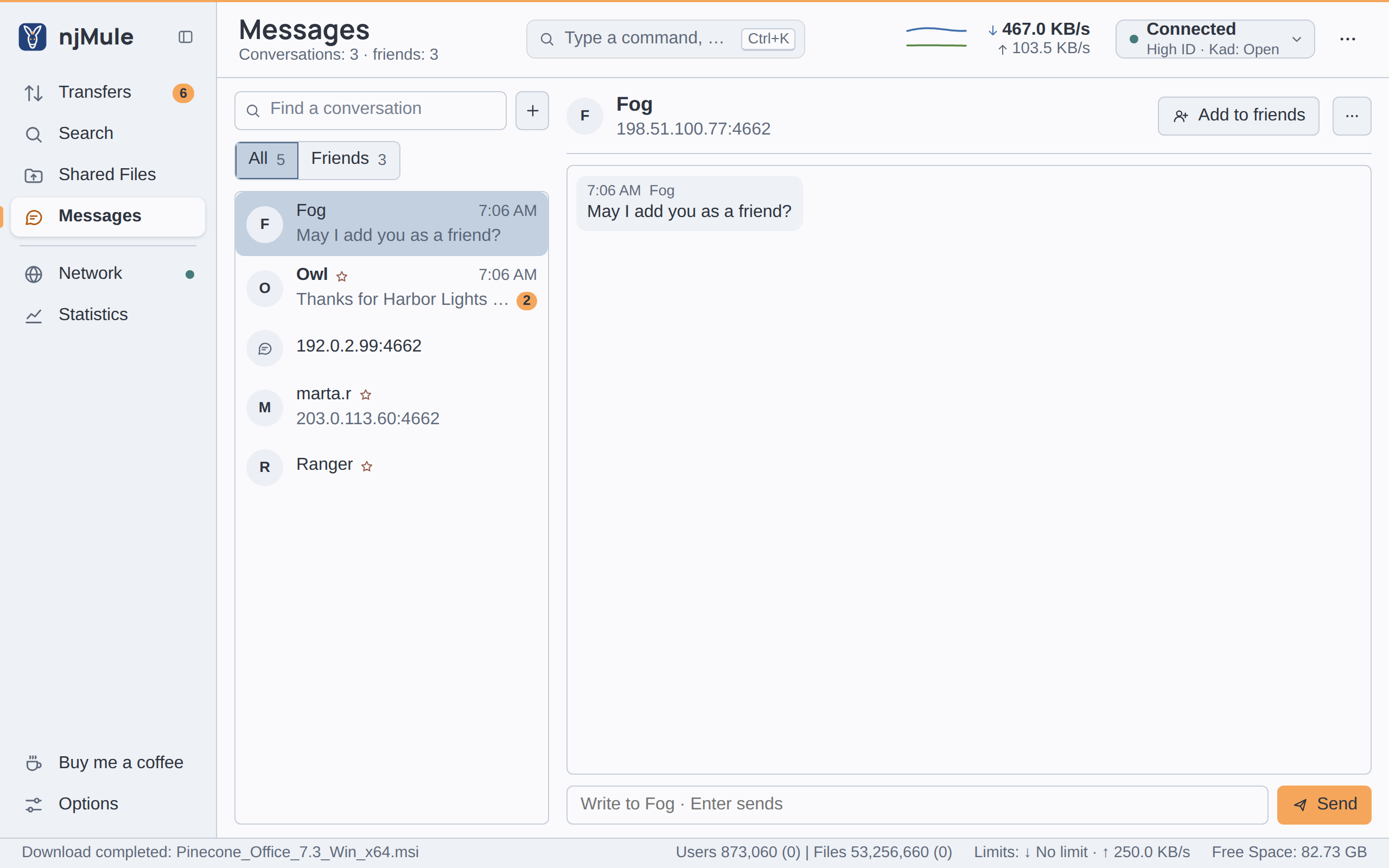
The list
Each row shows the person's initials (or a chat icon for an address), their name, a star for a
friend, the time of the last line, the last line itself (You: … for yours), and the number of
messages not read yet. The conversations come first, newest on top, each with its friend when it is
one; then the friends you have no conversation with.
- Find a conversation keeps the rows whose name or address holds every word you type. Esc empties it.
- All and Friends show every row or the friends only, each with its count.
A message that arrives while you are on another screen shows New message from … at the bottom of the window, can play a sound in the desktop app on njMule's computer (see General options), and counts on Messages in the sidebar until you open it. The conversation stays marked until you look at it.
Writing to someone
To an address
- Press + (New conversation) beside the find box.
- Type the client's IP or Address and port, as
host:port, for example198.51.100.23:4662. - Press Chat or Enter: the conversation opens.
- Type your message in the box at the bottom and press Enter or Send.
Chats reach eD2K clients on IPv4 addresses only; an IPv6 address is refused with a message.
To a friend
Choose the friend in the list. Without a conversation yet, the right side says No messages with … yet.: type in the box under it and press Send, and the conversation opens at the friend's known address. A friend whose address is unknown cannot be written to (This friend has no known address.).
A conversation
Each line is a bubble with its time and author above it: yours at the end of the row, theirs at the start, and njMule's own notices (such as a message not delivered) in the middle. Long lines wrap.
Text smileys show as emoji, both in your messages and in theirs; what is sent stays as typed:
| Typed | Shown |
|---|---|
:) :-) | 🙂 |
:( :-( | 🙁 |
;) ;-) | 😉 |
:D :-D | 😃 |
:P :p :-P :-p | 😛 |
:O :o :-O :-o | 😮 |
:'( | 😢 |
:| :-| | 😐 |
8) | 😎 |
:* :-* | 😘 |
<3 | ❤ |
A smiley changes only when it stands alone between spaces, so addresses and code keep their colons and brackets.
The head of the conversation shows the person's name and address and, depending on who it is:
- Add to friends, for someone who is not a friend yet. It works once they have written to you: until then njMule says Wait for an answer: the user hash is not known yet.
- Establish Friend Slot, for a friend: see the friend slot.
- ⋯ with Remove (takes the friend off your list) and Close (closes the conversation).
Conversations last as long as njMule runs: they are not kept after you quit. Friends are kept, in
eMule's emfriends.met, and an eMule profile's friends come with the
import.
CAPTCHAs
Some clients ask you to solve a CAPTCHA before they show your messages. The request then appears above the box to write, with the picture on a light plate that reads in every theme:
- Read the letters in the picture.
- Type them in Letters in the picture.
- Press Enter or Send.
A notice in the conversation tells whether you passed the check, and your message was received, or whether the answer was wrong (send a new message to get a new CAPTCHA).
The friend slot
A friend can get your friend slot for as long as njMule runs: choose the friend and press Establish Friend Slot. The friend then goes before your upload queue, also when it is full, and keeps the upload slot. Only one friend has it at a time; press the button again to take it back. It counts only for a friend whose identity is proven by secure identification, so that nobody can take it by claiming a friend's user hash.
Keeping spam away
The Messages options choose which messages you see:
- Filter messages containing: (Separator | ): messages holding one of these words never show.
- Accept from friends only: only friends' messages show.
- Advanced spam filter (on by default): someone who is not a friend and, before you wrote to them, sends a link or more than three messages, is taken for a spammer: from then on nothing they send shows.
To let only friends see your shared files, see Shared files.