The main window
The njMule window has the same frame on every screen: a sidebar of places on the left, a top bar with the screen's title, a field to type into, the rates and the state of the networks, the screen itself in the middle, and a status strip at the bottom. This page explains each part, so that you know where to look and what every element does.
The desktop app and the web interface show the same window, with the same places, menus and dialogs. What needs the computer njMule runs on (opening its files and folders, choosing them with the system's dialogs, the notification area) works only in the desktop app on that computer; elsewhere those commands are greyed out or say so.
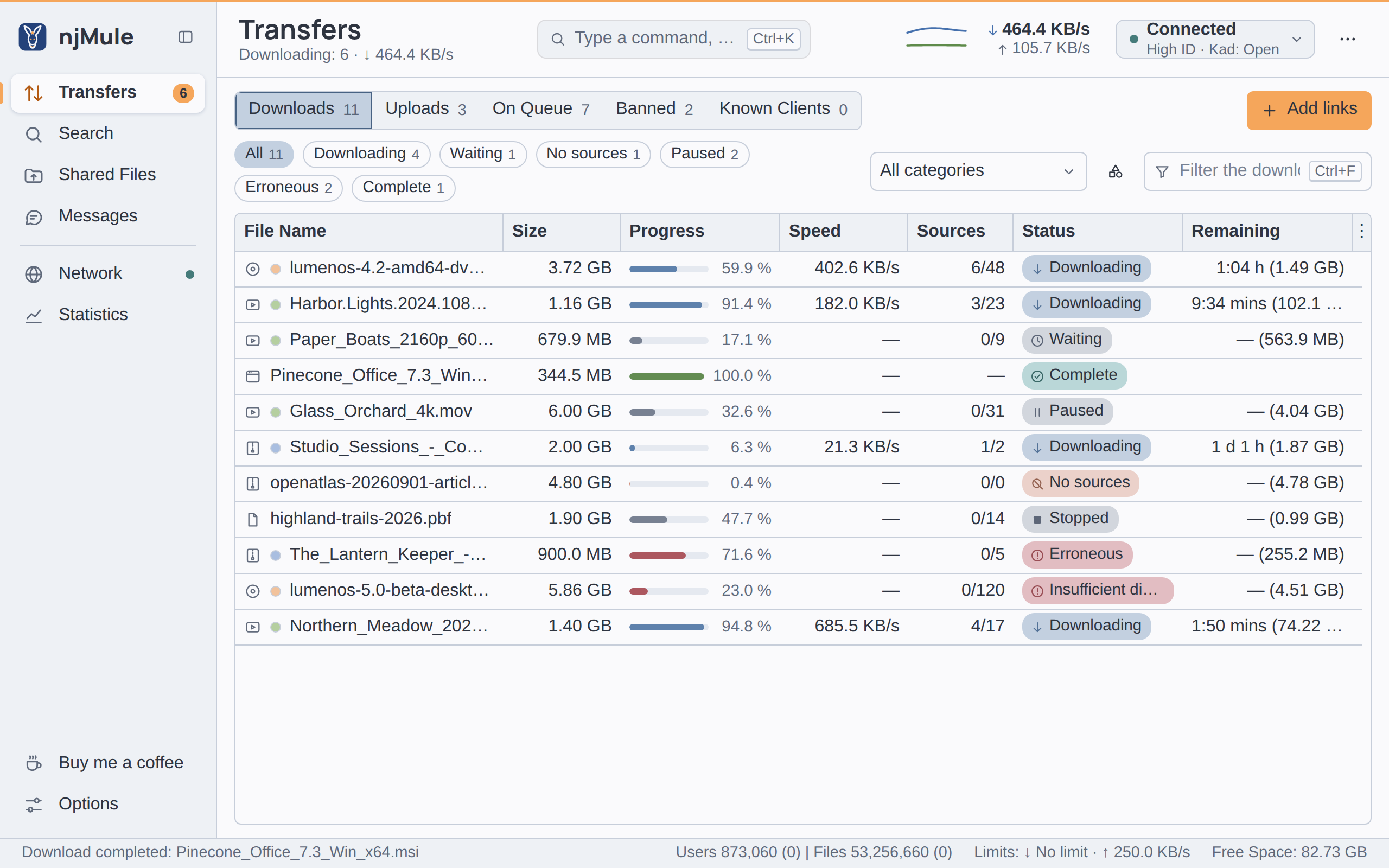
The sidebar
The sidebar lists the places of njMule in three groups. Each one also opens with a shortcut, in the order of the sidebar (on macOS use Cmd instead of Ctrl):
| Place | Shortcut | What it holds |
|---|---|---|
| Transfers | Ctrl+1 | Downloads, uploads, the upload queue, banned and known clients: see Transfers |
| Search | Ctrl+2 | Searches on eD2K and Kad, one tab each: see Search |
| Shared Files | Ctrl+3 | The folders and files you share: see Shared files |
| Messages | Ctrl+4 | Chats and friends: see Messages |
| Network | Ctrl+5 | eD2K, Kad and your ports, the servers, Kad and the log: see Network |
| Statistics | Ctrl+6 | Rates over time and every figure: see Statistics |
| Options | Ctrl+7 | All the settings: see Options |
The first four are what you do every day; Network and Statistics come after a line; Options stays at the bottom. A place tells what waits there:
- Transfers shows the number of downloads running (up to
99+). - Messages shows the number of messages that arrived while you were on another screen; opening Messages clears it.
- Network shows a dot: in the "connected" colour while eD2K or Kad is up, in the "connecting" colour while njMule is trying, and empty while both are off. Its tooltip names the state of both networks.
The tooltip of every place repeats its name and its shortcut. njMule opens on the screen you left last time.
Folding the sidebar
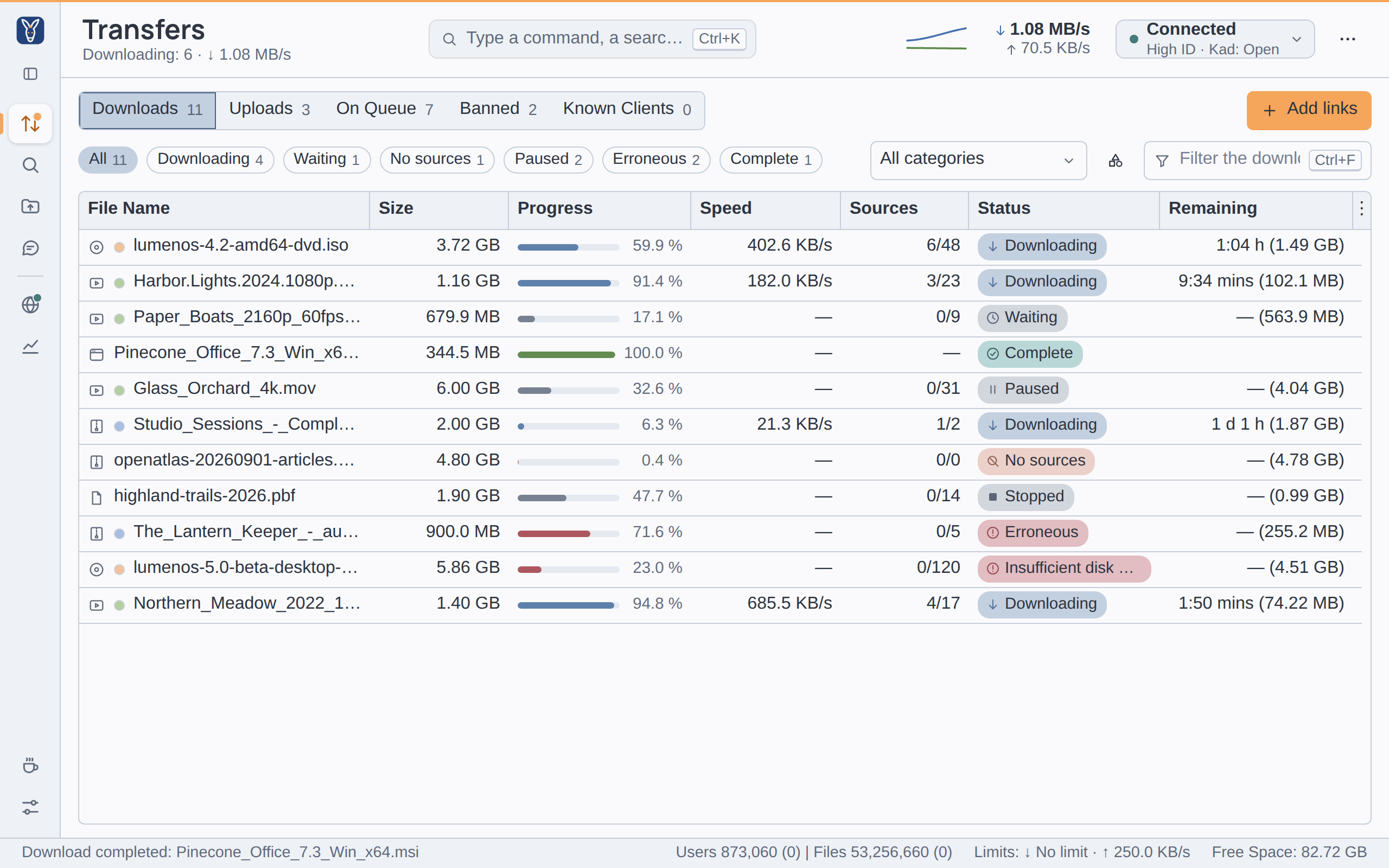
Press Ctrl+B, or the button at the top right of the sidebar (Collapse the sidebar), to fold the sidebar to its icons. Folded, the button under the logo (Expand the sidebar) opens it again, and the counts become small marks on the corner of the icons. njMule remembers your choice.
In a window narrower than about 1000 pixels the sidebar folds by itself, and opens again as you left it once the window is wider. In such a narrow window the other parts keep to their essentials too: the tool buttons show only their icons, the summary under the title is hidden, the command field shows only its shortcut, and the rates show only the download rate.
Buy me a coffee
Buy me a coffee, just above Options, opens the page where you can support the development of njMule, in your system's browser. It never changes anything in njMule.
The top bar
From left to right the top bar holds:
- The title of the screen, and under it a summary of what it holds, for example
Downloading: 6 · ↓ 1.26 MB/son Transfers,Searches: 2 · running: 0on Search oreD2K: Lighthouse (HighID) · Kad: Openon Network. Options says what applies at once. - The command field, which opens the command palette.
- The rates: the download and upload rates, with their last half minute drawn beside them as two small lines. Click them to open the speed limits.
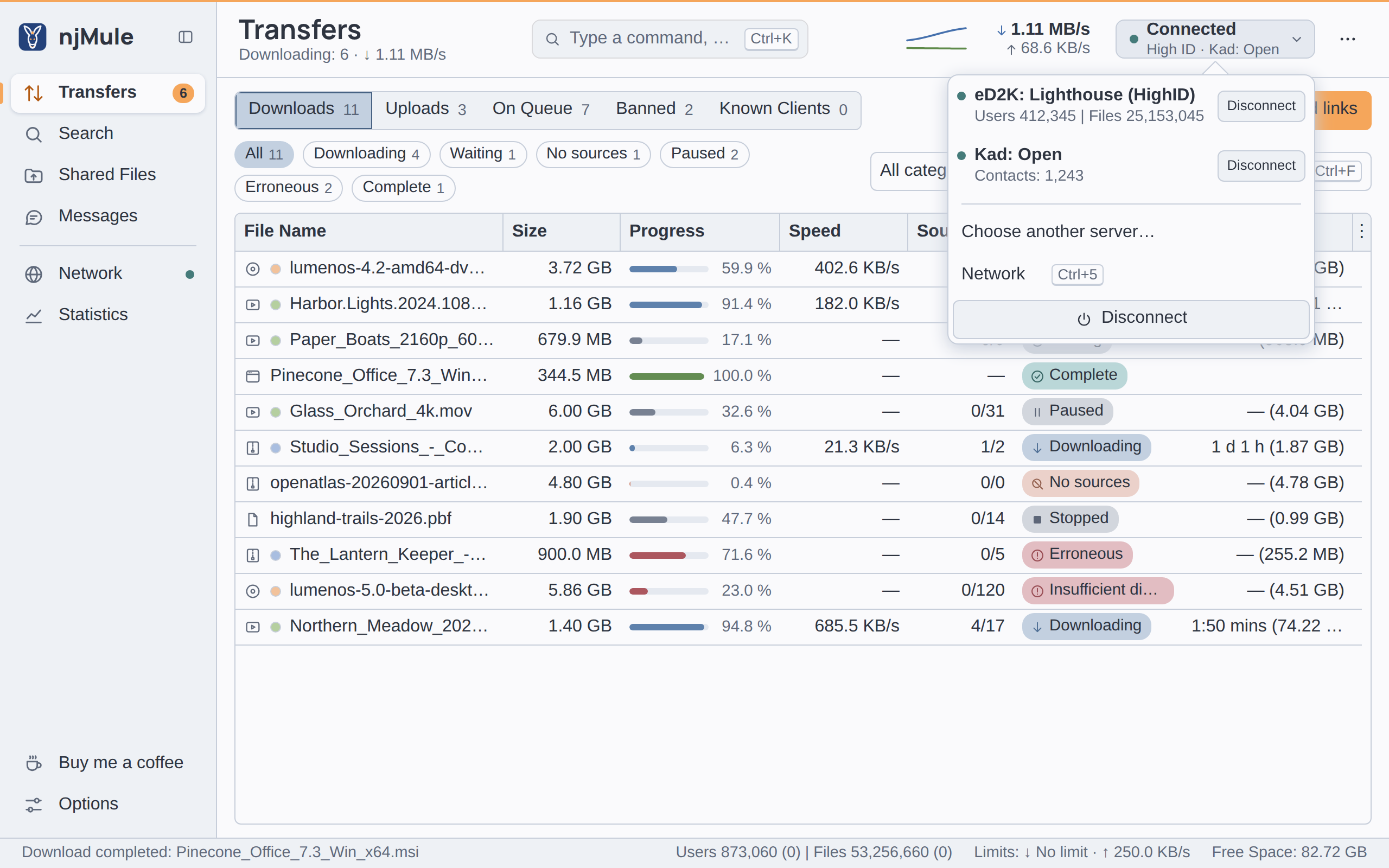
- The network control, which tells whether you are connected and opens the network menu.
- ⋯ (More), the menu of tools.
The command palette
The palette lets you do almost anything by typing. Open it with Ctrl+K, by clicking the field Type a command, a search or an eD2K link in the top bar, or simply by typing a letter while that field has the focus.
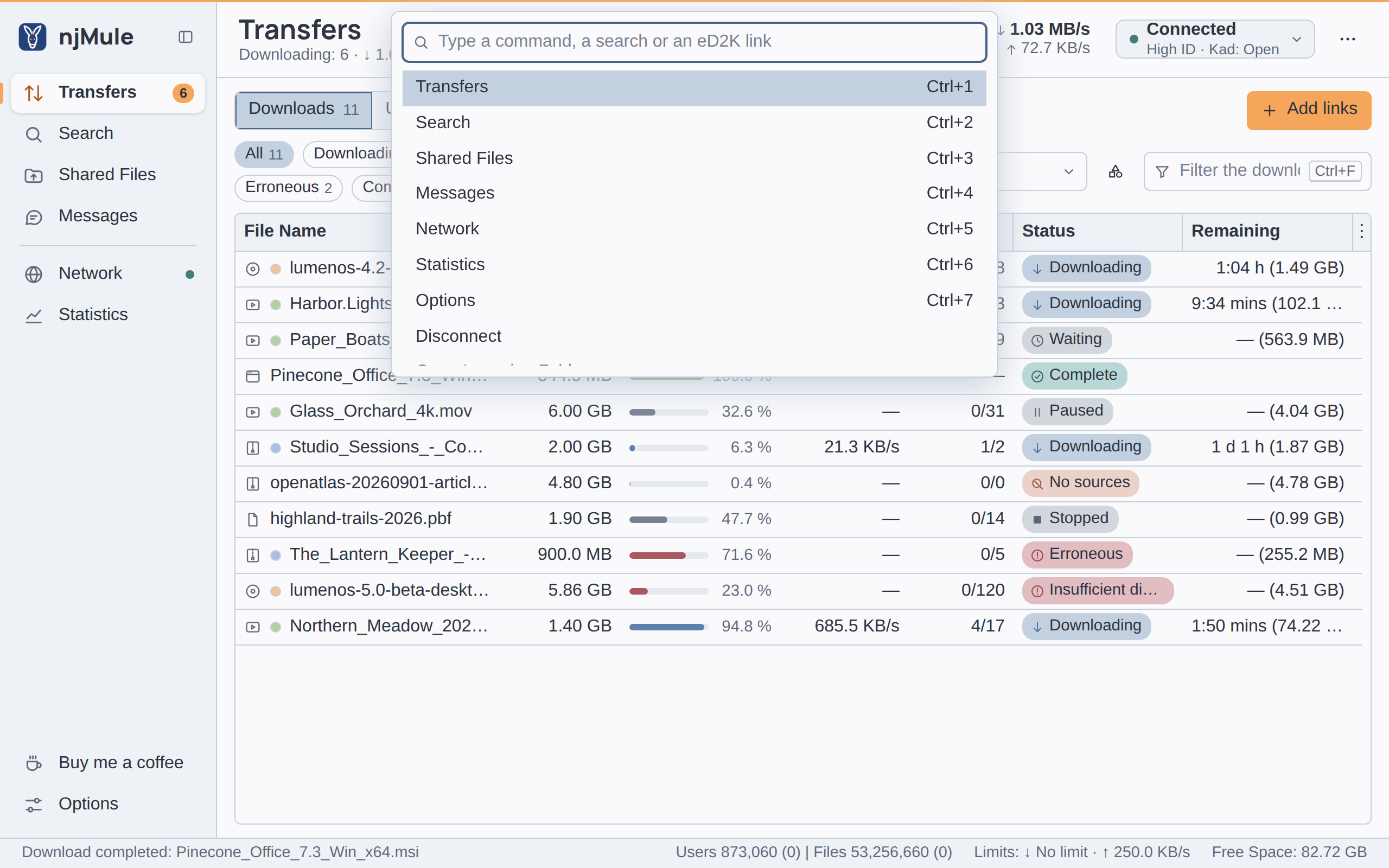
What you type finds:
- The places of the sidebar and the commands of the menus: connect or disconnect, Open Incoming Folder, Set up njMule, Import from eMule..., Light or dark, Collapse the sidebar or Expand the sidebar, Keyboard shortcuts, Check for new version and About njMule. A command is listed when its name holds every word you typed.
- A search of the network: the last line, Search the network for “…”, opens Search and starts a search for the words typed, as the search box would.
- Downloads: when you paste eD2K file links, the line Download: … names the files and adds them as downloads at once.
Use ↑ and ↓ to choose a line, Enter to run it, and Esc or a click outside the palette to close it.
Speed limits
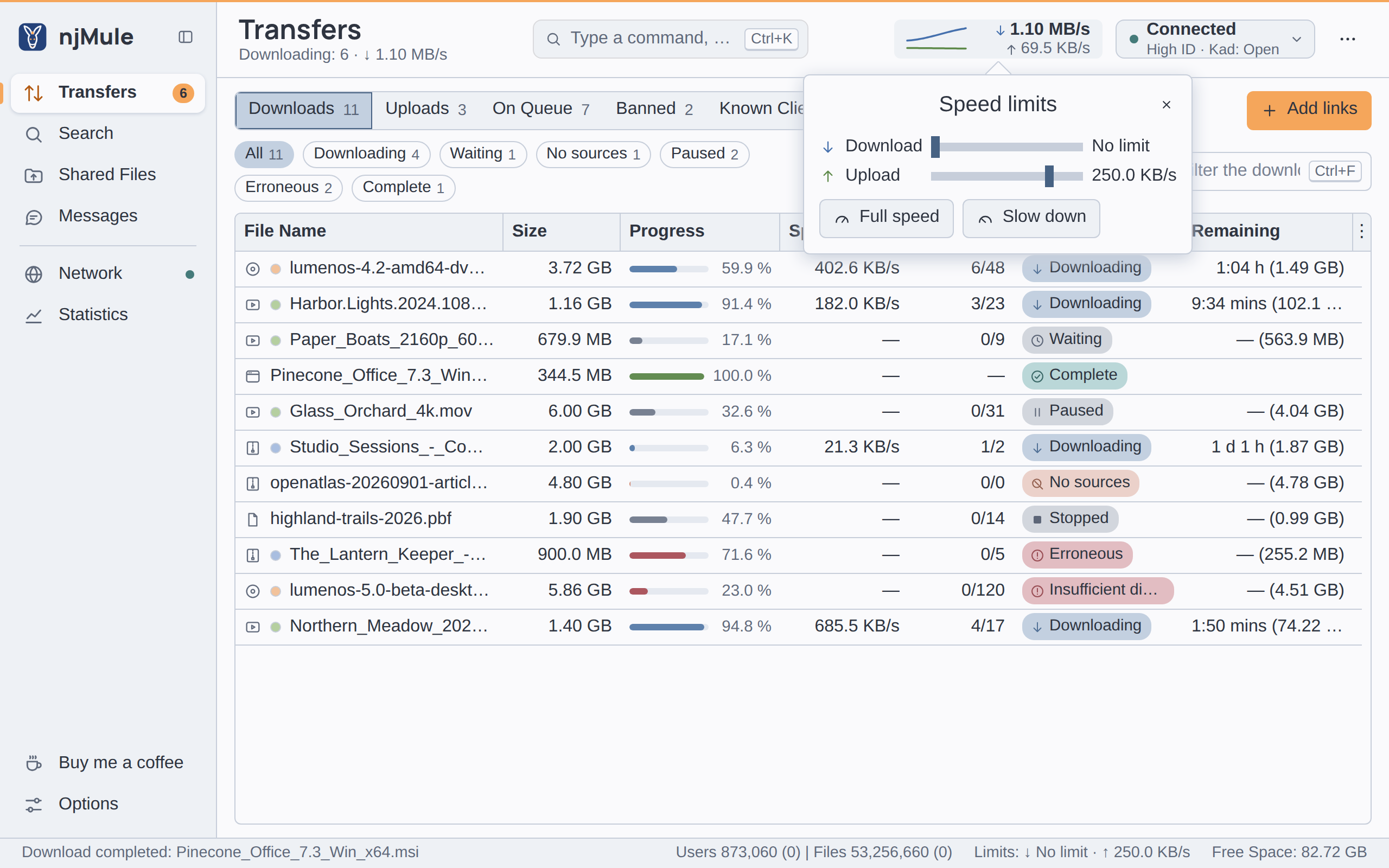
A click on the rates opens Speed limits, the same sliders as in the menu of the notification area:
- Download and Upload each have a slider, from No limit on the far left up to the capacity of your line on the far right, on a logarithmic scale so that both a few KB/s and many MB/s are easy to reach. The limit applies as soon as you let the slider go, and is written beside it.
- Full speed sets both limits to the capacity of your line.
- Slow down sets both limits to the lowest value,
1.0 KB/s.
The capacity of your line and the limits are also options: see Bandwidth.
The network menu
The network control shows a dot, the overall state (Connected, Connecting or Not
Connected) and, under it, a short detail such as High ID · Kad: Open. Its tooltip names the
state of both networks. Click it to open its menu:
- eD2K: the server you are on with
(HighID)or(LowID), its users and files, and a button that reads Connect, Cancel (while connecting) or Disconnect. - Kad: its state (Off, Not Connected, Open or Firewalled, with
UDP openorUDP firewalledonce Kad has tested it), the number of contacts, and Connect or Disconnect. - Choose another server… opens the server list.
- Network opens the Network place (Ctrl+5).
- The wide button at the bottom acts on both networks: Connect connects to an eD2K server and starts Kad (when Kad is on in the options), Cancel stops trying servers, Disconnect leaves both. It stands out in the accent colour only while you are disconnected.
A click on the eD2K or the Kad line opens the network at the servers or at Kad. To learn what the states mean, see Servers and Kad and Ports.
The More menu
⋯ (More) holds what the window does besides its places:
| Item | What it does |
|---|---|
| Open Incoming Folder | Opens the folder of finished downloads in your file manager (in the desktop app on njMule's computer; greyed out elsewhere). |
| Options | Opens the options (as Ctrl+7). |
| Set up njMule | Opens the first-start wizard again, filled in with your current settings: see First run. |
| Import from eMule... | Opens the import of an eMule profile: see Import from eMule. |
| Connect to a remote njMule | Shows and drives the njMule of another computer: see Remote njMule. Only in the desktop app. |
| Light or dark | Switches between the light and the dark version of the theme: see Appearance. |
| Keyboard shortcuts | Lists the shortcuts in a small window (F1): see Keyboard shortcuts. |
| Check for new version | Looks for a new version now: see Updates. |
| About njMule | The version, the copyright and the licence, with Copy version details to paste into a problem report. |
| Logout | Ends the session of the web interface and goes back to its sign-in page. Only in a browser. |
The banner
A line above the screen tells of a state that lasts and needs you to do something. It shows two seconds after the state begins, so that a quick reconnection does not make it flicker:
| Banner | Button |
|---|---|
| Not connected: searches and downloads wait for a network. Neither an eD2K server nor Kad is connected or being tried. | Connect connects both networks. |
| Others cannot reach you on port … (LowID): open it in your router, or turn on UPnP in the options. You have a LowID on eD2K or Kad is firewalled, and no network reaches you. | Options opens the options. |
| The network interface … is not available: njMule stays offline until it is back. njMule is bound to a network interface (such as a VPN) that is gone. | Options opens the options. |
| Kad cannot start: another program uses UDP port …. njMule tries again every 10 seconds, or choose another port in the options. Another program (another eMule client, say) holds the UDP port Kad is set to use; Kad starts by itself once the port is free. | Options opens the options. |
The cross closes the banner; it comes back only when the state changes. For the ports and the network interface, see Ports and Network interface.
Messages
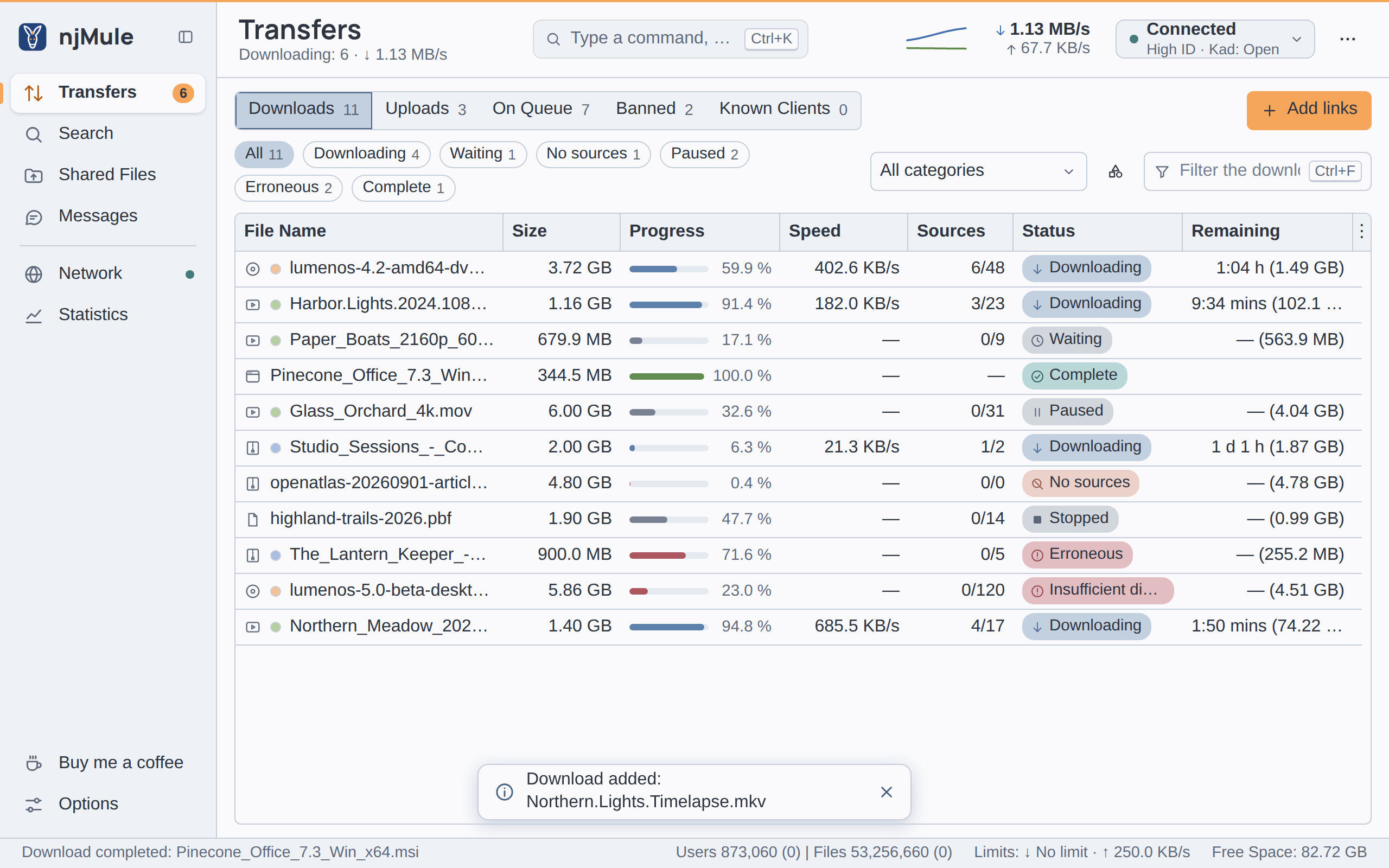
Short messages appear at the bottom of the window, above the status strip, at most two at a time: a new one pushes out the oldest. They come in three kinds:
- News, such as New message from … or Download added: …, which go after six seconds.
- Successes, such as Download finished: …, which go after six seconds too.
- Problems, such as a connection refused, which stay until you close them with their cross.
The same message again does not stack: the one shown counts up (×2). Some messages carry a
button and stay ten seconds, so that you have time to press it: Undo after cancelling
downloads, Details when a new version is out, Restart now when it is ready to install.
When the window is hidden in the notification area of Windows, the messages also show there: see Notification area. In the desktop app on njMule's computer, a finished download and a new chat message can also play a sound: see General options.
Questions and boxes
When njMule asks something, the title of the question says what is decided, and the buttons say what they do, such as Cancel download and Keep downloading, in the order your system puts them. The default answer is ringed, and Enter chooses it. In a question about something that cannot be undone, such as cancelling downloads or removing every server, the default is the safe answer and the risky one is outlined in red. Esc cancels.
Every box takes only its kind of value: a number within its limits, a time, an address, a folder, eD2K links or a search. Characters that cannot belong there are dropped as you type or paste them; a box whose text is not valid yet is marked, says in its tooltip what it takes, and keeps its button off until it is right.
Sizes and rates are written in the units of your language; a rate switches to MB/s from a thousand KB/s on, and to GB/s from a thousand MB/s.
The status strip
The strip at the bottom of the window shows, from left to right:
- The last event of the log, such as
Download completed: …. Click it to open the log. - The update, while a new version downloads (
Downloading njMule …: …%) or once it is ready (njMule … is ready: restart to update). Click it to open the Updates window. - The users and files of the networks:
Users … | Files …adds up every server of your list that answers while you are connected to eD2K; with Kad up too, Kad's estimate of its network follows each figure in brackets. With Kad alone, the figures are Kad's estimate. - The limits, such as
Limits: ↓ No limit · ↑ 250.0 KB/s. Click them to open the speed limits over the strip. - The free space of the disk where finished downloads go (
Free Space: …), read every ten seconds; the tooltip names the folder.
Adding downloads by dragging
Drag eD2K file links from a web page or a text onto any part of the window outside its fields: every
ed2k://|file| link in the text becomes a download, and a message names each one added. The other
ways to add links are on eD2K links.
Closing the window
Closing the desktop app's window ends njMule, and with it the downloads and uploads. By default njMule asks first: Quit njMule? with Quit njMule and Keep running. Tick Do not ask me again to stop the question, or turn Prompt on exit on or off in General options. On Windows you can instead minimise njMule into the notification area, where it keeps running. Closing a browser's tab of the web interface only closes the page: njMule goes on.
The desktop app remembers the size and place of the window, and whether it was maximised. It keeps the window large enough for every button to show; a window of 900×600 still shows them all.