Categories
A category groups downloads that belong together, such as films or systems. A category can have its own incoming folder, where its downloads go once complete, a colour that marks them in the list, a priority for the downloads put in it, and file name patterns that put new downloads in it by themselves. You see one category at a time, or all of them, in Transfers.
Managing categories
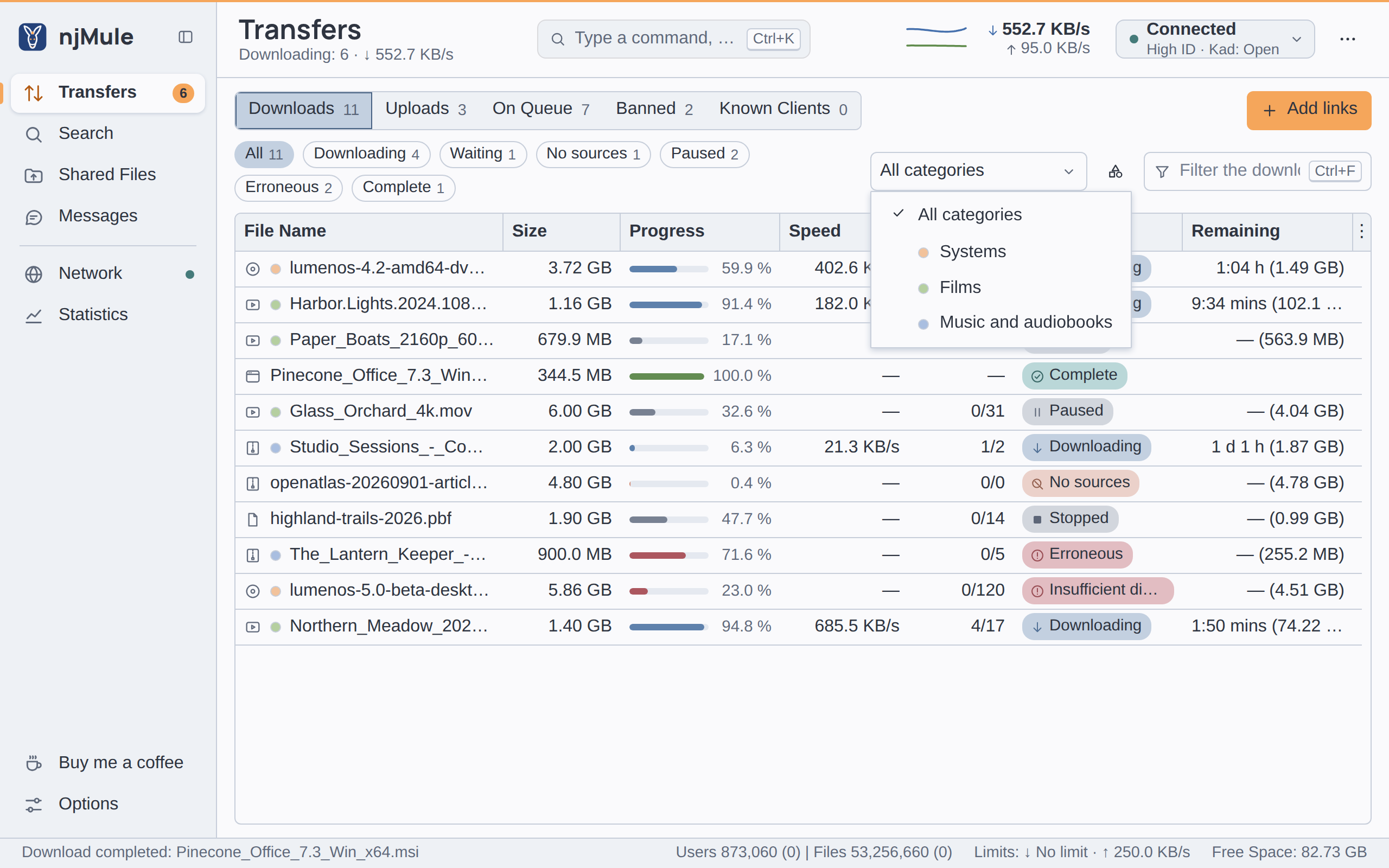
Open the Categories dialog with the button right of the category list (All categories) in Transfers.
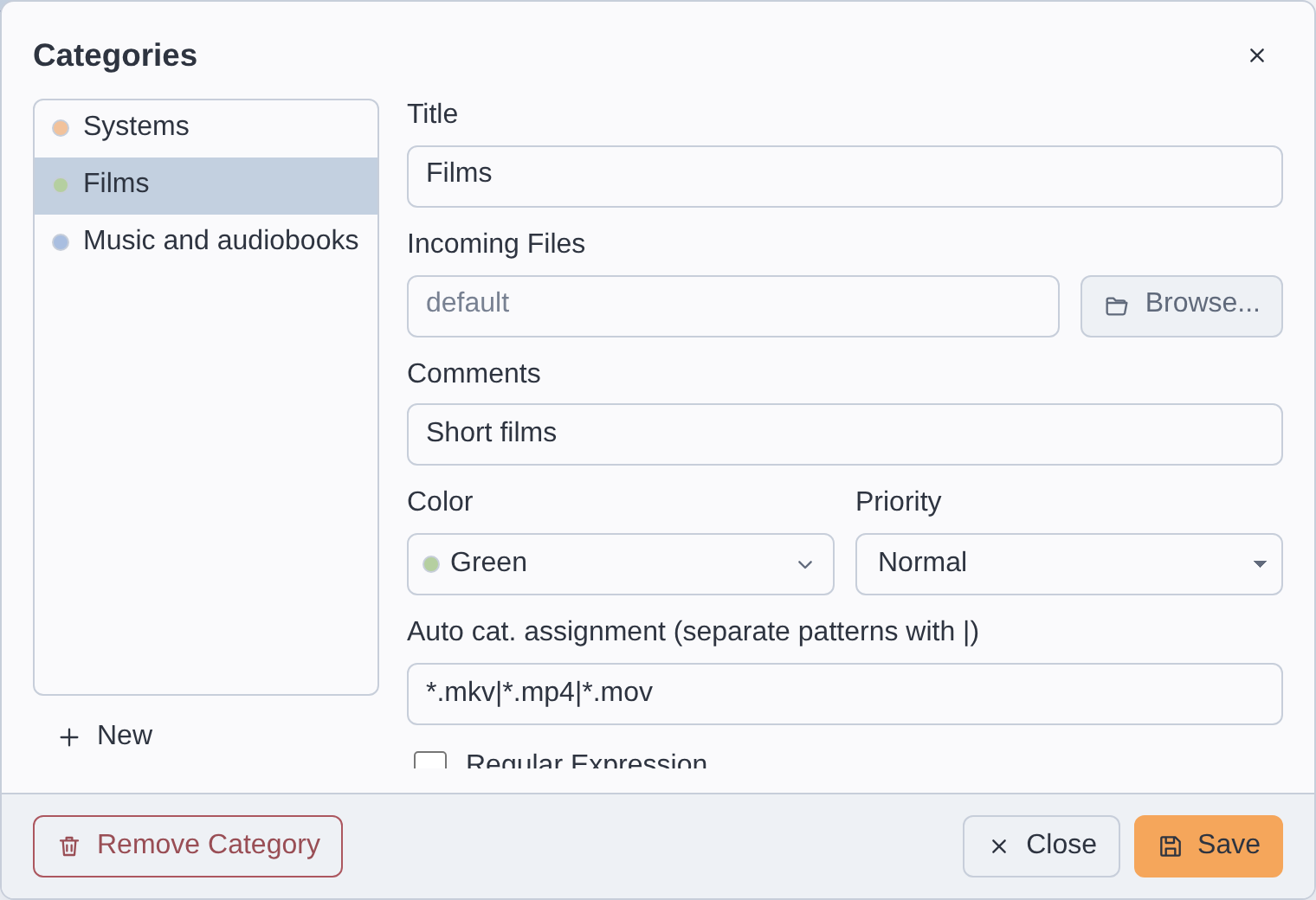
To create a category:
- Press New under the list: the form empties.
- Fill in the fields (see below); only Title is required.
- Press Save. The category joins the list.
To change one, choose it in the list, change its fields and press Save. To delete one, choose it and press Remove Category: its downloads stay, in no category, and the scheduler rules that named it forget it. A field whose value is not valid is marked, says what it takes, and keeps Save off.
| Field | What it sets |
|---|---|
| Title | The name of the category, 1 to 64 characters. |
| Incoming Files | Where its downloads go once complete. Empty (default) uses the incoming folder of the options. Type the path of a folder of njMule's computer, or choose one with Browse... in the desktop app on that computer. |
| Comments | A note of yours, up to 256 characters. |
| Color | None, Red, Orange, Yellow, Green, Teal, Blue, Purple or Pink: the dot that marks its downloads. The name of the category is always beside or under the dot, so the colour is never the only cue. |
| Priority | Low, Normal, High or Auto (the default): the priority a download takes when it is put in the category. Auto leaves the download's own priority. |
| Auto cat. assignment (separate patterns with |) | File name patterns that put new downloads in this category: see below. Up to 1024 characters. |
| Regular Expression | Reads the patterns as one regular expression. |
The categories are kept in categories.properties in the profile. Those of an eMule profile come
with the import, with their numbers, so eMule's downloads stay
in theirs.
Sorting new downloads by their names
When a download is added without a category chosen, njMule puts it in the first category, in the order of the list, whose patterns match its file name, and gives it that category's priority.
Patterns are separated by |, and case does not matter:
- A pattern with
*(any characters) or?(one character) must match the whole name:*.mkv|*.mp4takes the files ending in.mkvor.mp4. - A pattern without them must appear somewhere in the name:
ubuntu|debiantakes every name holding one of these words. - With Regular Expression ticked, the text is one regular expression that must match the whole
name,
|meaning "or":.*\.(avi|mkv)$takes the files ending in.avior.mkv.
This applies to every way of adding a download: a search result, a link clicked in a browser, dragged onto the window or pasted in the palette, and the links of the Add downloads dialog left on By the rules of the categories.
Categories in Transfers
- The category list (All categories) shows the downloads of one category only; choose All categories to see them all again. The downloads of a category show a dot of its colour before their name, and the name's tooltip names the category.
- Category in the menu of the downloads chosen moves them into a category, or out of any with (Unassign). A download moved into a category takes its priority, unless that is Auto.
- The Category column (hidden at first, in the column menu) names the category of each download.
- The Add downloads dialog offers a Category for the links you add: the one shown in the list at that moment, else By the rules of the categories; you can also choose (Unassign) or any category. See eD2K links.
Categories elsewhere
- The scheduler: a rule can stop the downloads of one category (Cat:Stop Downloads) and resume those of another (Cat:Resume Downloads, Uncategorized for the downloads in none) when it begins. See Scheduler.
- Starting the next download: when a download completes, Start next paused file when a file completes can start a paused one, of any category, of the same category first (Prefer same category) or of the same category only (Only in same category). See Directories.