Appearance and language
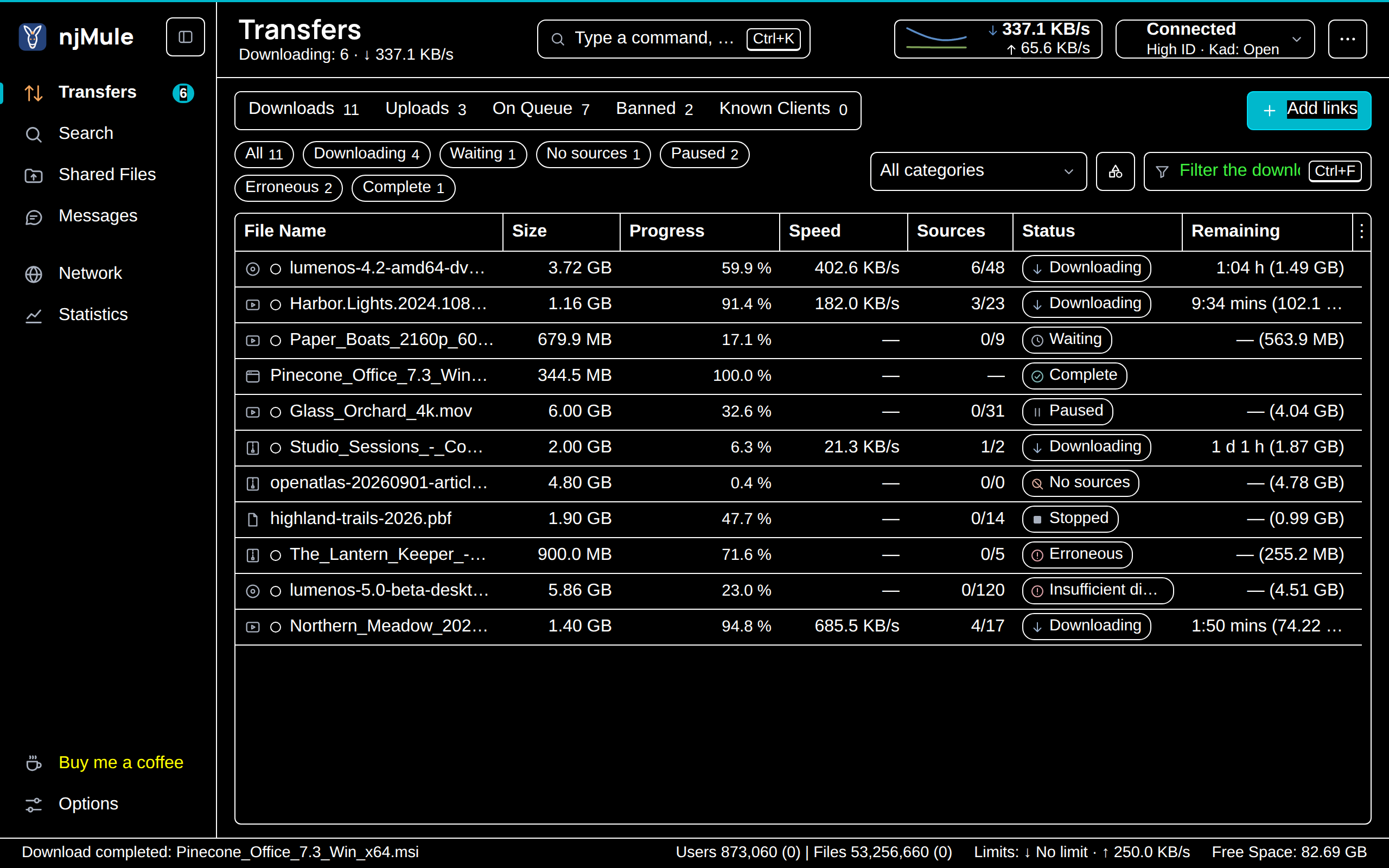
The look and the language of njMule's window are set in Options → General → Display. Both start as your system is: njMule follows its light or dark scheme and speaks its language when it is one of the 36 it has.
The window keeps both itself, not the engine: the desktop app keeps its own, and each browser that opens the web interface keeps its own, which follow the browser's scheme and languages until you choose others there.
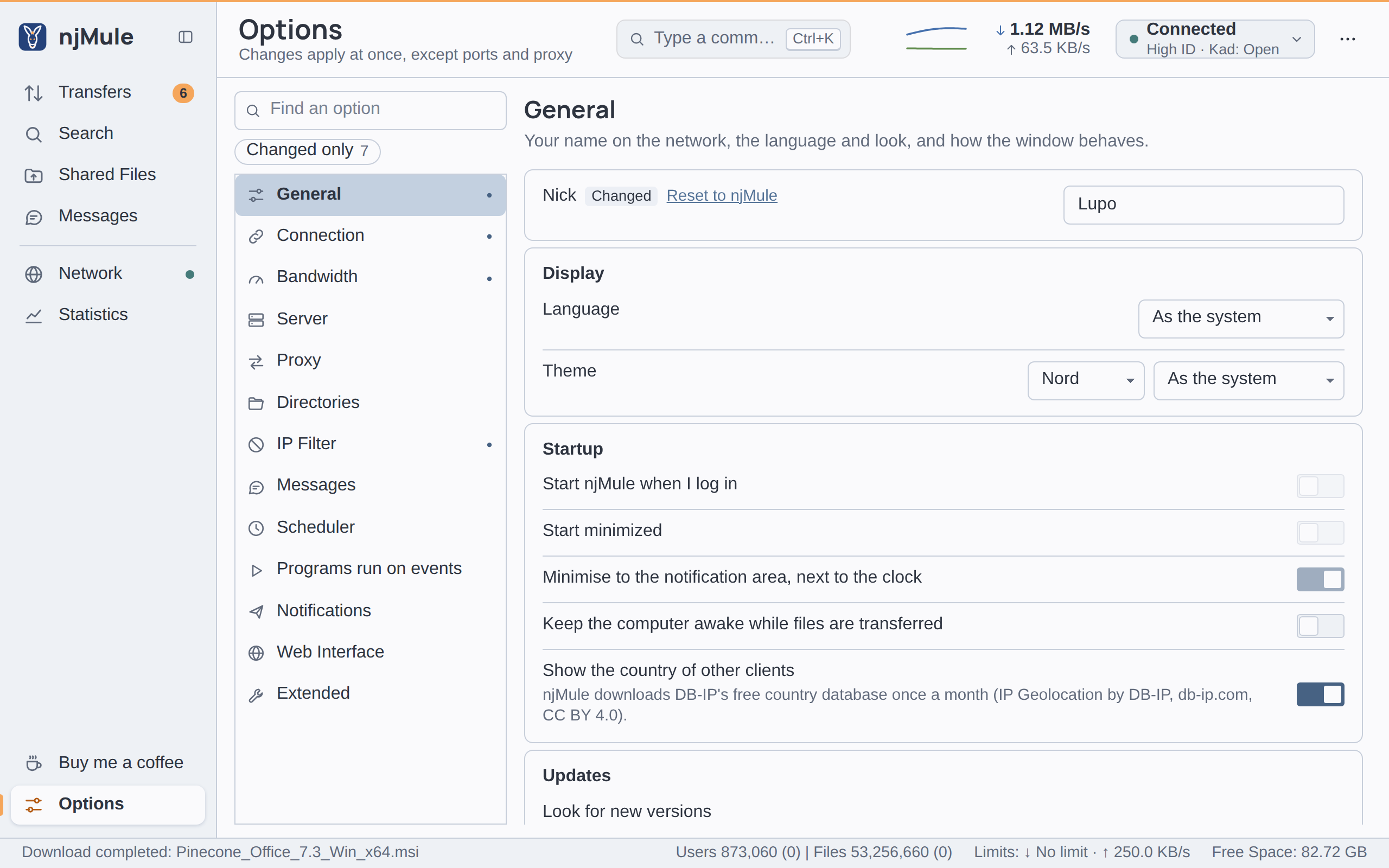
Theme
Theme has two lists:
- The family: Nord (the default), Primer, Cupertino or Dracula. Dracula exists in a dark version only.
- The mode: Light, Dark, or As the system (the default), which follows the light or dark scheme of your system as it changes.
A change applies at once, to the window and to the small windows of the notification area; other windows take it when they open next. ⋯ → Light or dark (also in the command palette) switches straight between the light and the dark version of your theme; it sets Light or Dark, so choose As the system in the options to follow the system again. The link Reset to Nord, As the system beside a changed theme brings the default back.
Whatever the theme, njMule keeps its own soft colours for the bars, charts and chips, in a light and a dark version, and makes sure text and marks stay readable: every theme is checked for the contrast of what njMule draws on it (WCAG 2.2 AA). Colour is never the only cue: states have words and icons, legends name what each colour means.
Windows high contrast
When a high contrast theme of Windows is on, njMule takes the system's colours for everything: the window, the text, the selection, the links, the greyed-out text, the part bars and the graphs. It is light or dark as the high contrast theme is, whatever the mode chosen, and follows the system at once when the theme changes or is turned off; your own choice of theme comes back then.
Language
Language lists As the system (the default) and the 36 languages, each named in its own words (Deutsch, Italiano, 日本語…). A new language waits for Apply and restart in the bar under the page (or Discard): the window is then built again in that language, while the transfers go on.
The 36 languages
English, Catalan, Czech, Danish, German, Estonian, Spanish, French, Galician, Italian, Latvian, Lithuanian, Hungarian, Dutch, Norwegian Bokmål, Polish, Brazilian Portuguese, European Portuguese, Romanian, Albanian, Slovenian, Finnish, Swedish, Vietnamese, Turkish, Greek, Bulgarian, Russian, Ukrainian, Arabic, Persian, Hebrew, Simplified Chinese, Traditional Chinese, Japanese and Korean.
With As the system, njMule speaks the first of your system's languages (a browser's own list in the web interface) that it has, and English when it has none of them:
- Chinese for Taiwan (
zh-TW) gets Traditional Chinese, any other Chinese Simplified Chinese. - Portuguese for Portugal (
pt-PT) gets European Portuguese, any other Portuguese Brazilian Portuguese. - Norwegian Bokmål (
nb) gets Norwegian Bokmål; Norwegian set asnoor Nynorsk (nn) is not one of the 36, so the next language of the list decides.
Sizes, rates and durations use the units of the language, as Ko/s in French. Numbers, dates and
times are written as the language writes them, Persian with its own digits.
Right-to-left languages
In Arabic, Persian and Hebrew the whole interface is mirrored: the window, its dialogs, the menus and the windows of the notification area. What reads left to right in any language stays so: paths, links, hashes, addresses, the numbers in lists, the logs, and the fields for links and addresses. File and user names read in the direction of their first letter. The part bars and the rate graph keep their direction, the start of a file and the past on the left; of the icons, only those that point the way text runs are mirrored.
Fonts and icons
Titles and the njMule wordmark are set in Manrope, which comes with njMule. All other text uses your system's font, which covers every script of the translations. The icons are njMule's own line icons, drawn in the colour of the text beside them in every theme.
Screen readers
Screen readers hear the progress bars as progress with their value, the state chips, the file names and the outcomes in the lists as words, and the rate graph of the statistics as a sentence with the rates now and the highest.